To add charge rates for a client, follow these steps:
1. Navigate to the client tab from the main menu
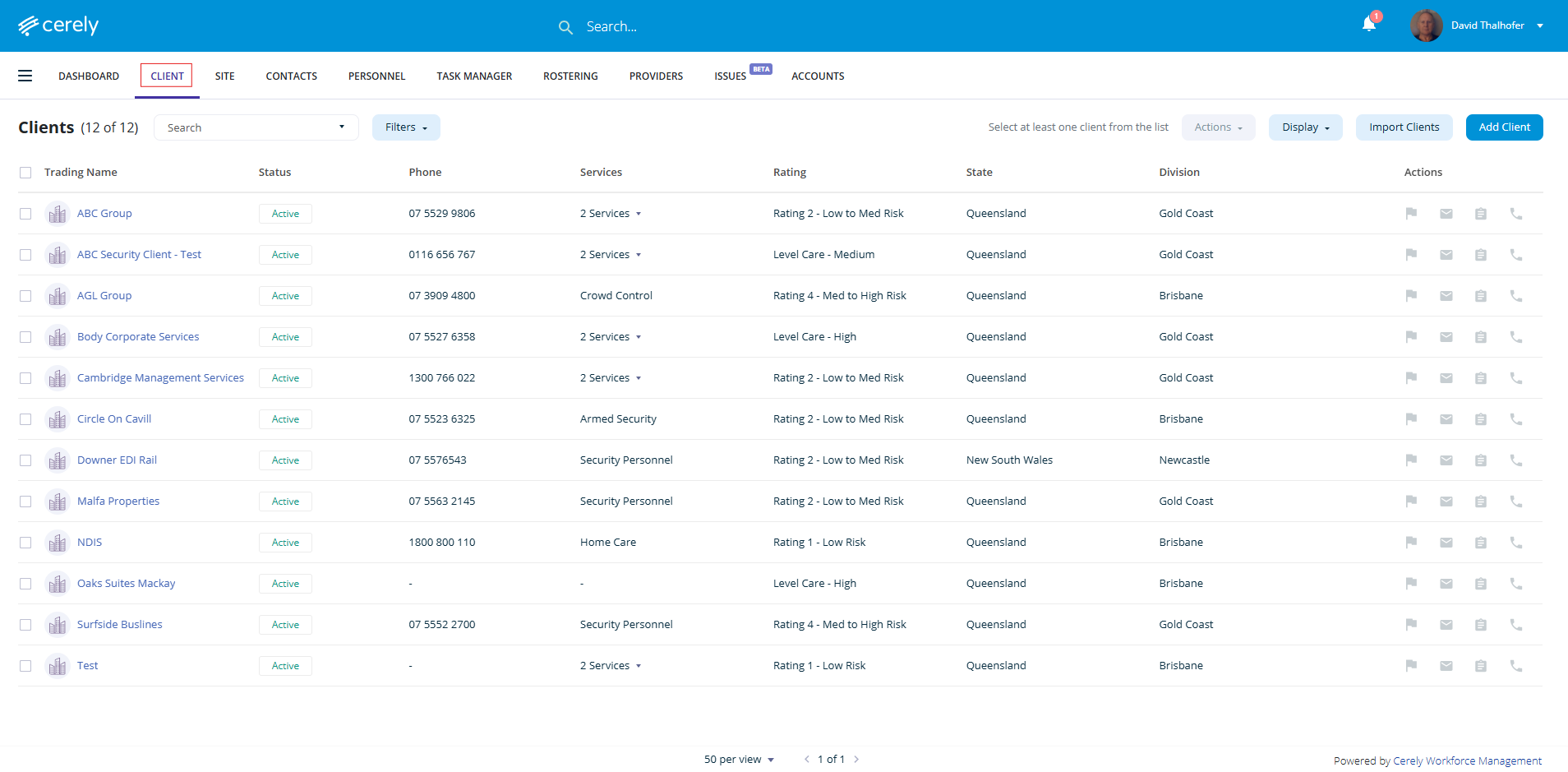
2. Select the client from the list
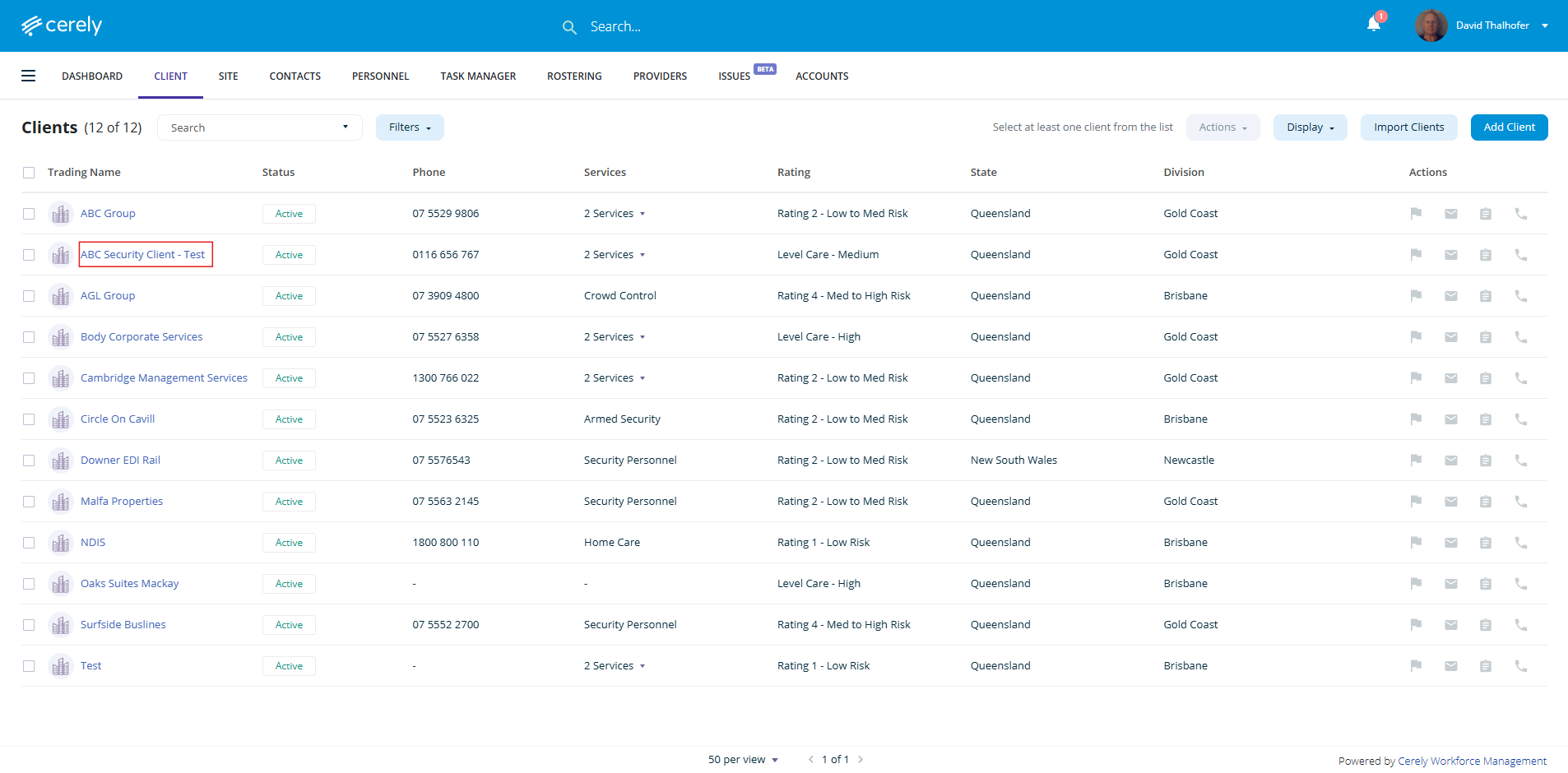
3. From the left-hand menu, select the financial details tab
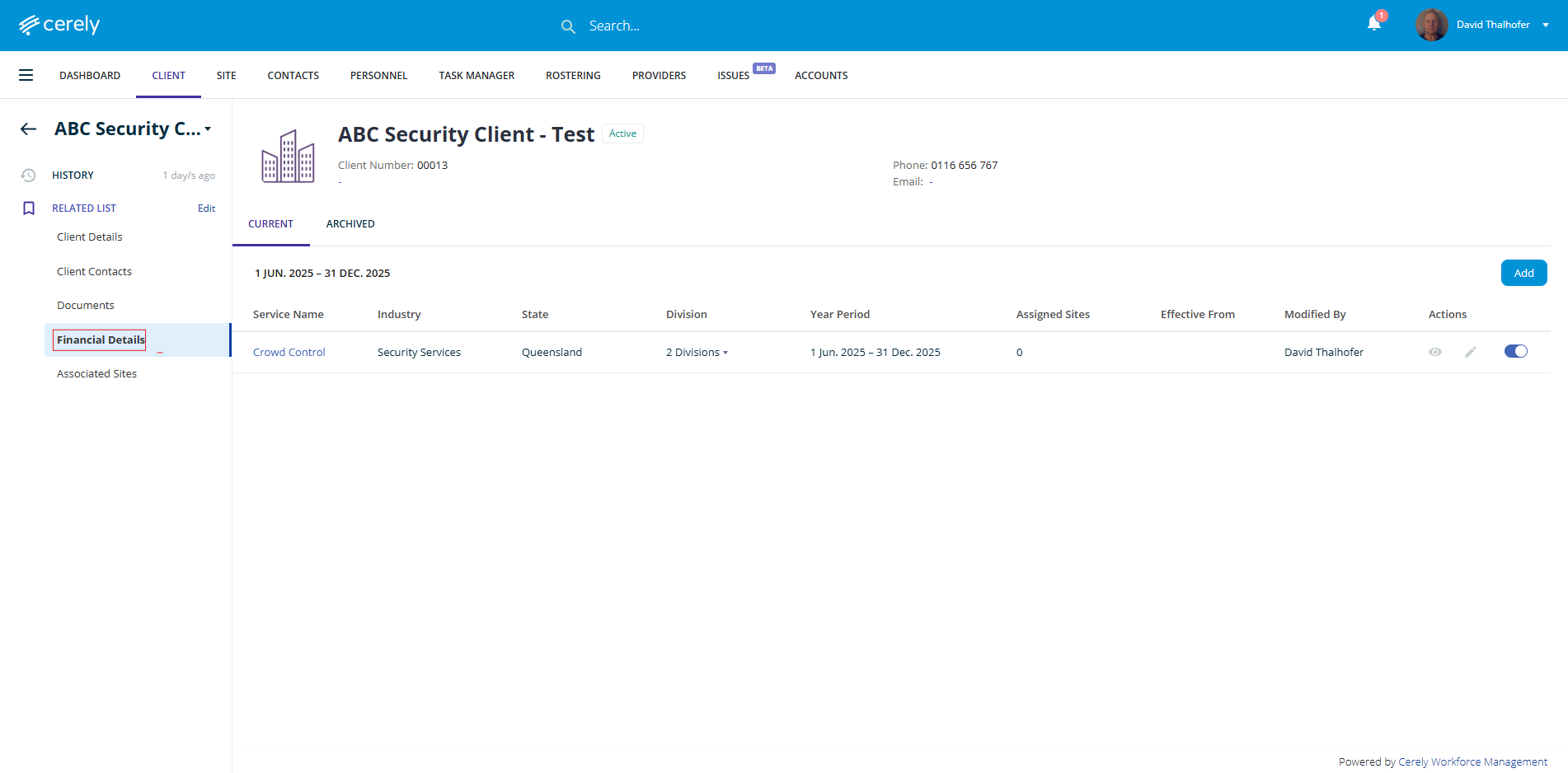
4. Click the add button
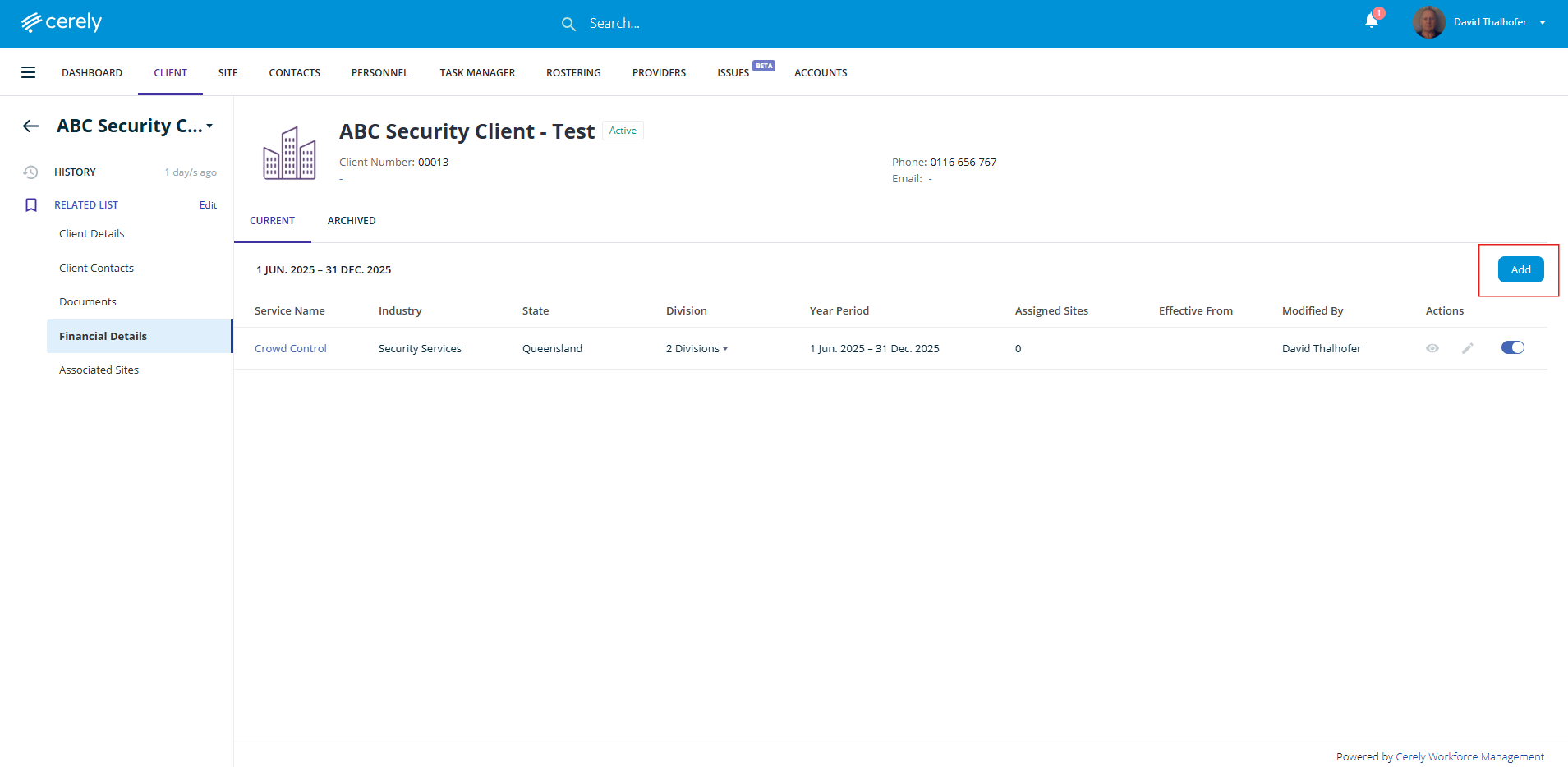
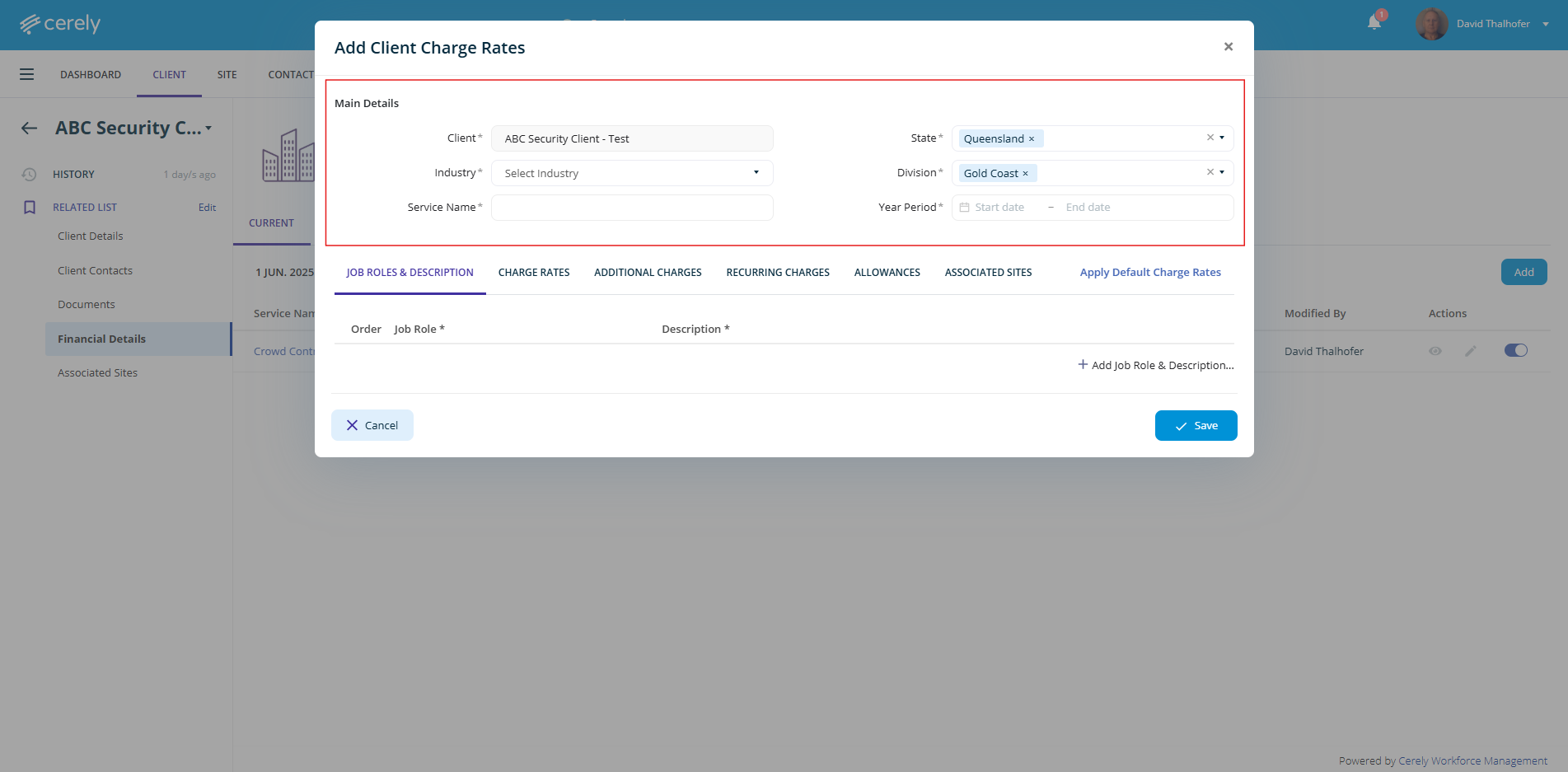
5. Complete all mandatory information fields
Important: The mandatory fields State and Divisions will act as filters when applying charge rates to sites
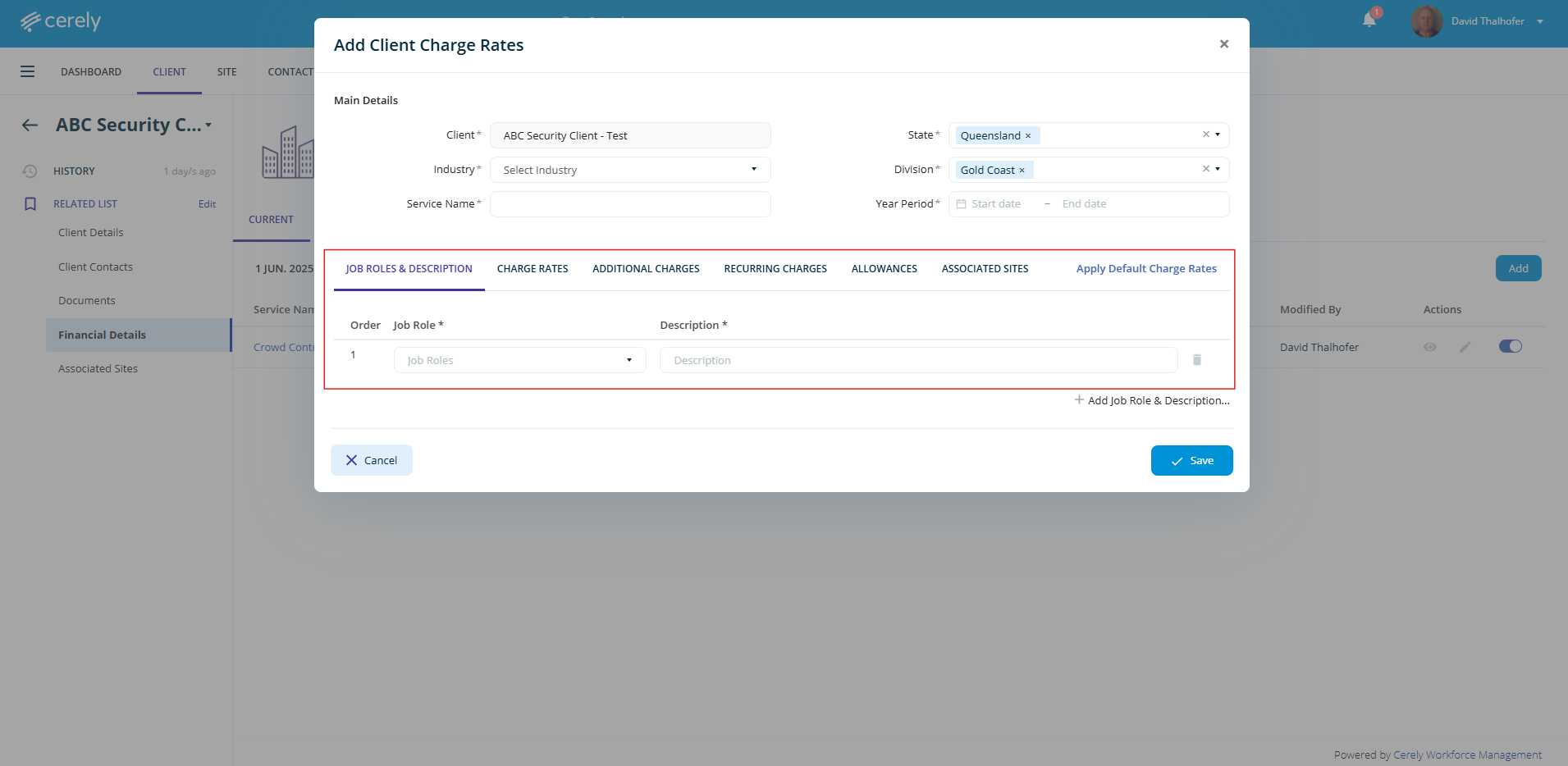
6. Enter the job role and descriptions
Important: These fields will pull through to the client invoice for billing
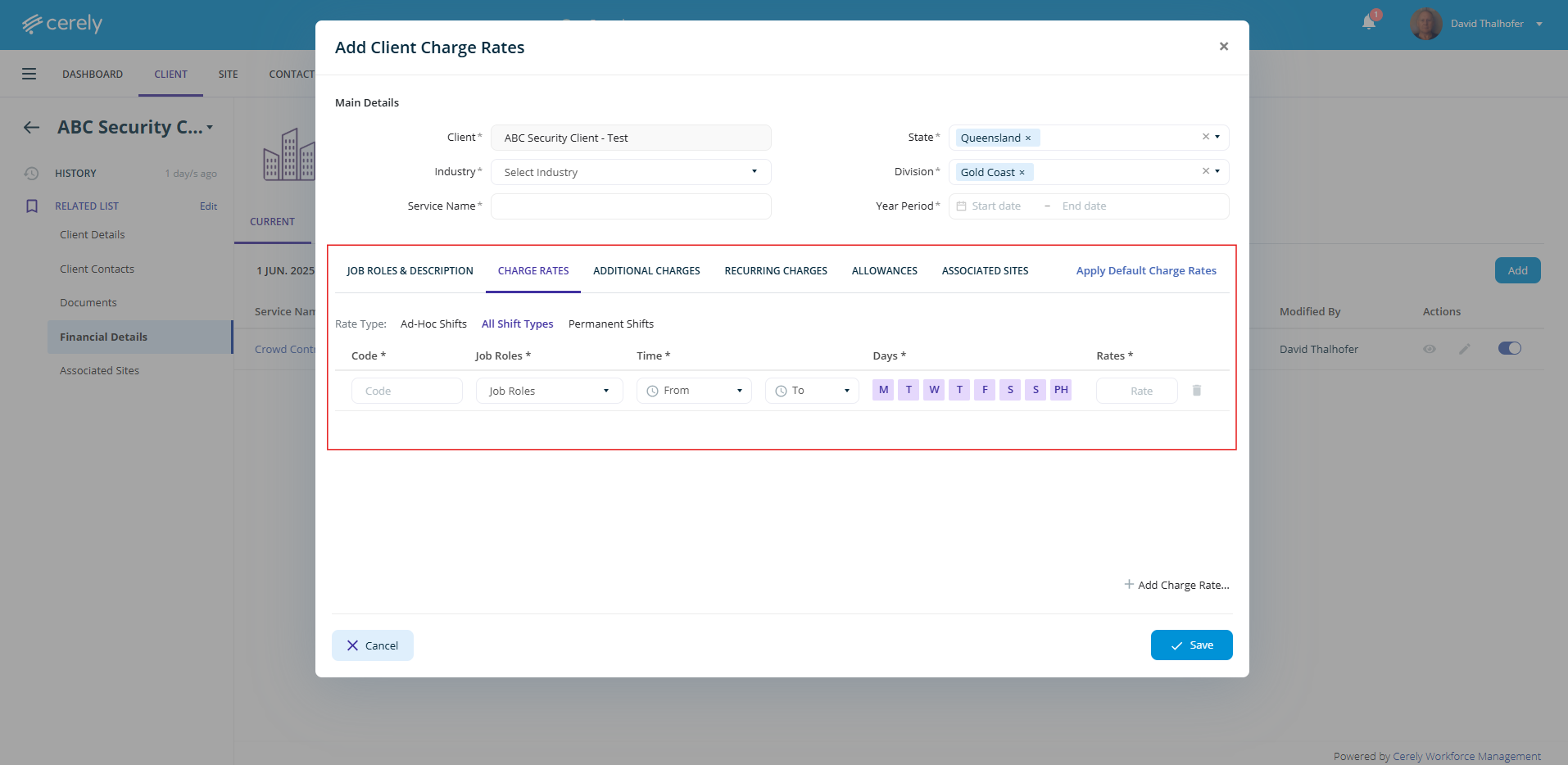
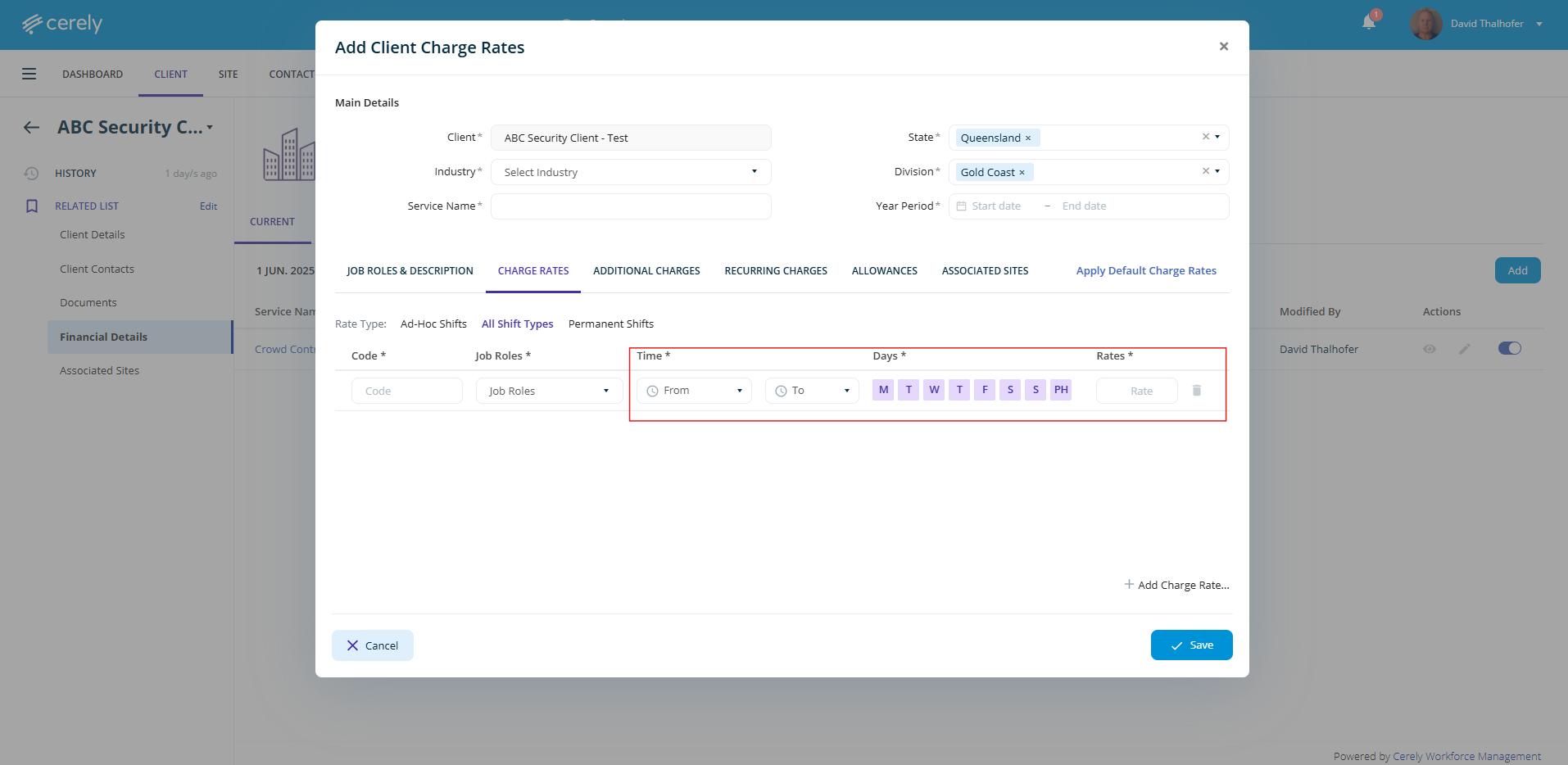
7. Move to the charge rates tab and enter the relevant charge rates as per your contract with the client (e.g., Ad-Hoc or All Shift Charge Rates)
8. Select the job role from the dropdown. Enter the code for the charge rate to match your accounting system (e.g., MYOB or Xero)
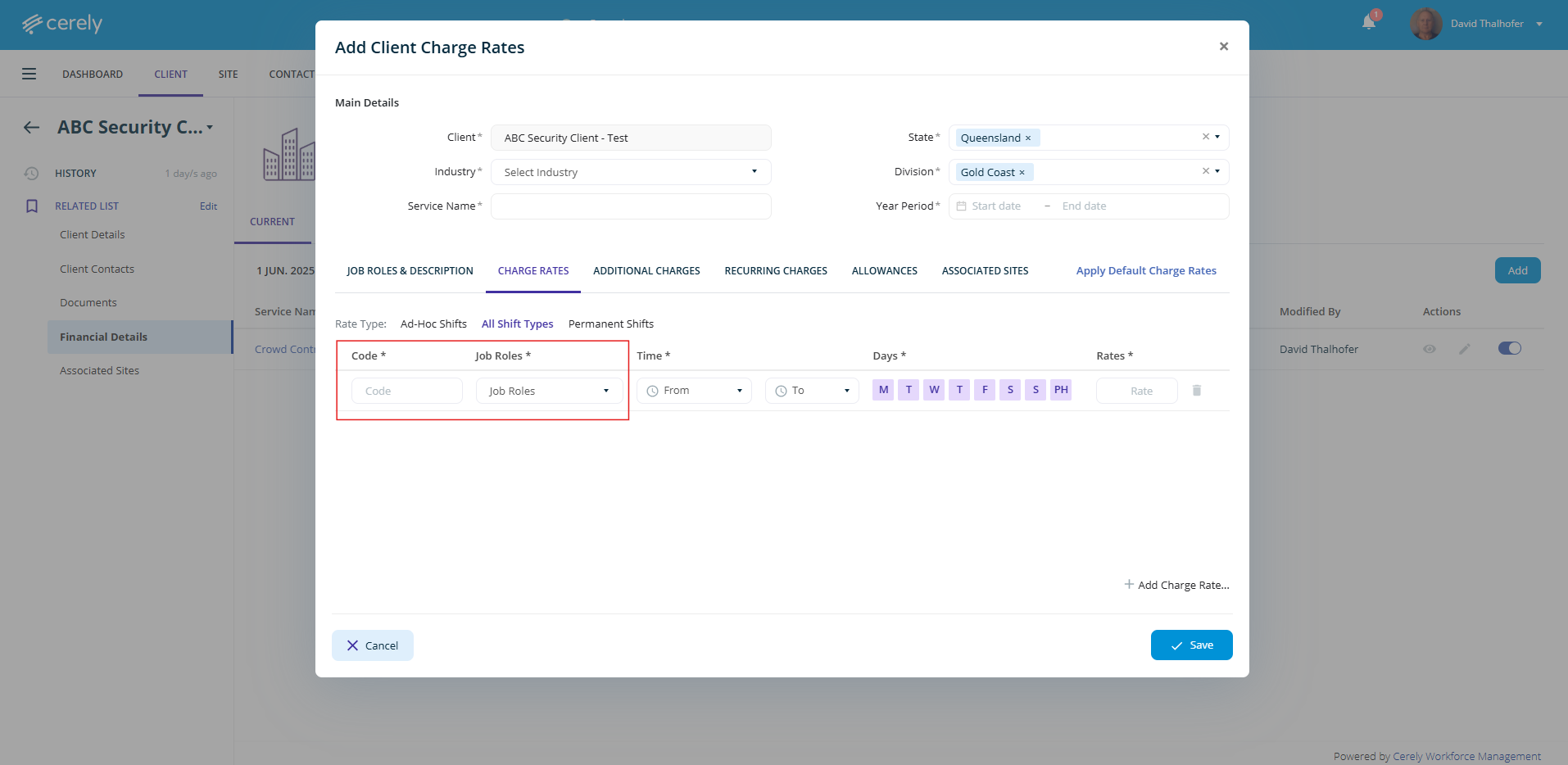
To find the codes in your Xero Accounting System:
Log in to your Xero account.
Navigate to Accounting > Chart of Accounts.
Locate the relevant Sales or Revenue account.
Use the account code listed next to the account description and enter it in this field.
To find the codes in MYOB Accounting System:
Log in to your MYOB account.
Go to Accounts > Accounts List.
Select the Income or Sales tab.
Identify the relevant account and note its account number.
Enter this account number in the code field.
9. Specify the time from, time to, applicable days, and the relevant charge rate that applies
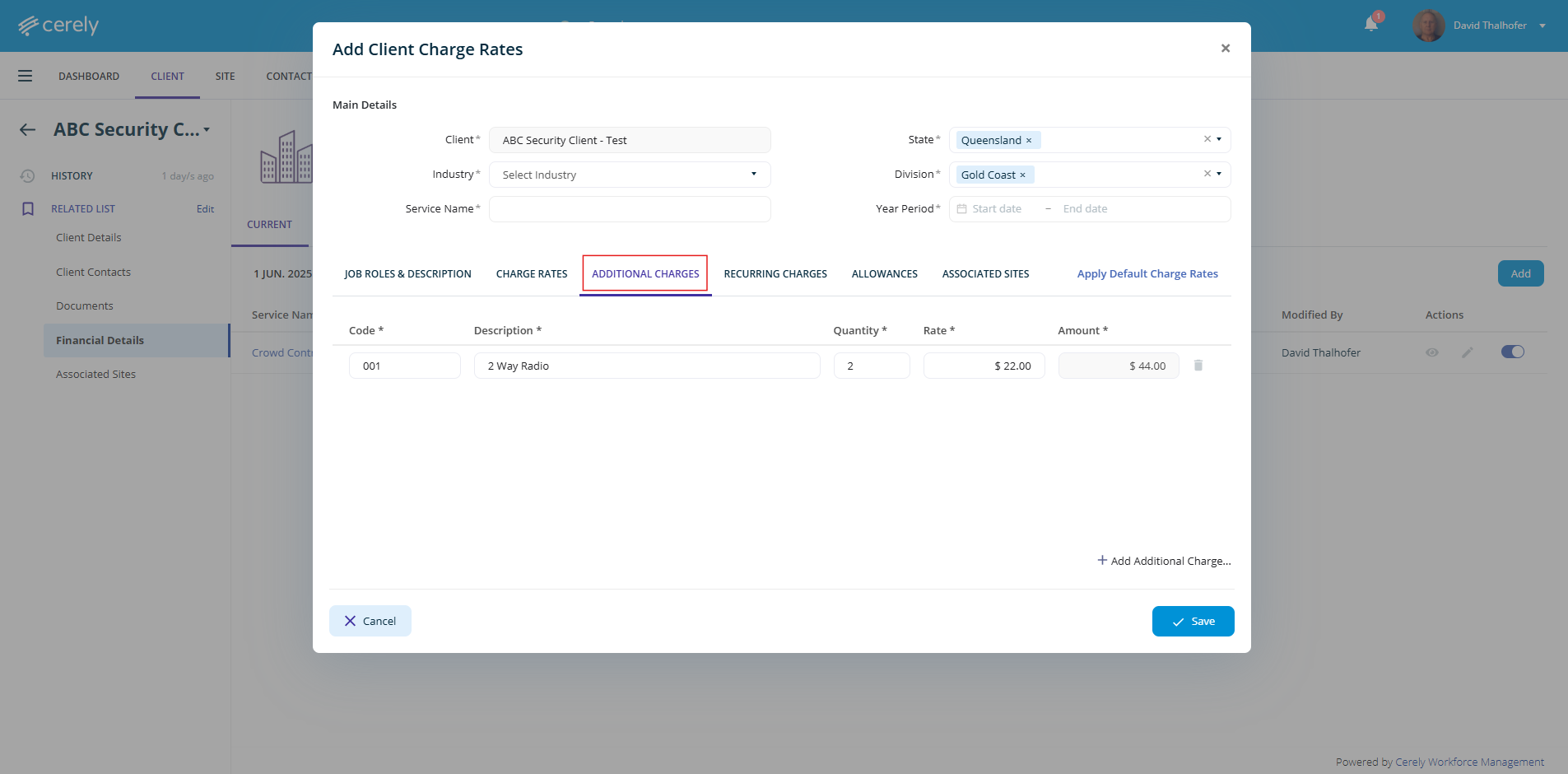
10. Include any additional charges (e.g., two-way radios)
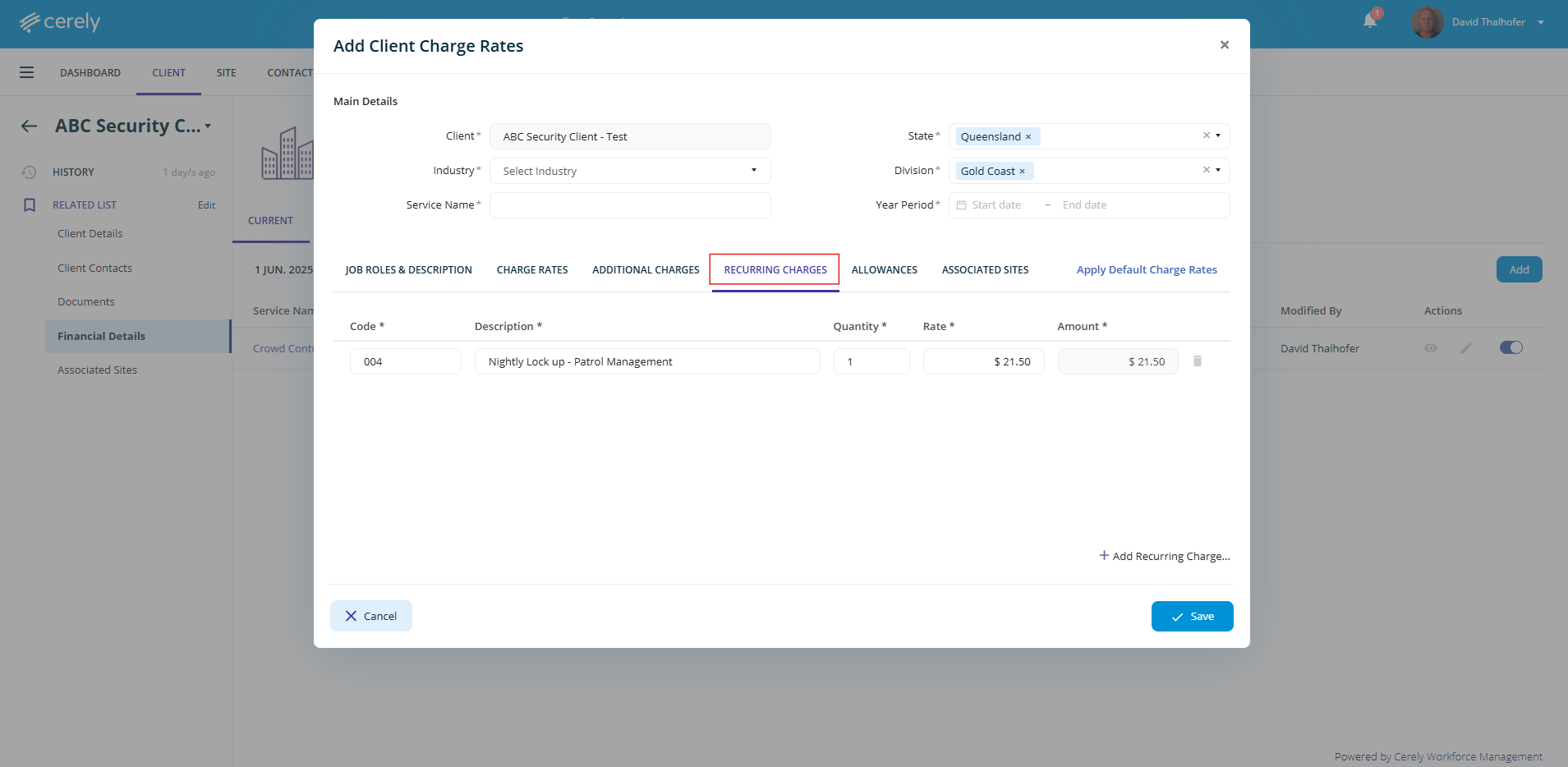
11. Enter recurring charges—these are billable items regardless of whether a guard or shift is scheduled (e.g., recurring monthly invoices)
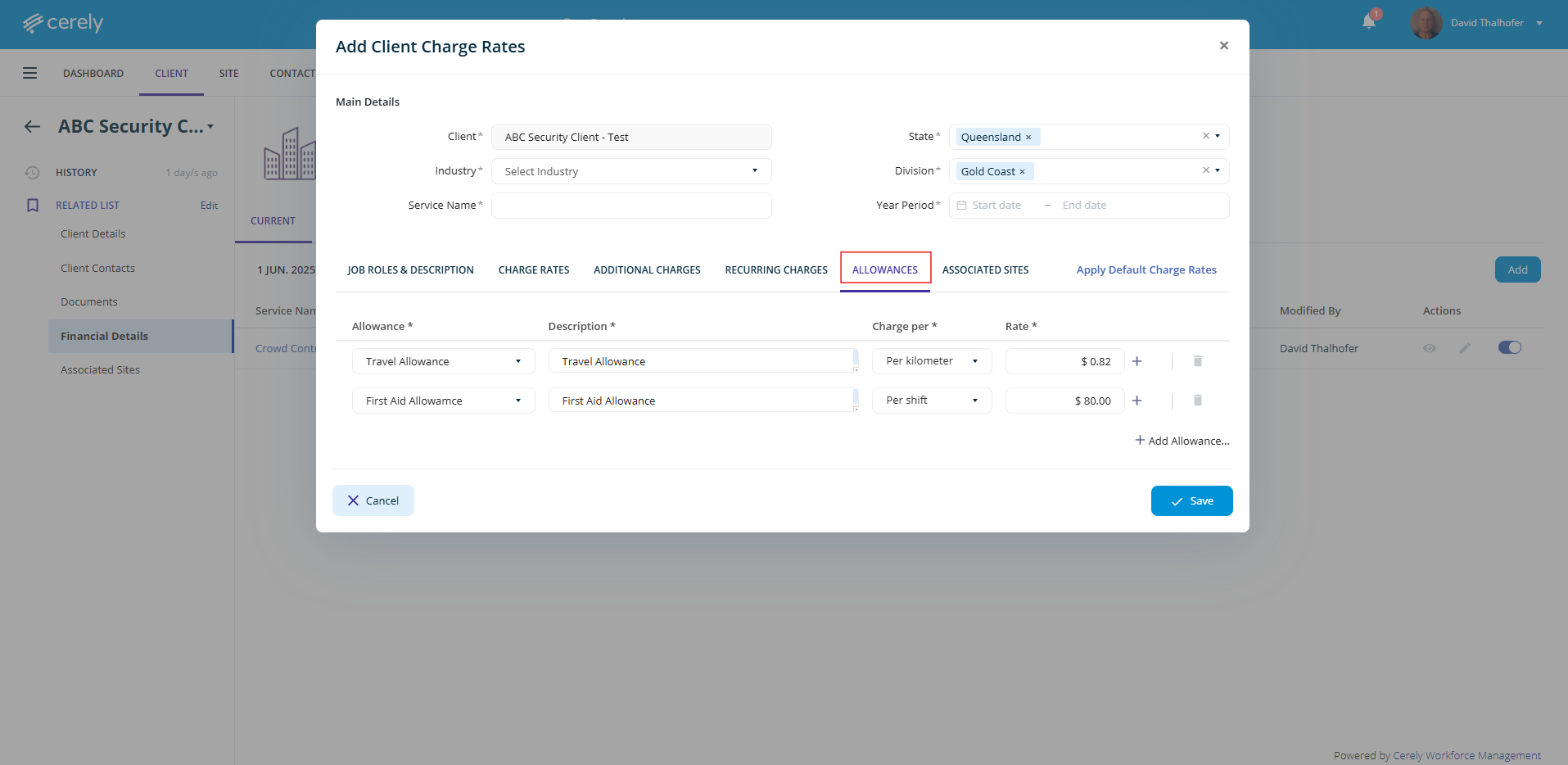
12. Specify applicable allowances (e.g., travel allowance, food allowance)
13. Associated sites will appear automatically once the charge rates are applied to the respective sites.
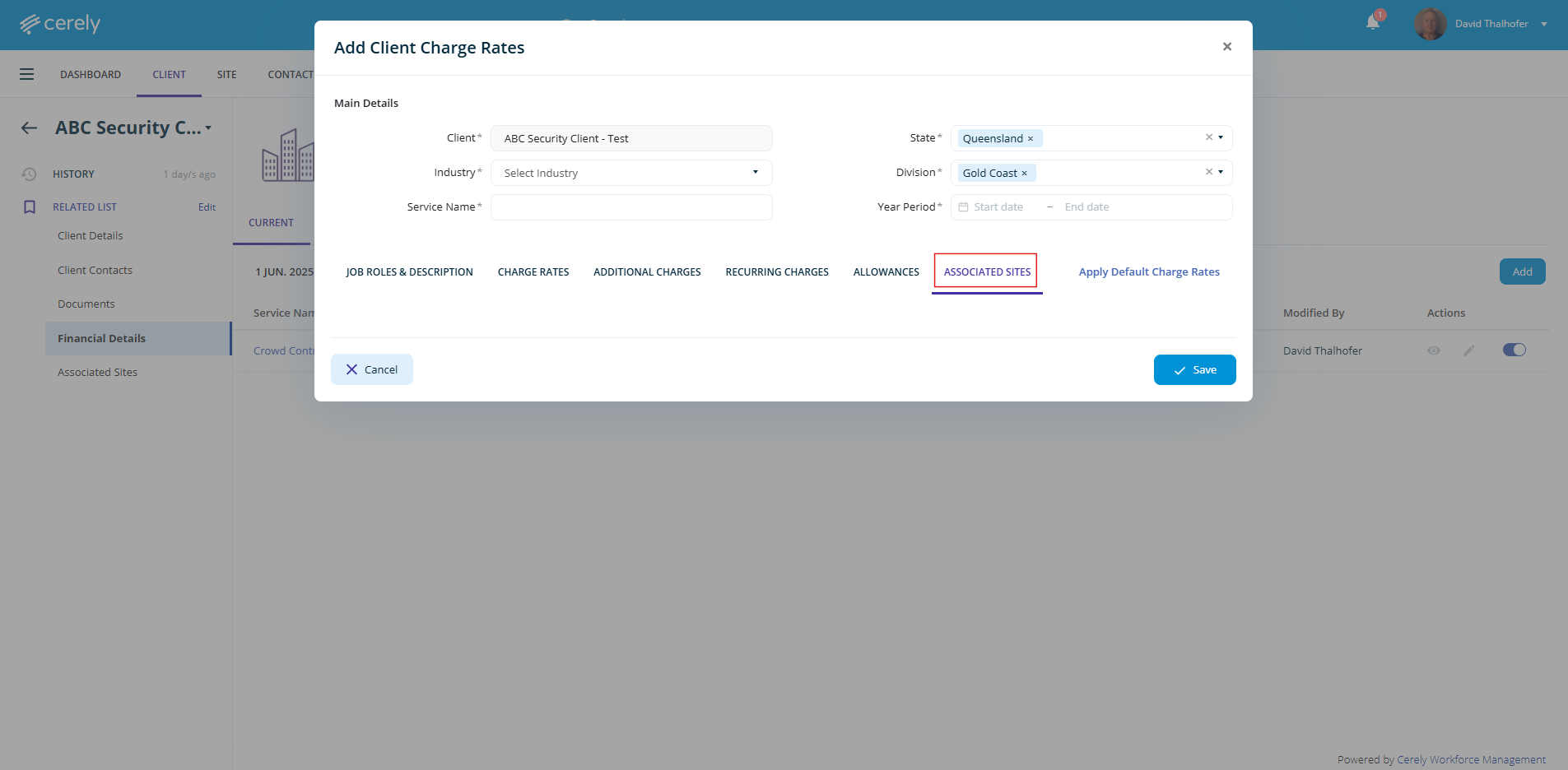
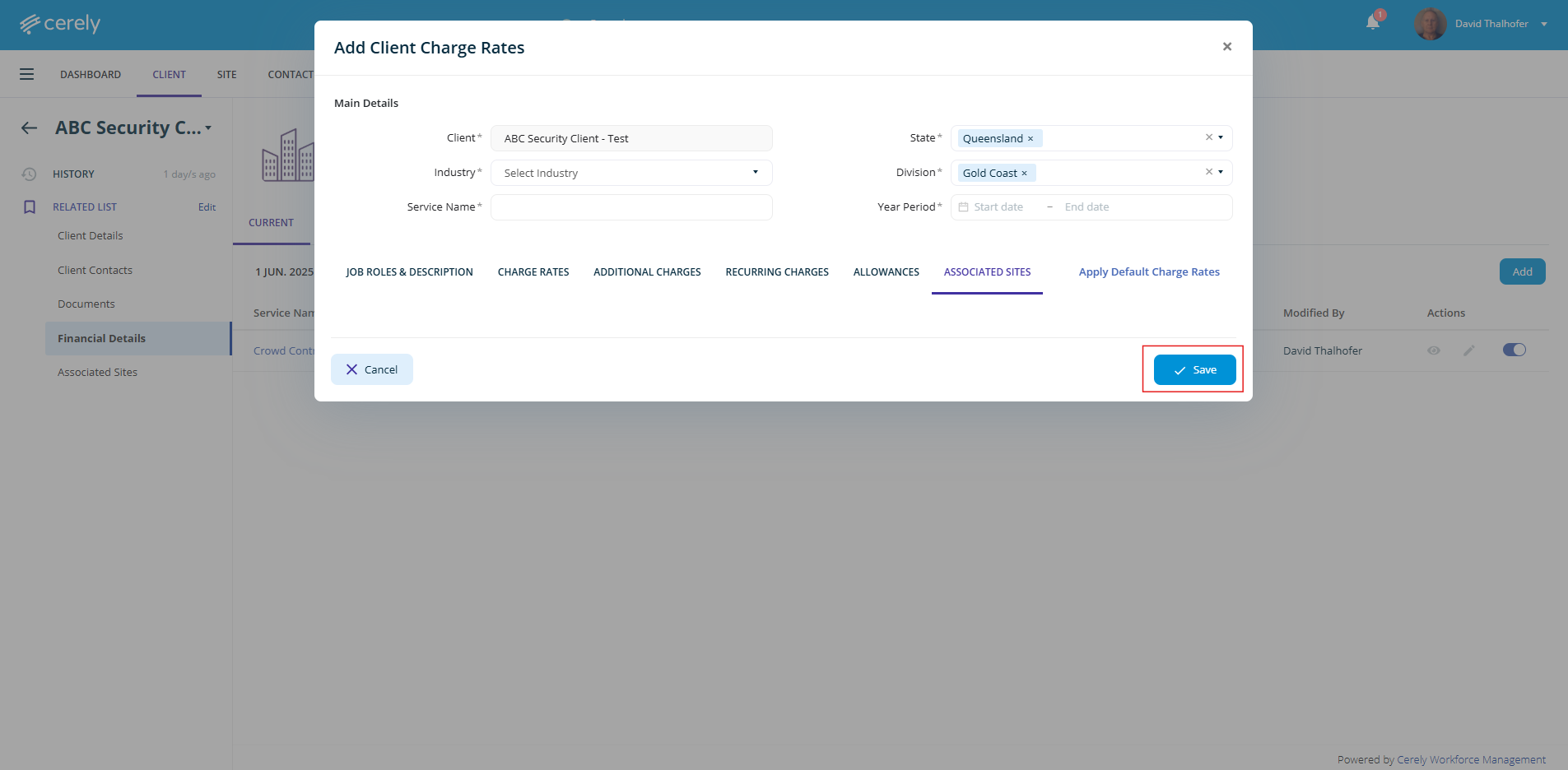
14. Click the save button
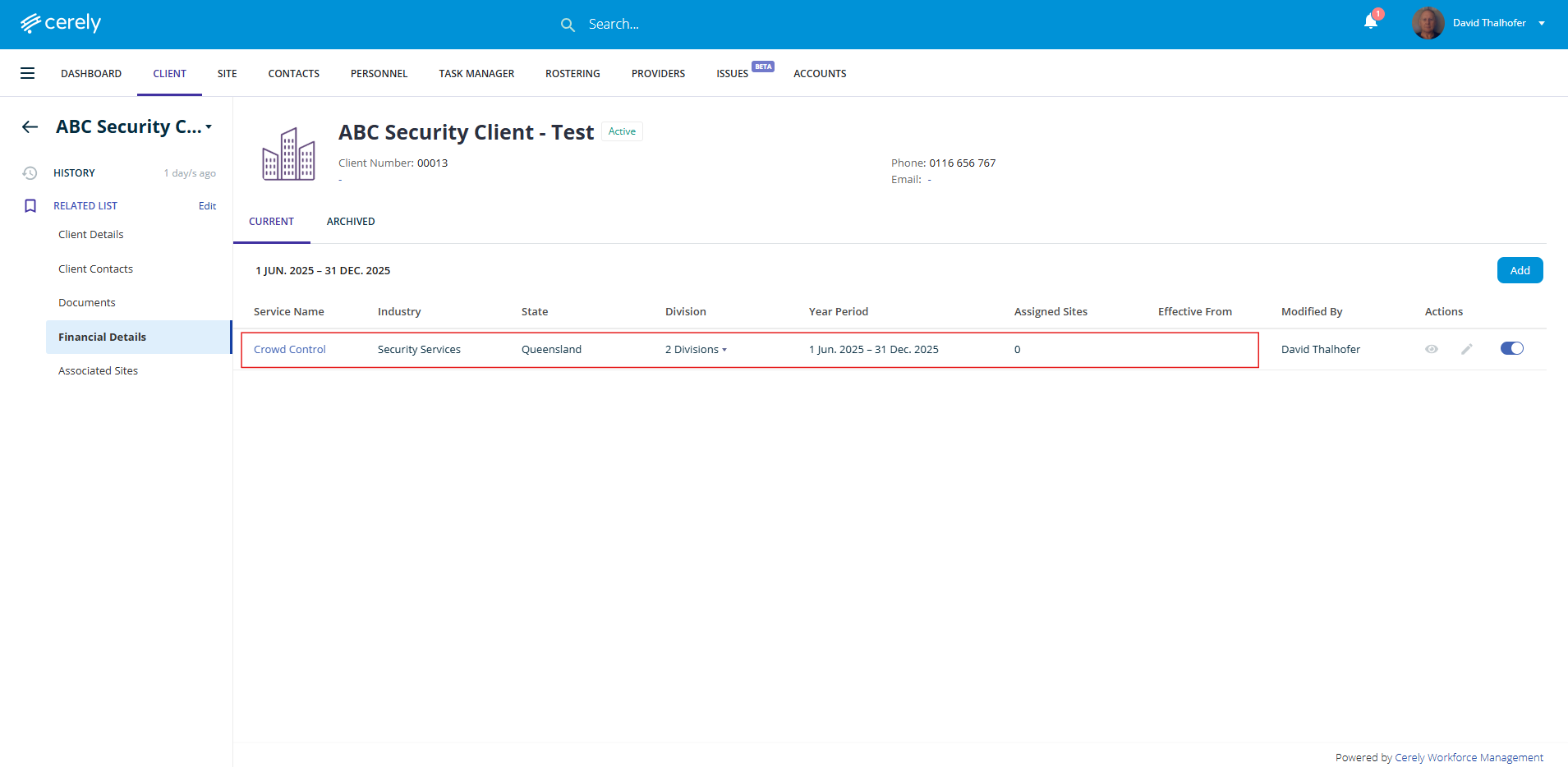
The charge rates will now display in the client's financial details list
Note: After adding charge rates, you must apply these rates to the associated sites. For instructions, refer to: How to apply charge rates to associated sites
Was this article helpful?
That’s Great!
Thank you for your feedback
Sorry! We couldn't be helpful
Thank you for your feedback
Feedback sent
We appreciate your effort and will try to fix the article