To apply existing client charge rates to specific sites, follow these steps:
1. Navigate to the Sites tab from the main menu
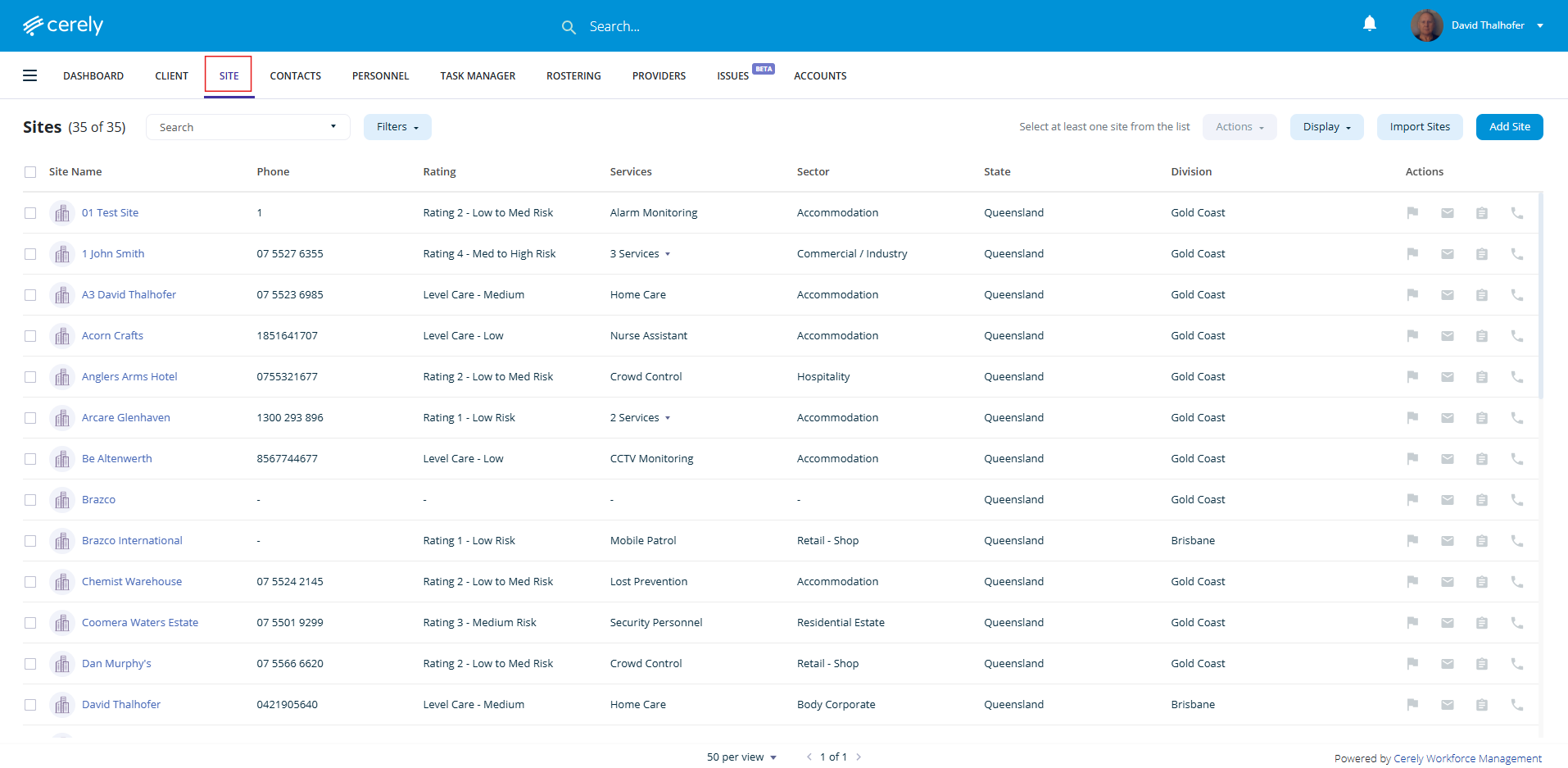
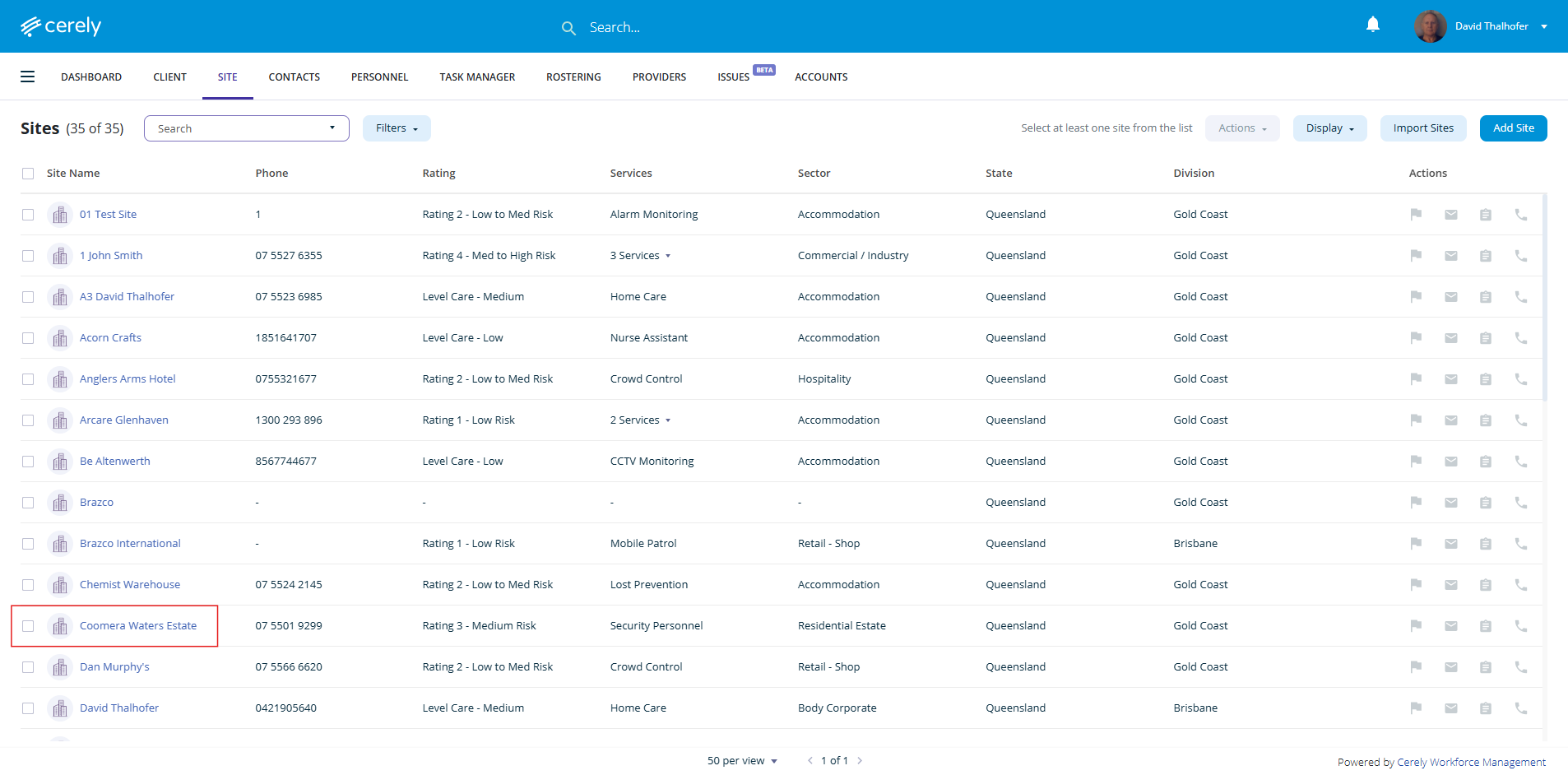
2. Select the Site you wish to apply the charge rates to from the list
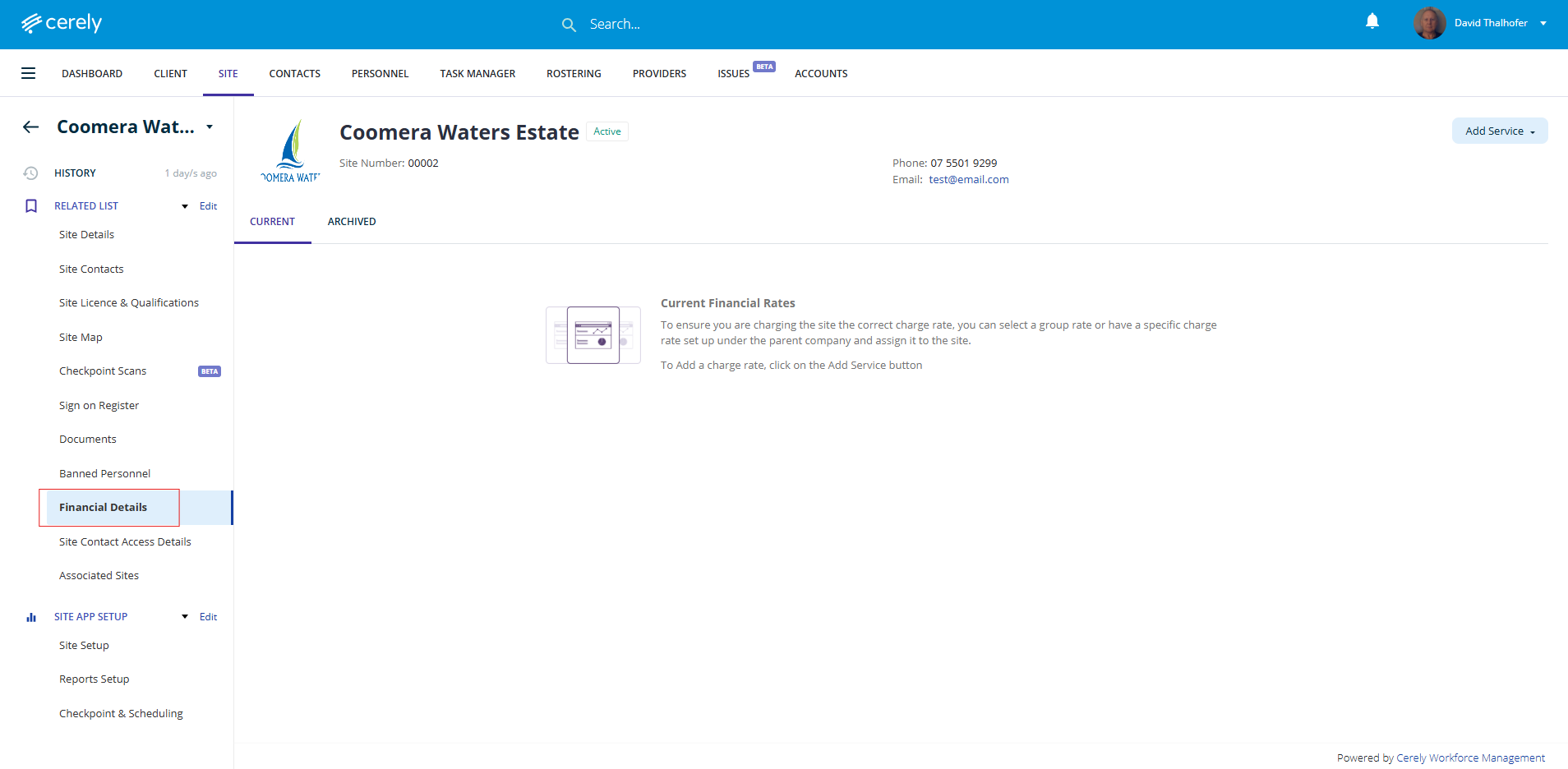
3. From the left-hand menu, select Financial Details
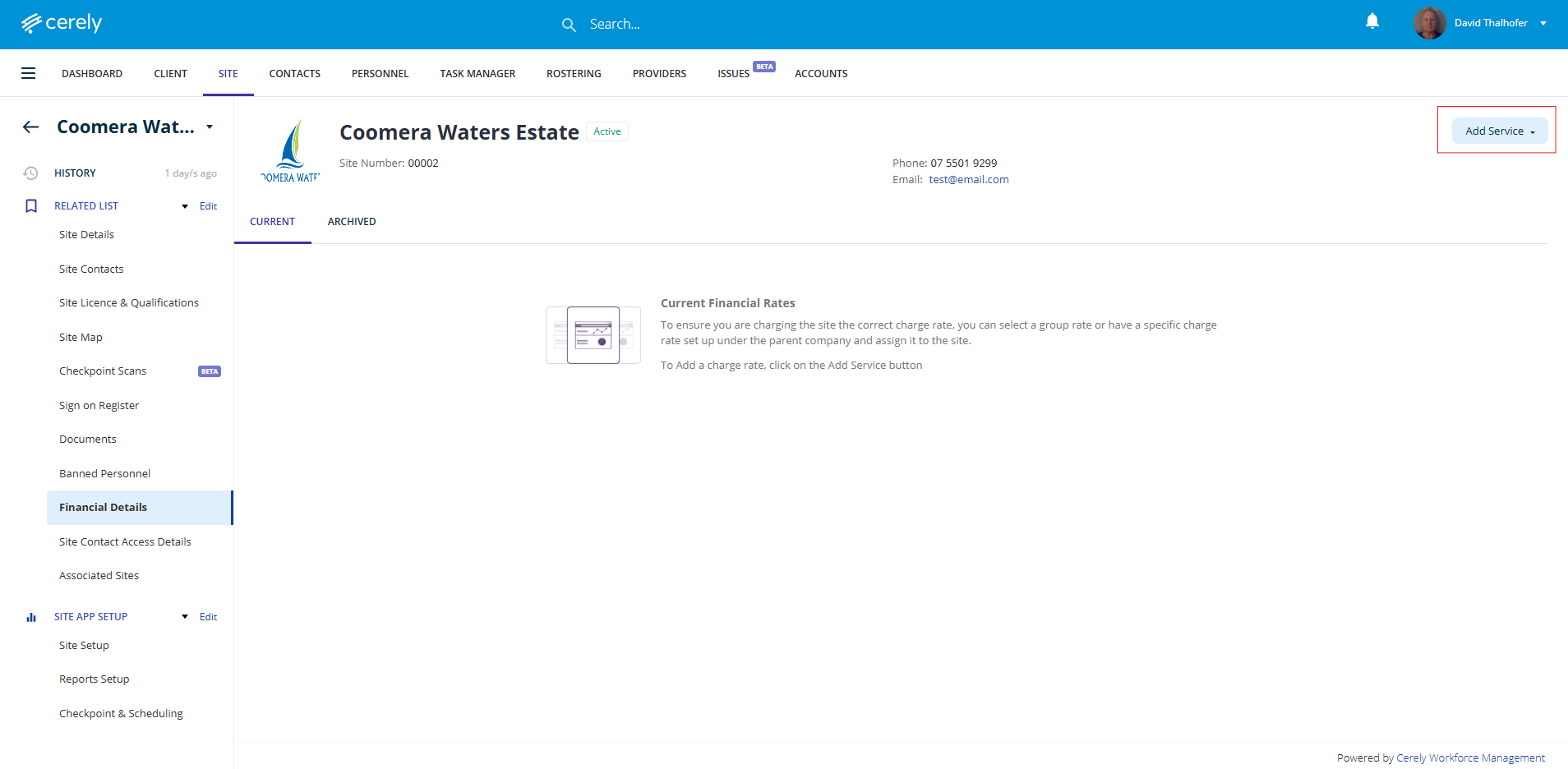
4. Click on the Add Service button on the right hand side
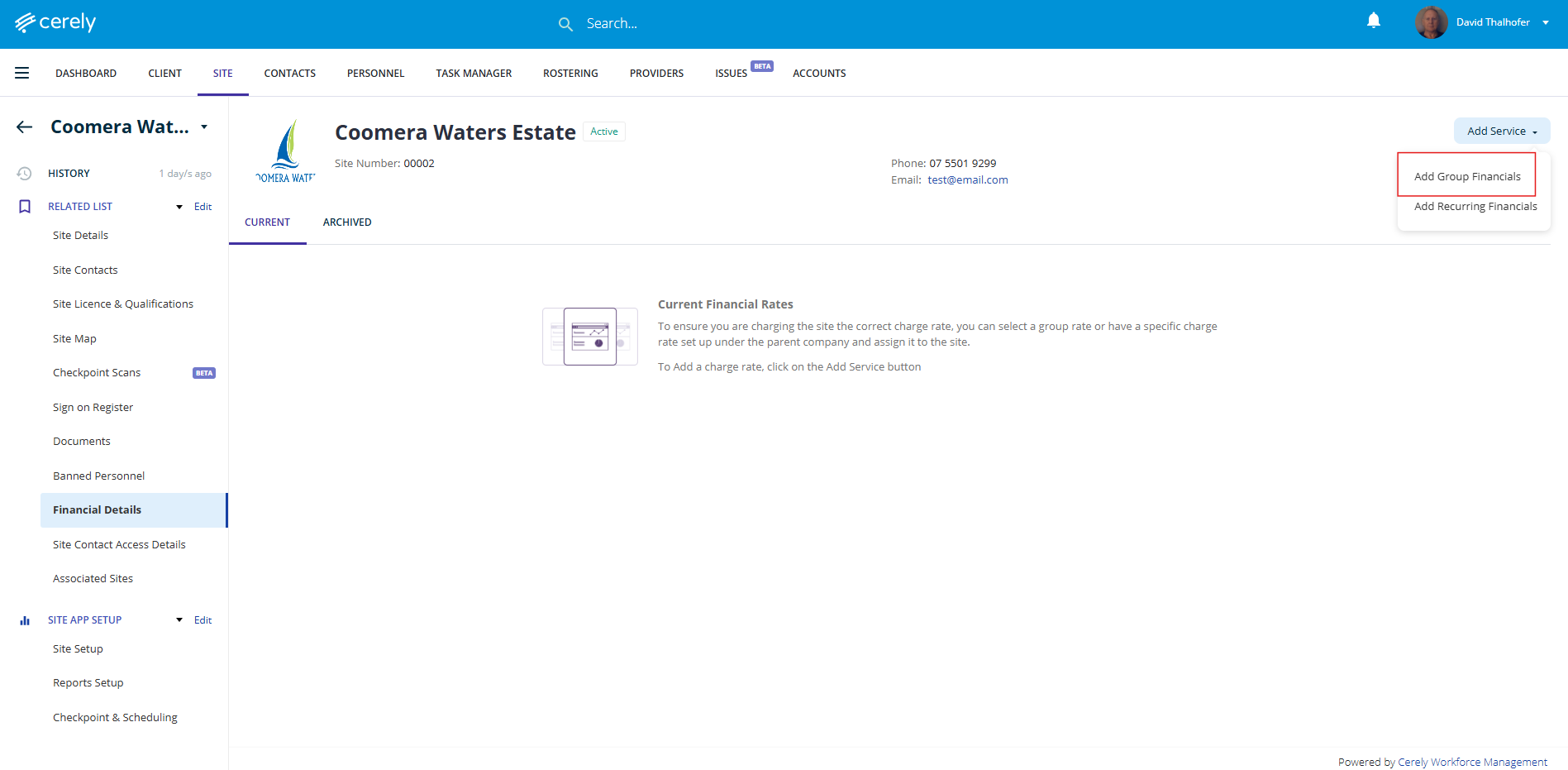
5. Select the Add Group Financials button on the right hand side
6. Choose the Billing Company from the dropdown list. Complete all required billing fields for the client
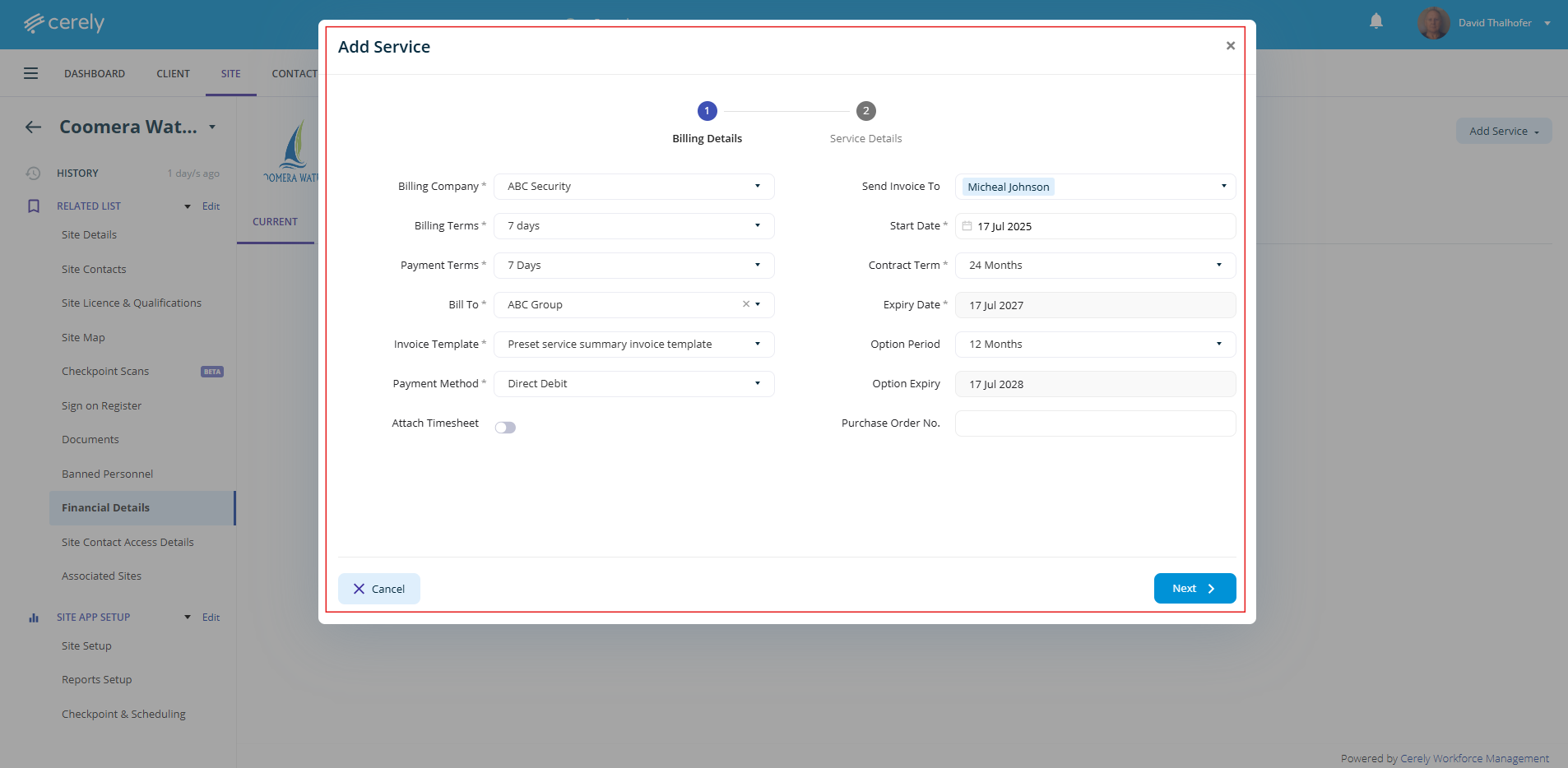
| Field | Description |
|---|---|
| Billing Company | Select the entity responsible for invoicing |
| Billing Terms | Define the contractual billing frequency (e.g. weekly, monthly) |
| Payment Terms | Set the number of days until payment is due after invoice generation (e.g. 7 days, 14 days) |
| Bill To | Select who the invoice will be addressed to (usually a contact name or company) |
| Invoice Template | Choose the template style used for generating invoices |
| Payment Method | Indicate how the client prefers to make payments (e.g. EFT, Credit Card) |
| Attach Timesheet | Select Yes or No depending on whether a timesheet should be included with the invoice |
| Send Invoice To | Select or add multiple email addresses that should receive the invoice |
| Start Date | Enter the start date of the billing contract |
| Contract Term | Define the length of the billing contract (e.g. 6 months, 12 months) |
| Expiry Date | Enter the end date of the billing contract |
| Option Period | Optional – Enter any agreed-upon extension period |
| Option Expiry | Optional – Enter the expiry date for the option period |
| Purchase Order No. | Optional – If required, enter the client’s purchase order number for billing reference |
7. Click the Next button
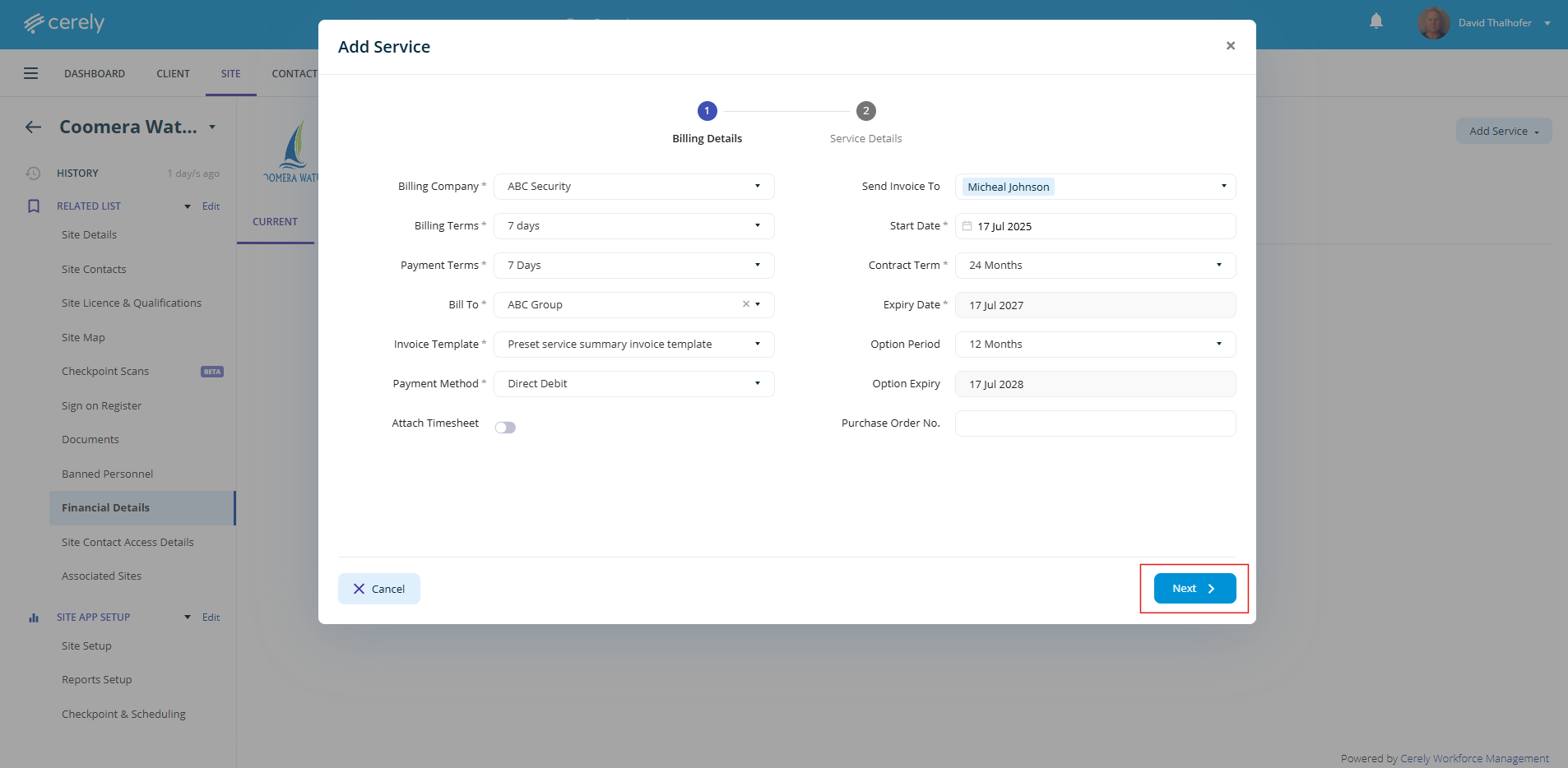
8. Select the appropriate Industry and Service Name from the dropdown menu
Note: Selecting the service name will automatically pull through the relevant Job Roles and associated Charge Rates
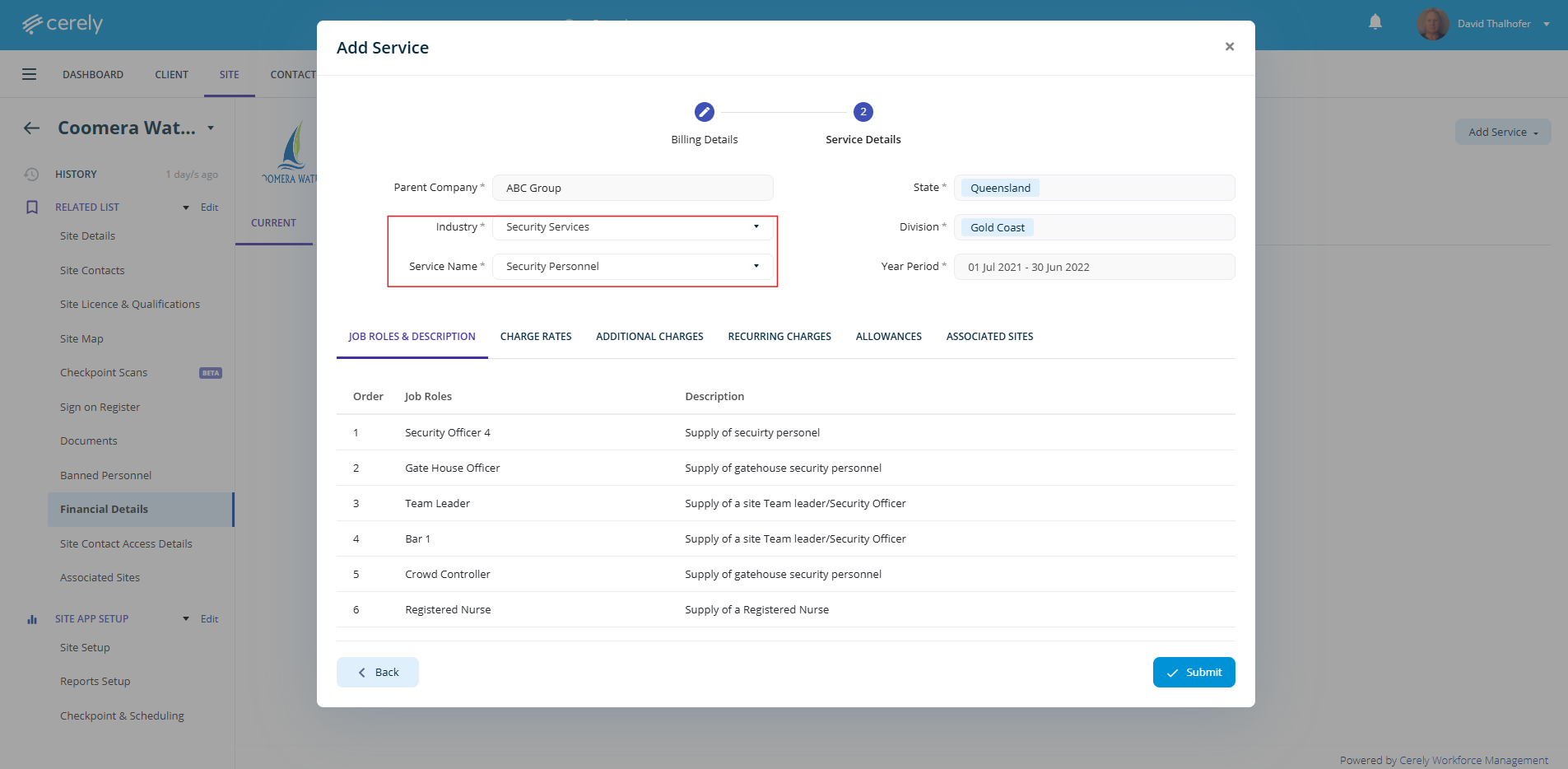
9. Click the Submit button
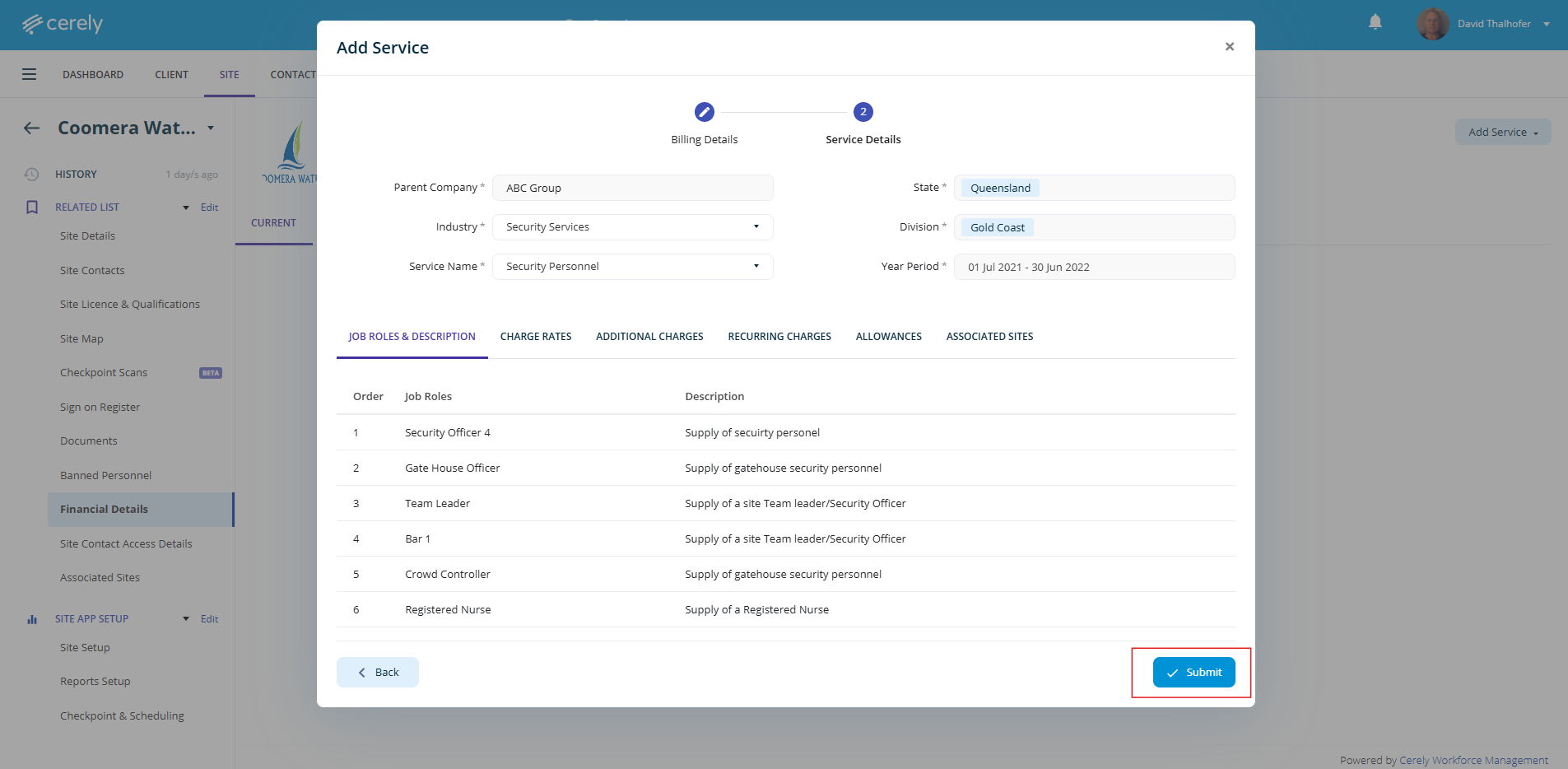
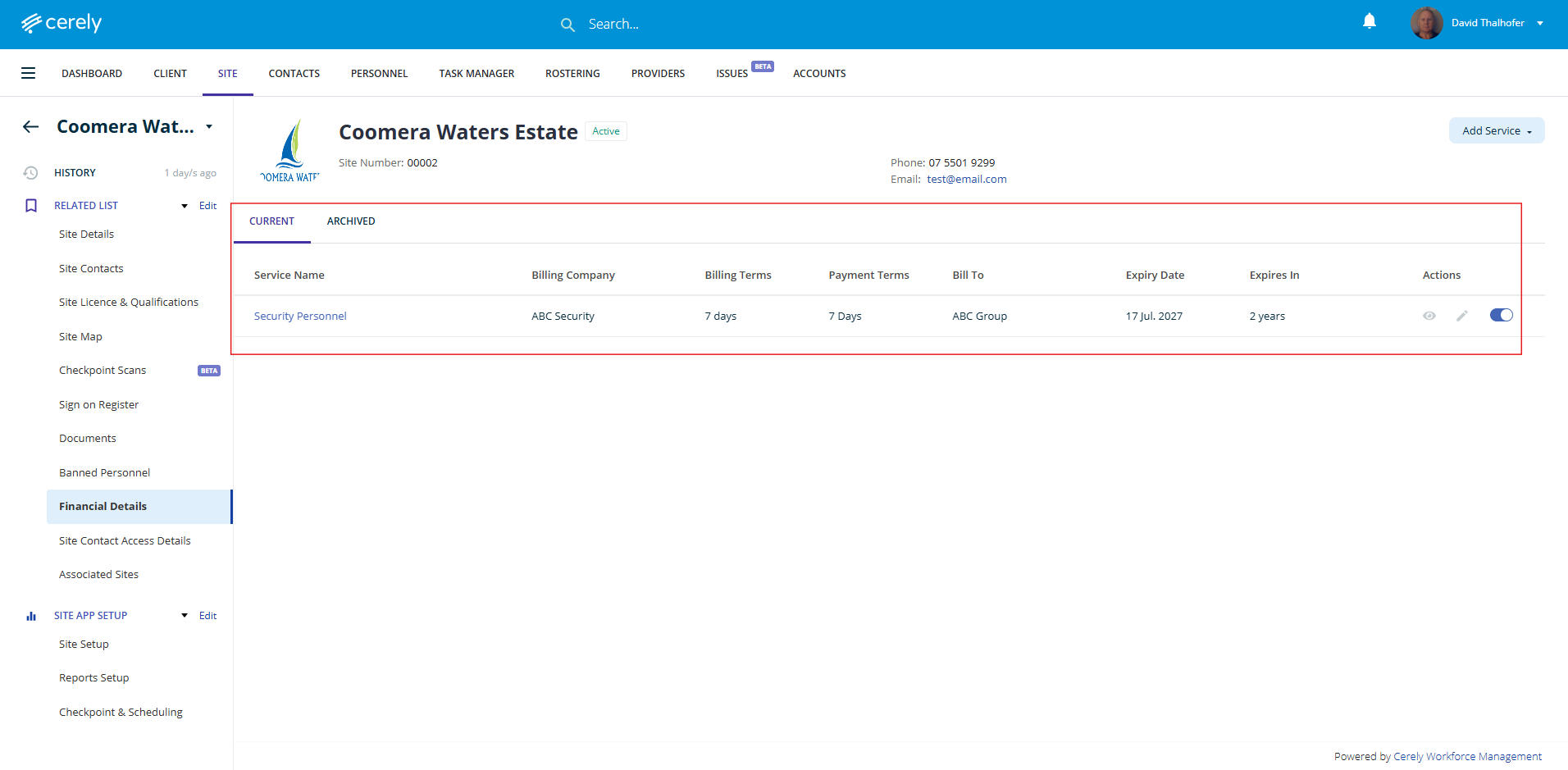
10. The selected Client Charge Rates are now associated with the chosen site
Was this article helpful?
That’s Great!
Thank you for your feedback
Sorry! We couldn't be helpful
Thank you for your feedback
Feedback sent
We appreciate your effort and will try to fix the article