Integrating your Google (Gmail) account with Cerely allows for seamless email communication with contacts already stored in your CRM. This article outlines the steps to securely connect your Gmail account to your Cerely profile for easier and more efficient correspondence directly from the platform.
To integrate your Google (Gmail) email account with your Cerely profile, follow these steps below:
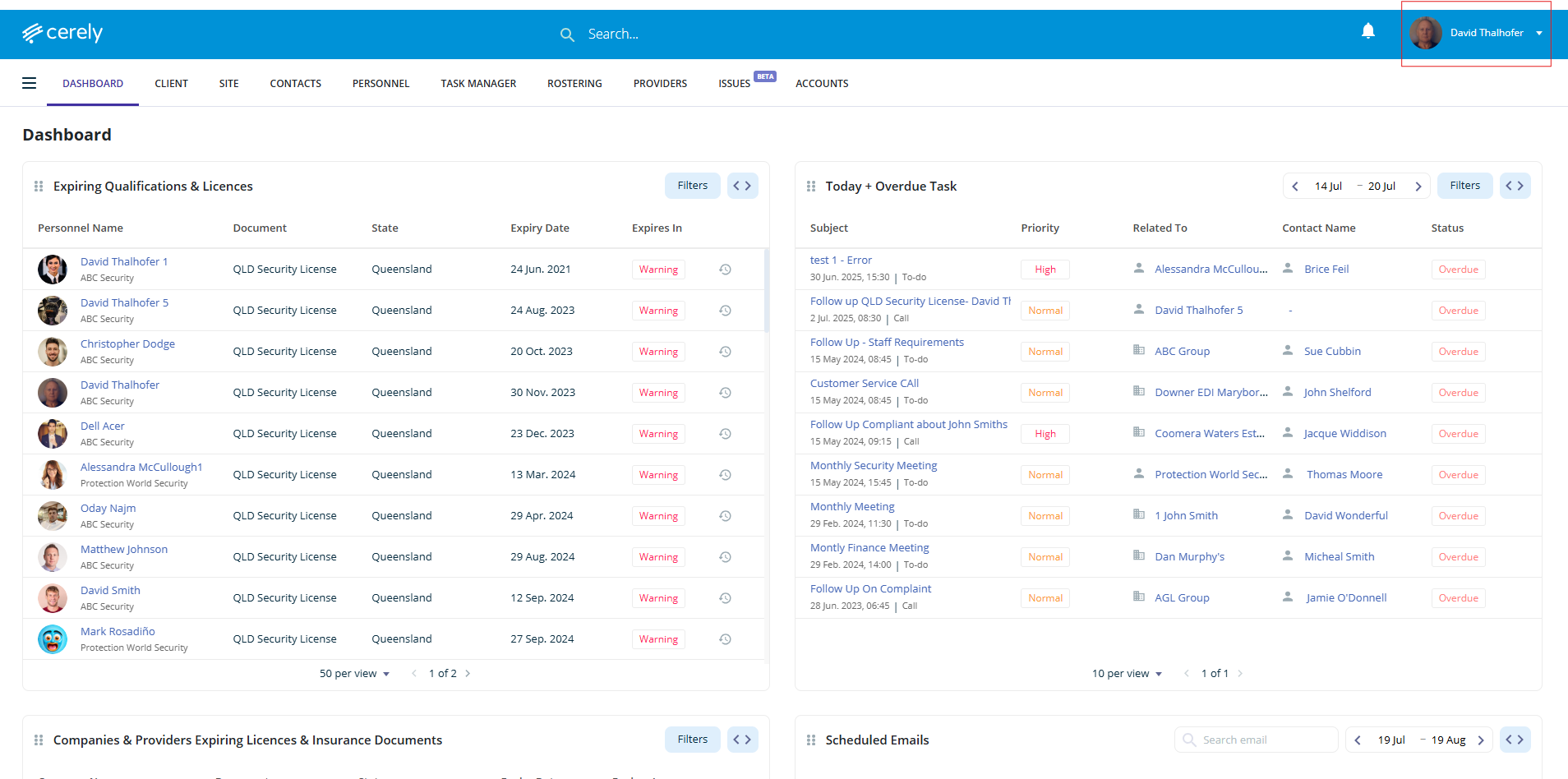
1. From the main menu, click your Profile Icon in the top right-hand corner
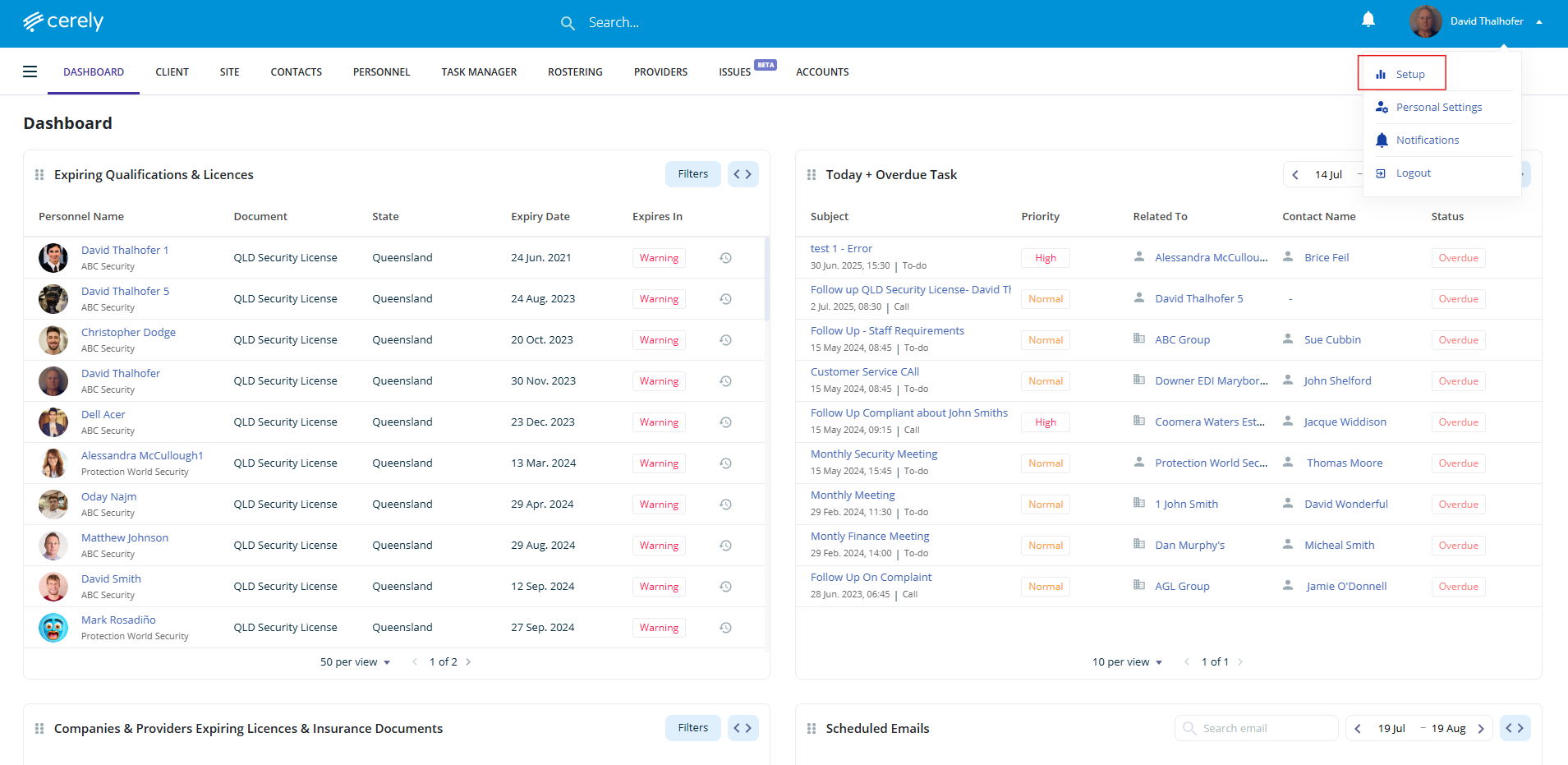
2. Select Setup from the dropdown menu
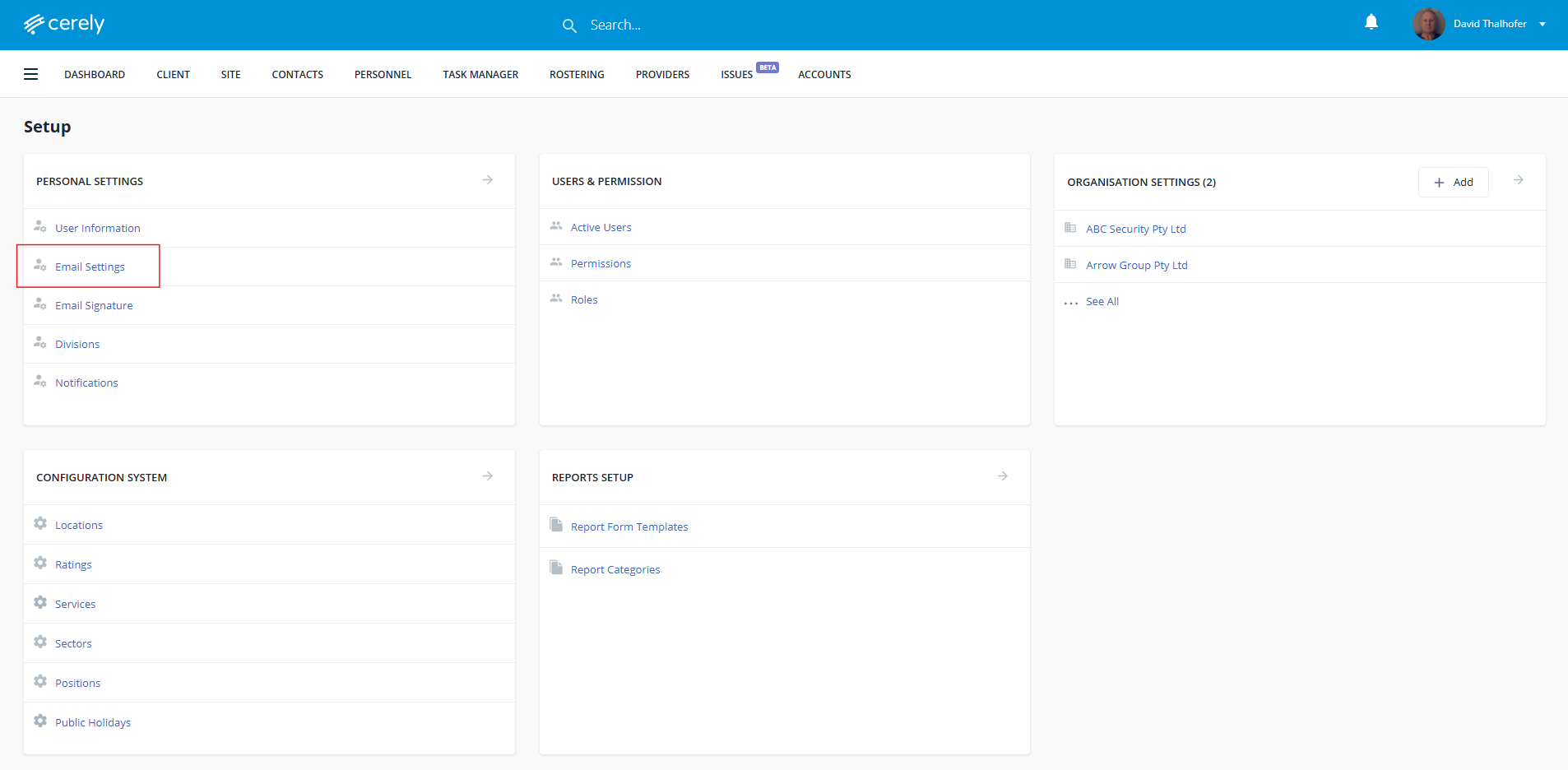
3. Under Personal Settings, select Email Settings
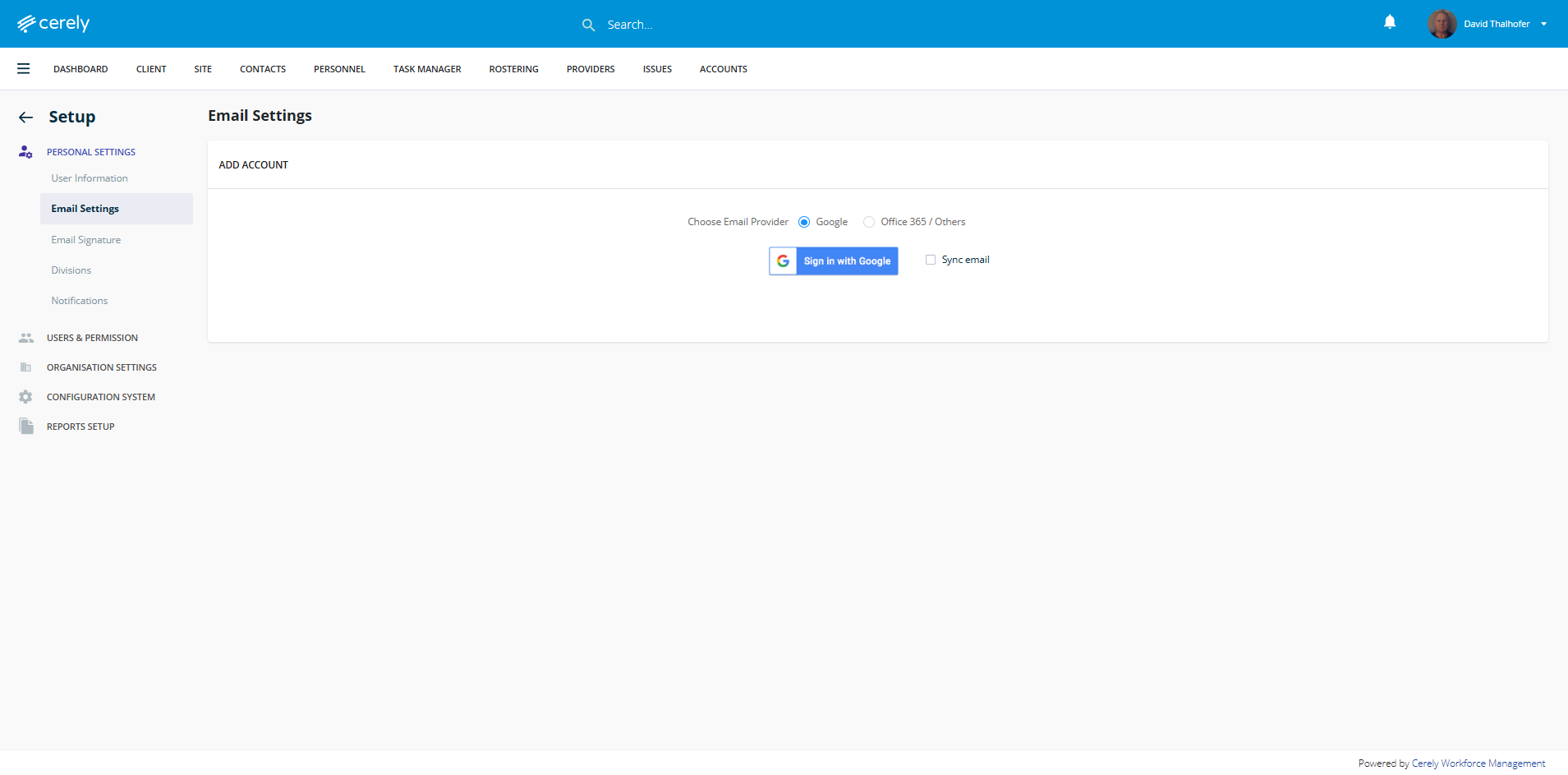
4. Choose Google Integration. You will be redirected to the Google login screen
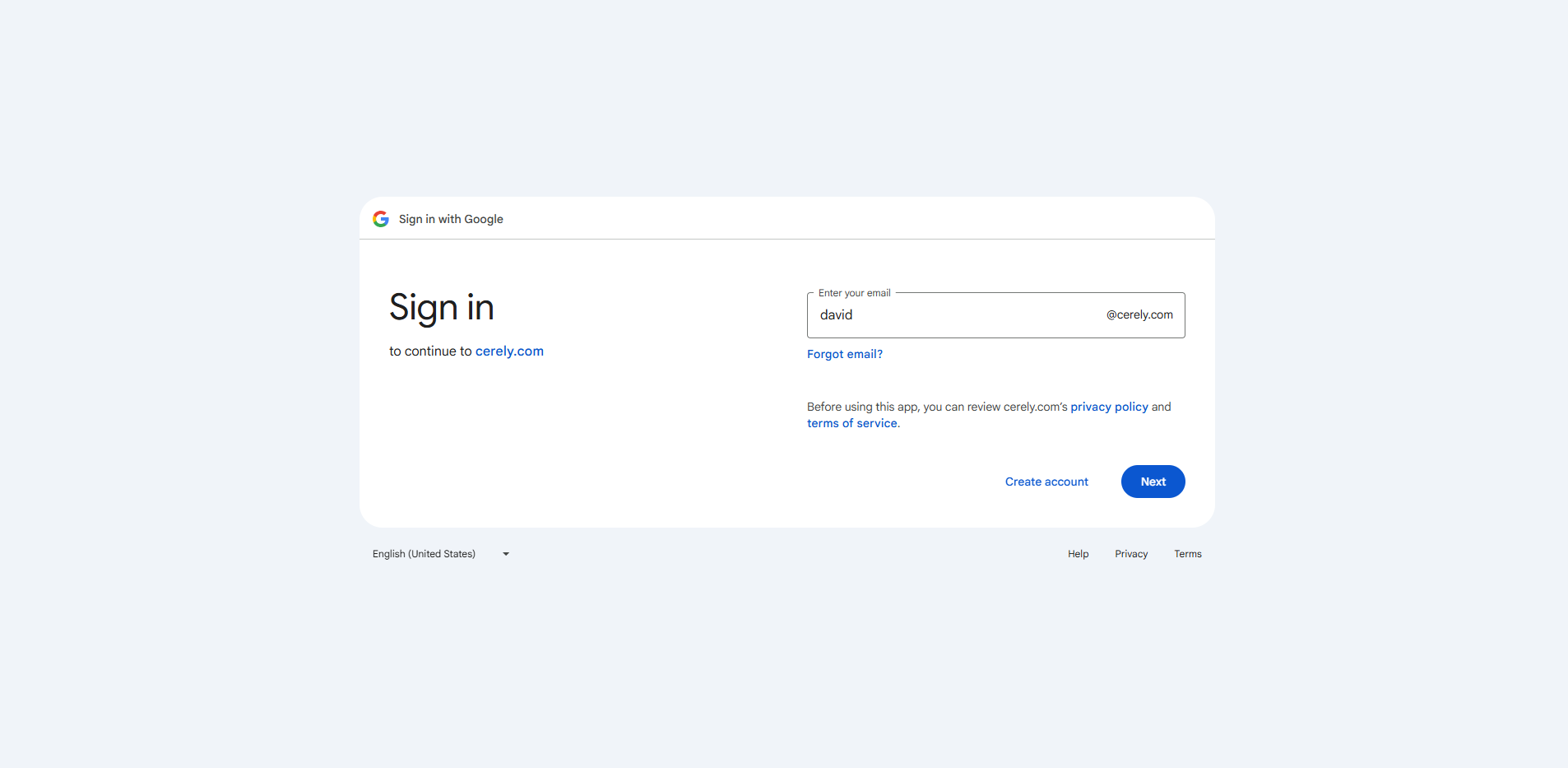
5. Enter the Google email address associated with your Cerely account—only the email used to log in to Cerely can be integrated.
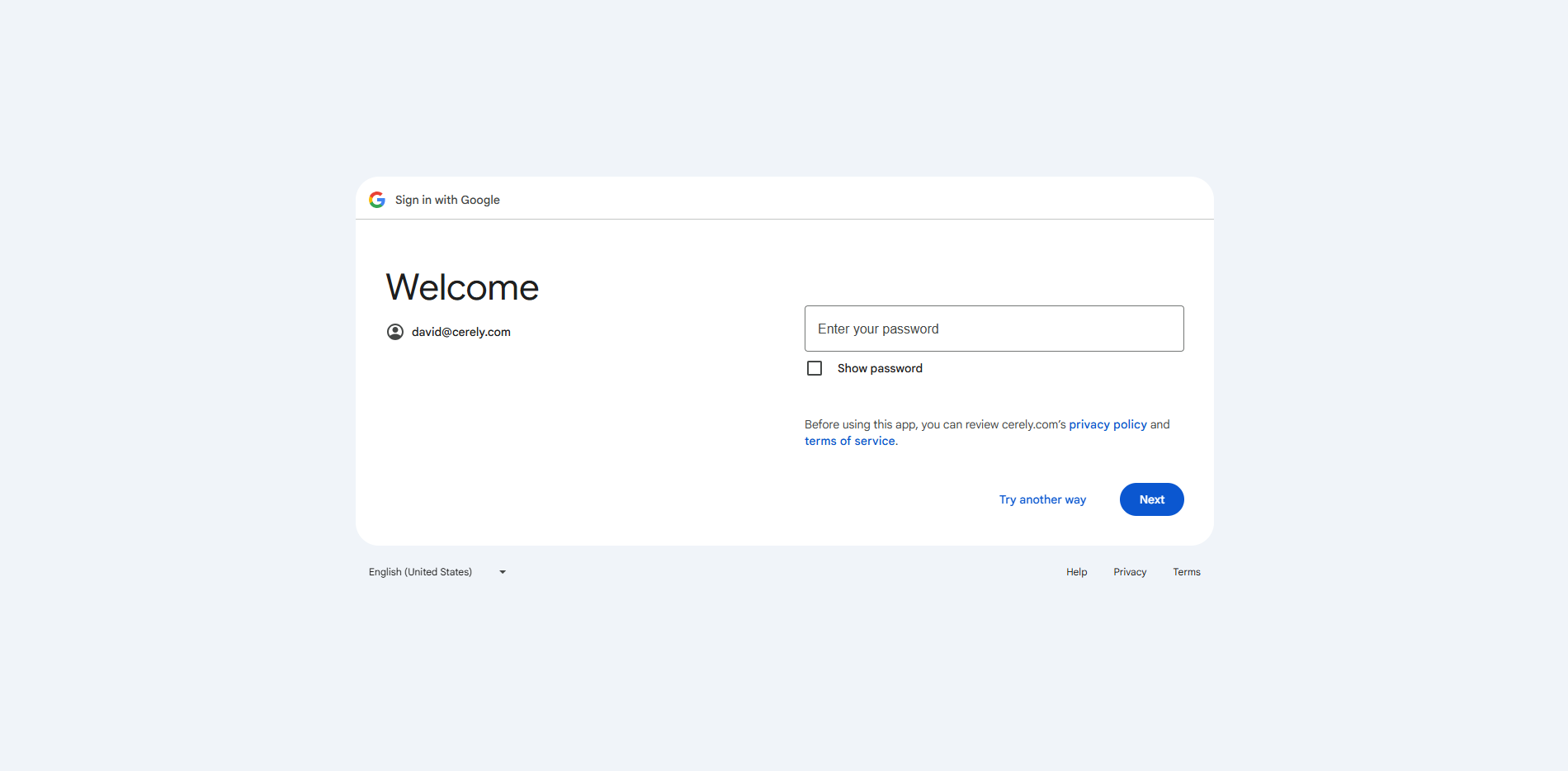
6. Enter the password for your Google email account—not your Cerely login credentials.
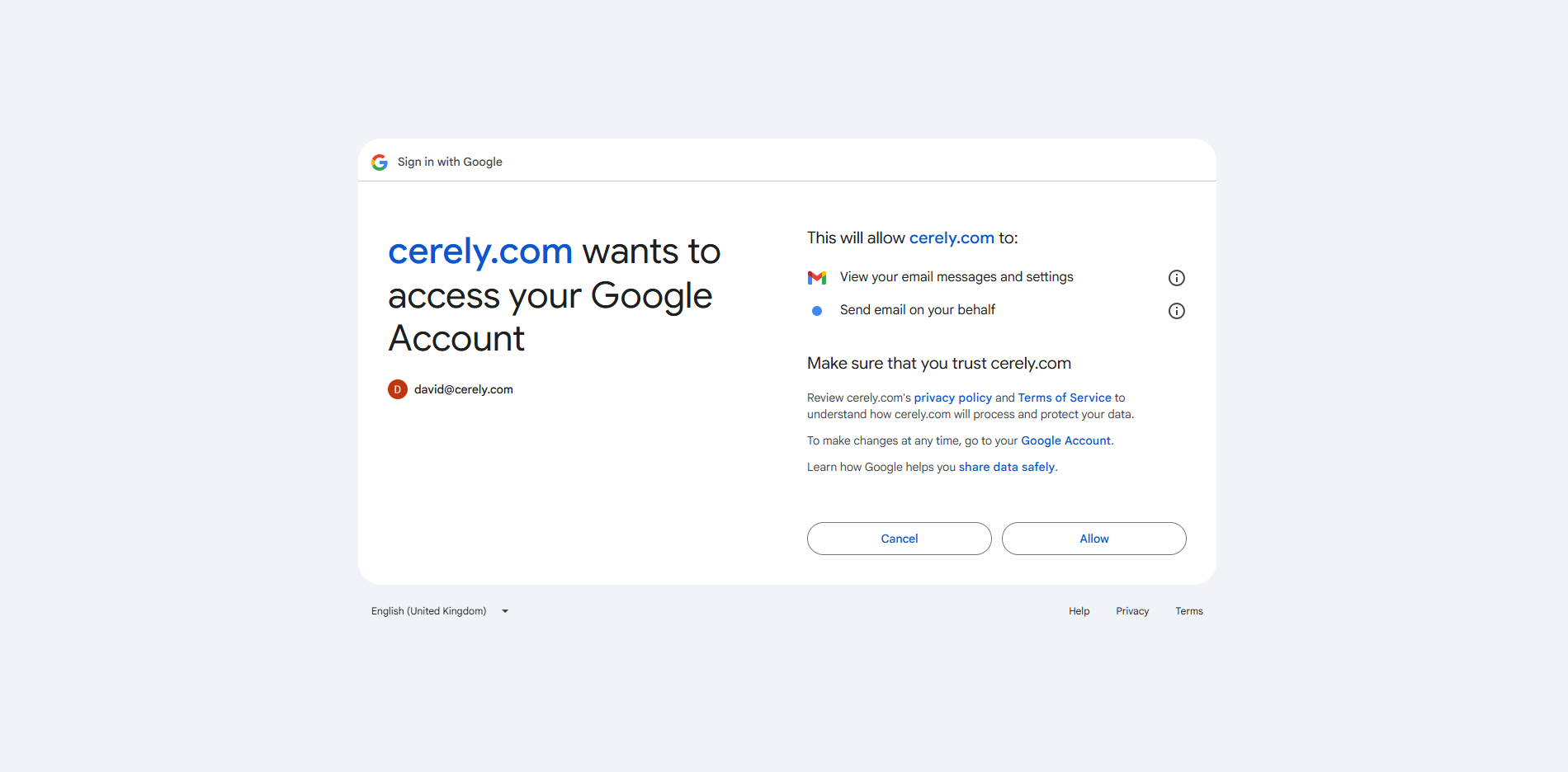
7. Select Allow to give Cerely access to your Google Account
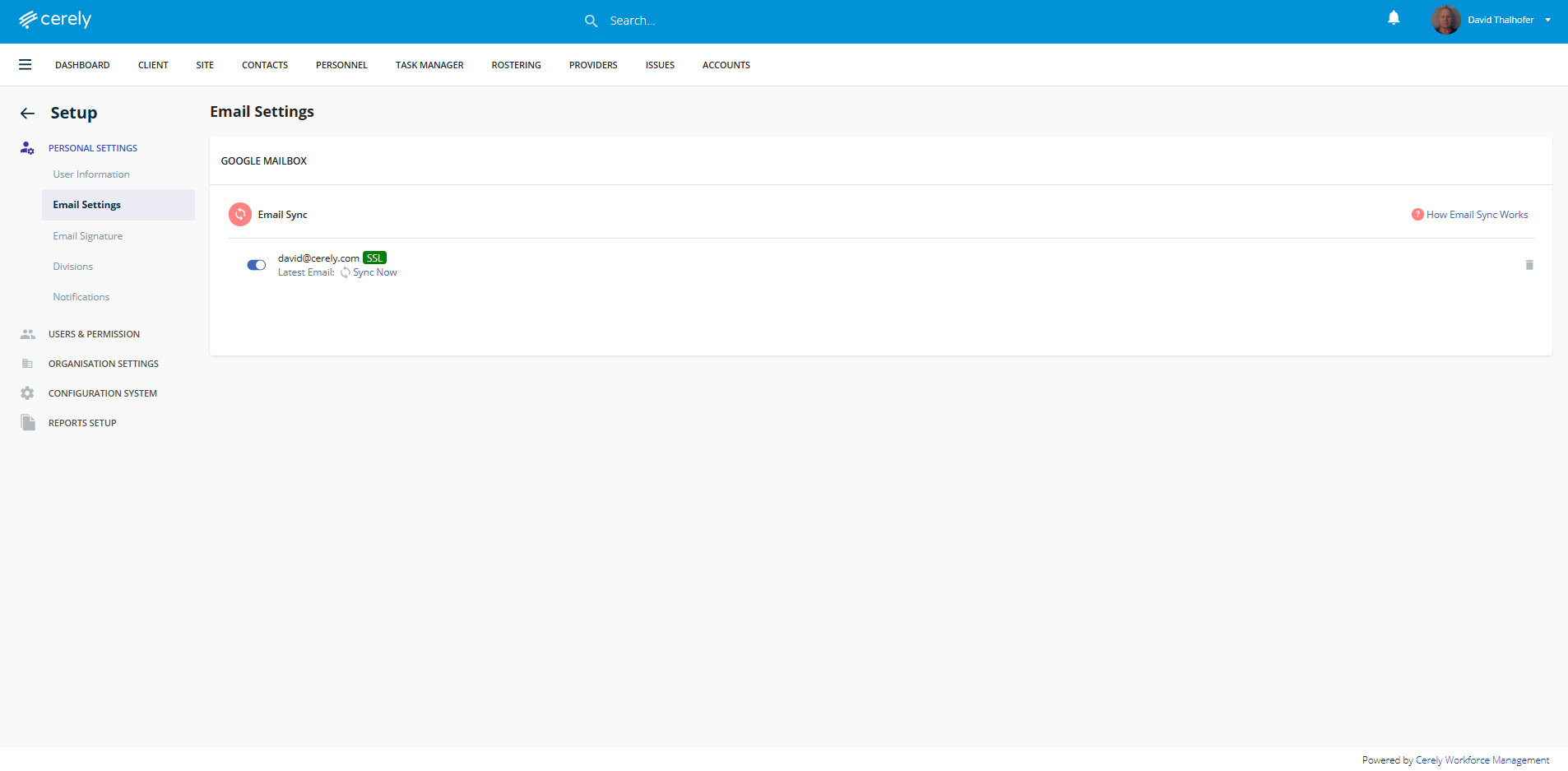
8. Your Google email account is now integrated, and email communications with CRM contacts and personnel will synchronise automatically
Note: Emails will only sync automatically if the contact or personnel exists within your CRM
Was this article helpful?
That’s Great!
Thank you for your feedback
Sorry! We couldn't be helpful
Thank you for your feedback
Feedback sent
We appreciate your effort and will try to fix the article