Assigning uniforms and equipment to employees ensures proper tracking, accountability, and alignment with shift and site requirements.
1. From the main menu, click on Personnel
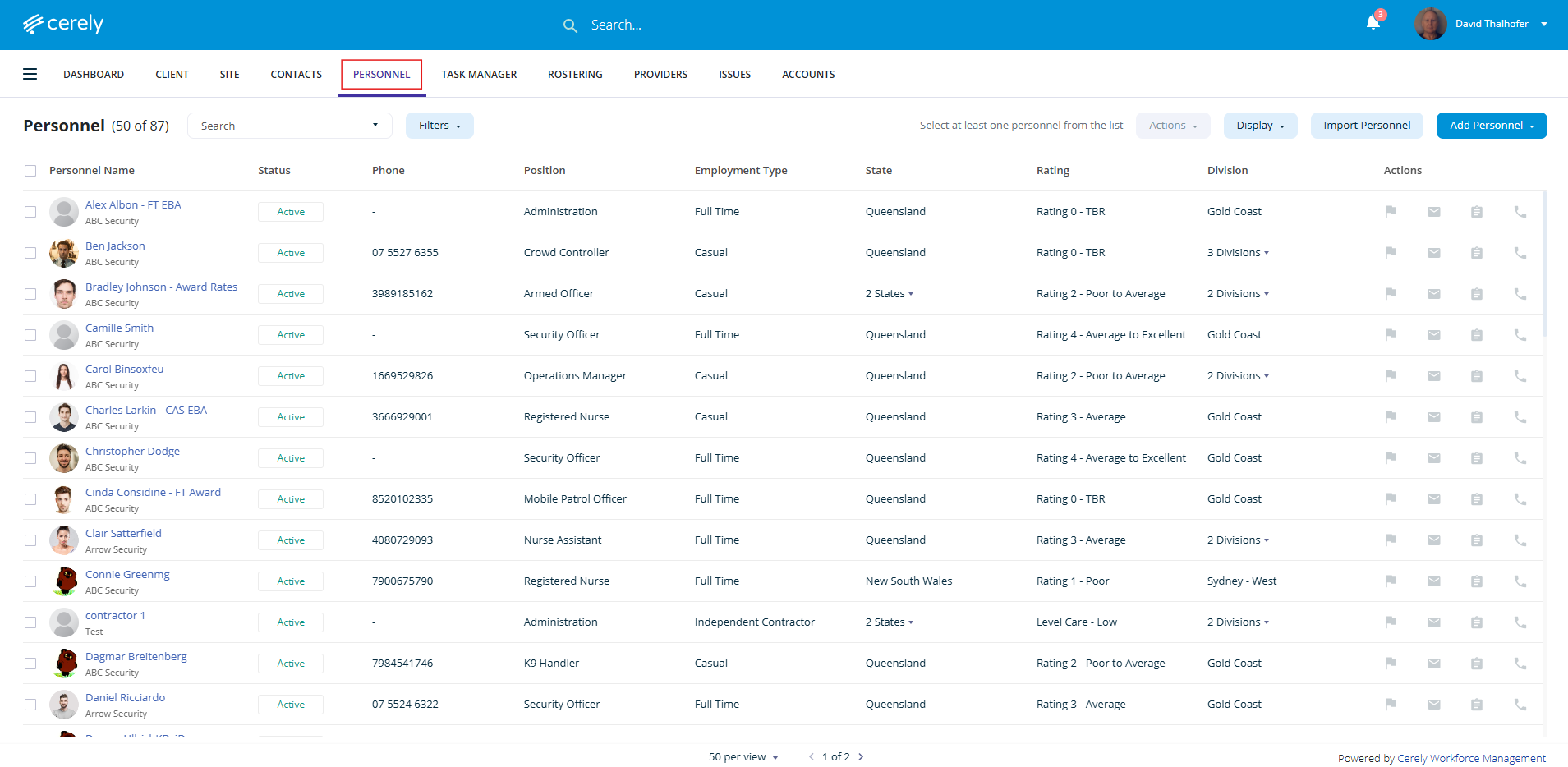
2. Select the employee from the list
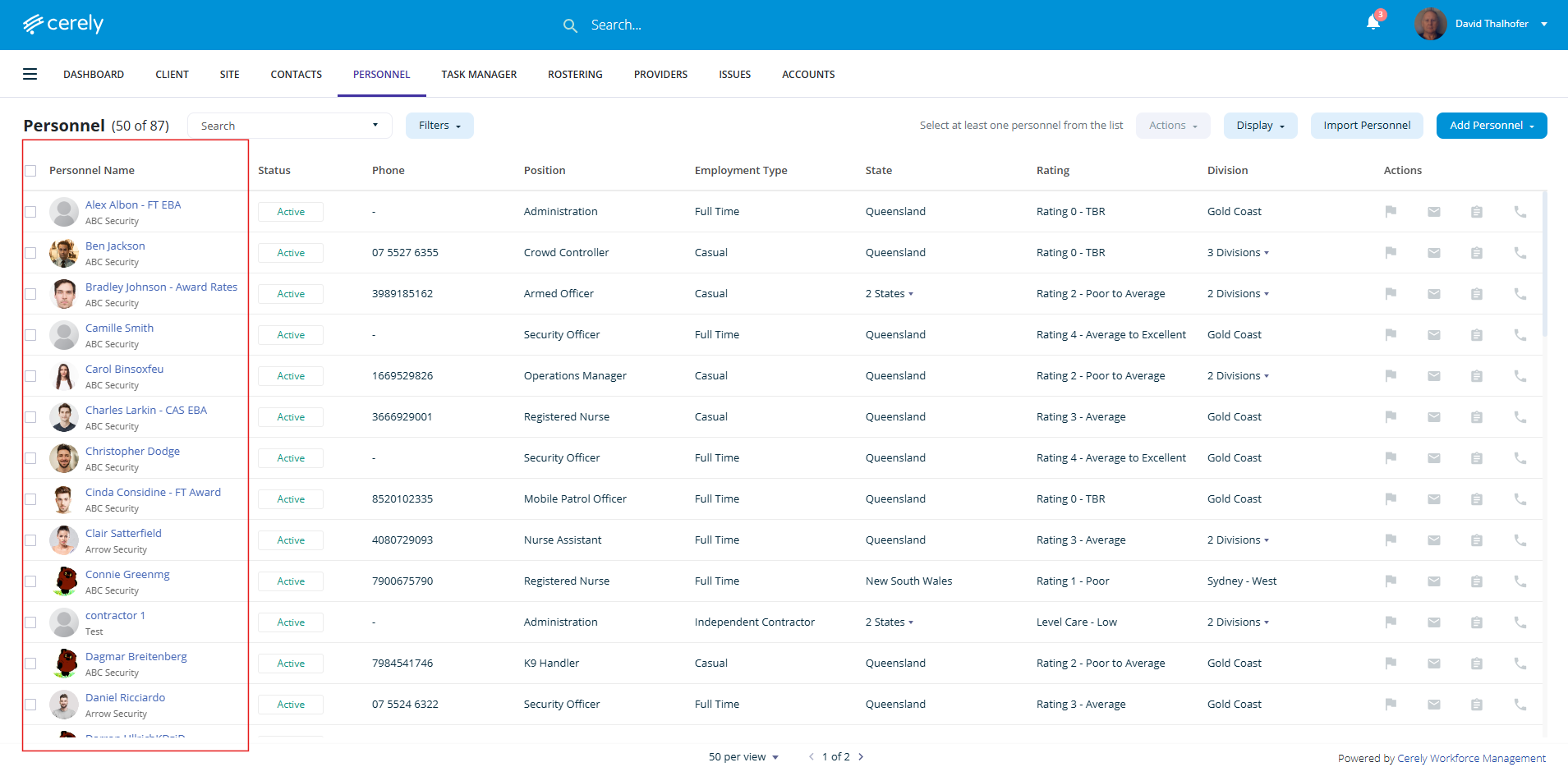
3. On the left-hand menu, select Qualifications & Experience
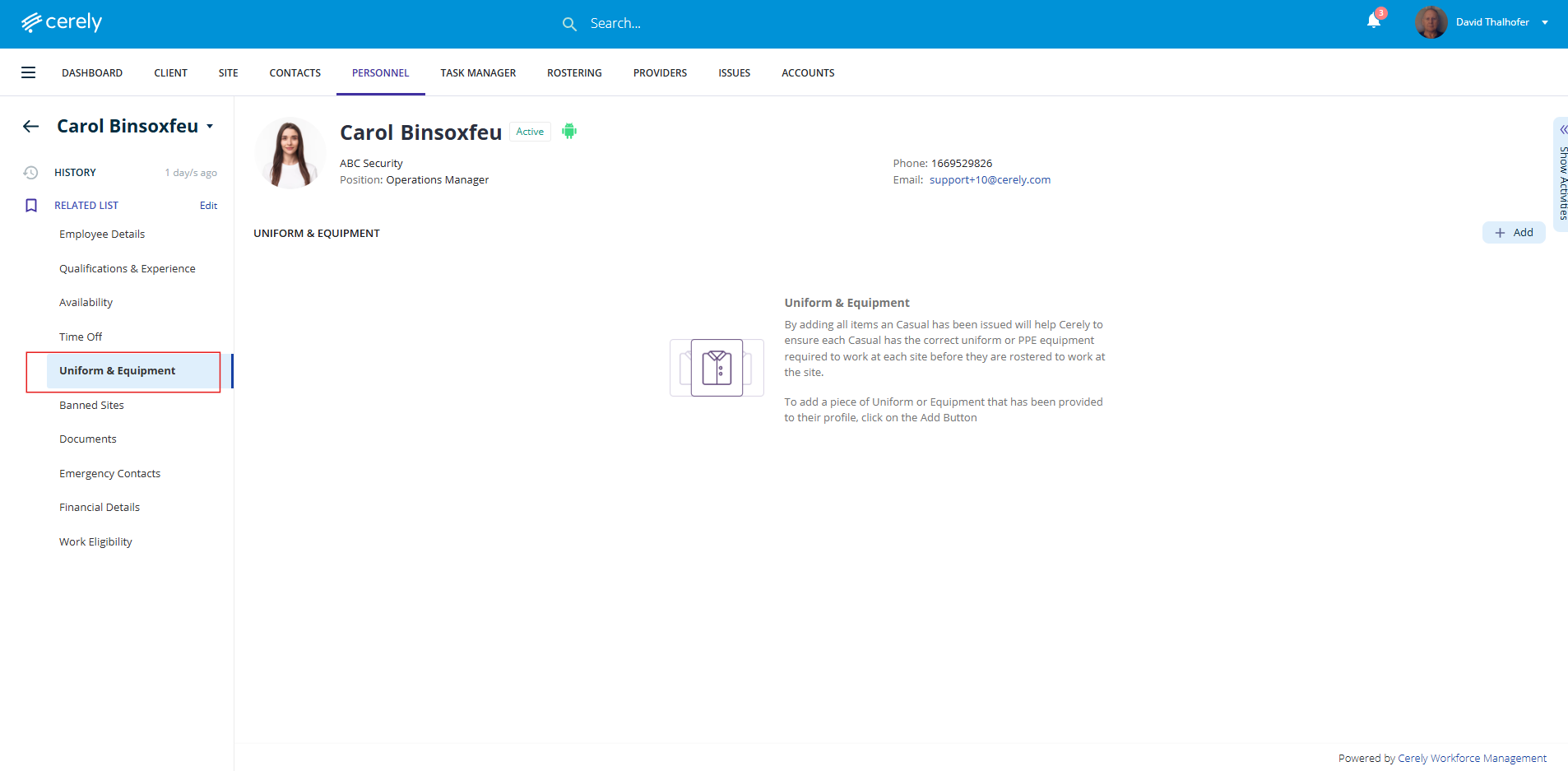
4. Click on the Add button and complete the following fields:
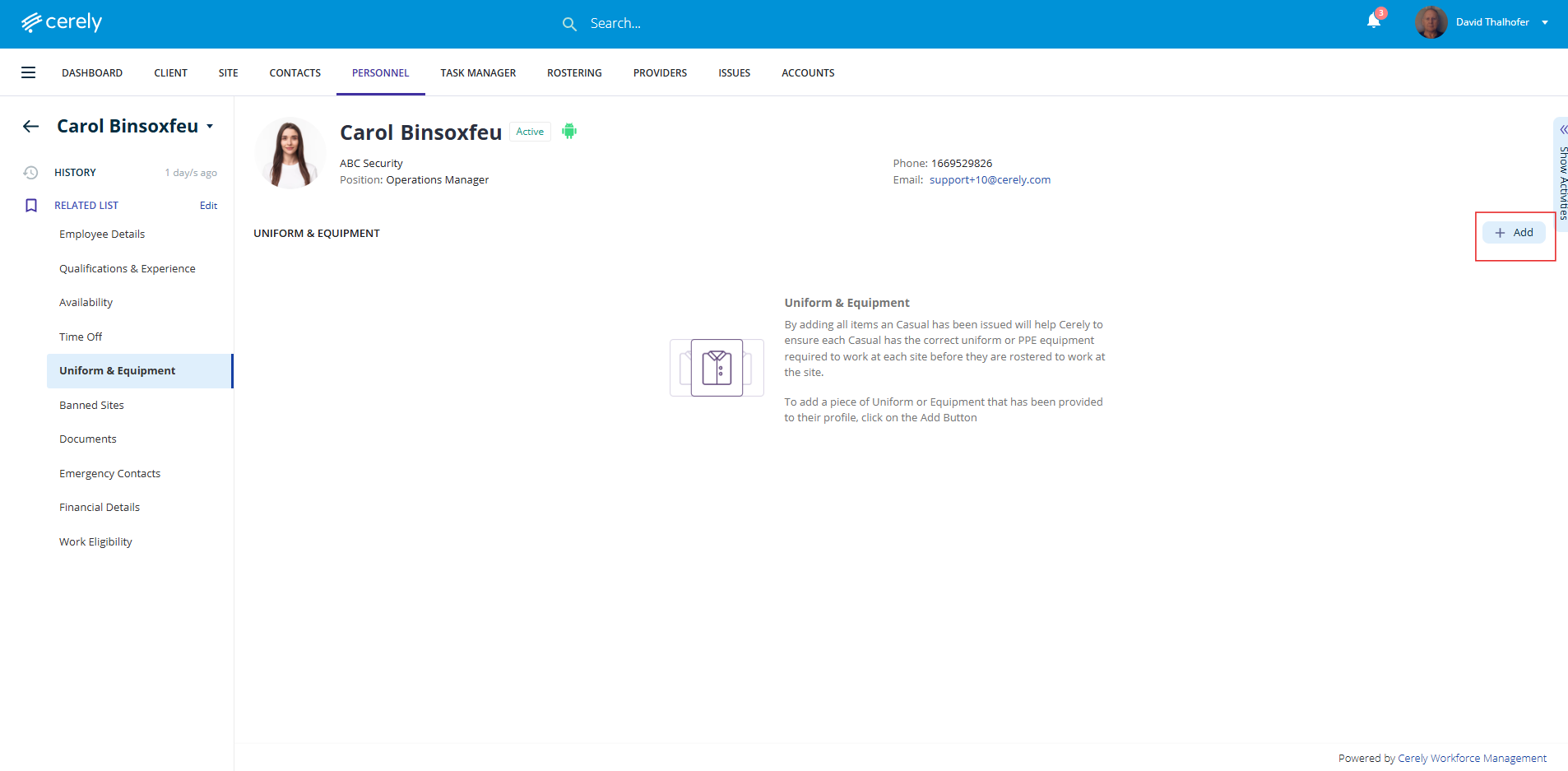
Type: Select the category (e.g. Uniform, Equipment)
Item: Choose the specific item (e.g. Hi-Vis Vest, Body Camera)
Size: Input size (if applicable)
Quantity: Number of items issued
Condition: Select condition (e.g. New, Used)
Deposit Paid: Enter any deposit amount paid by the employee
Date Issued: Choose the date the item was issued
Issued By: Enter the name of the person issuing the item
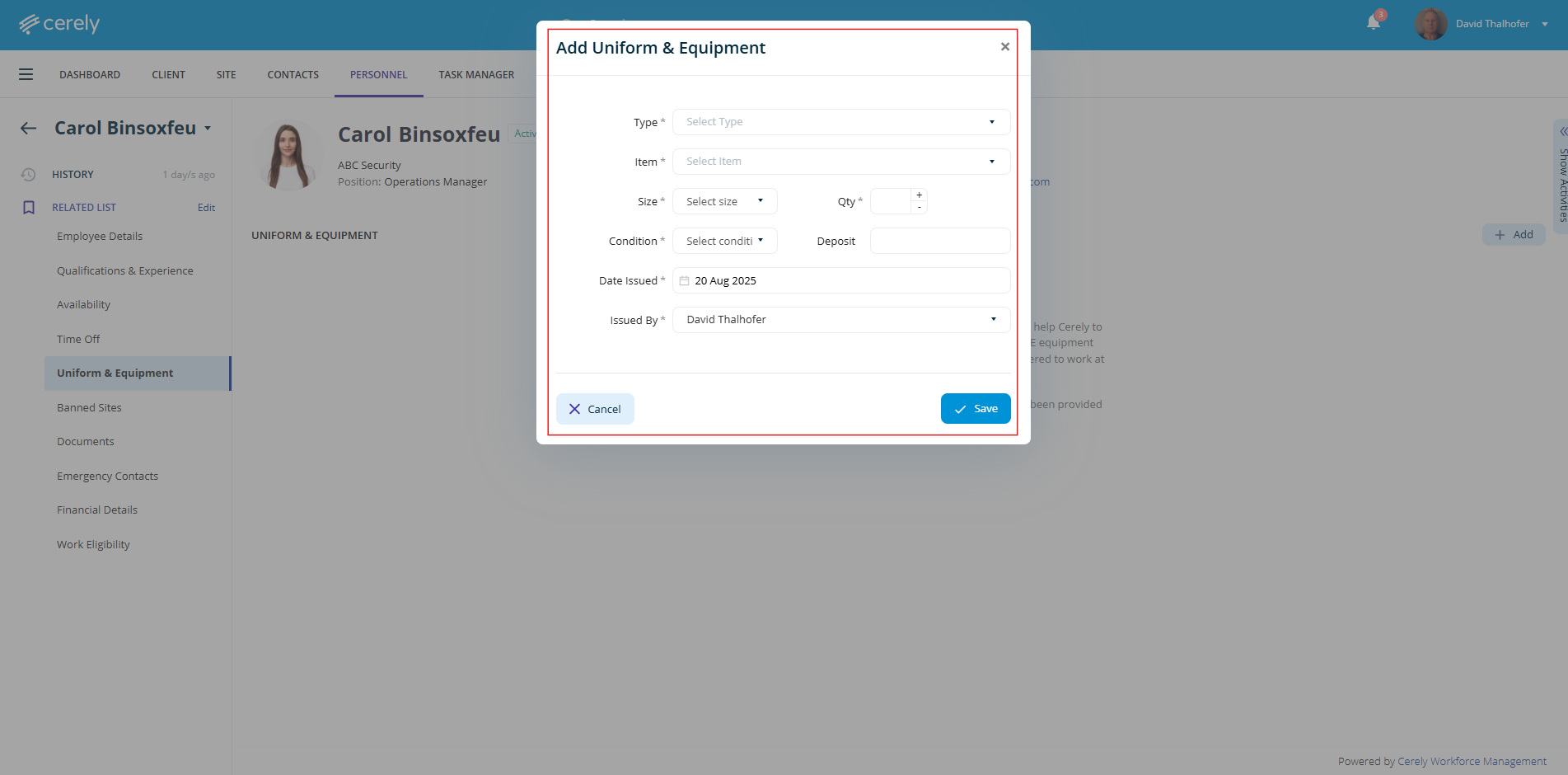
5. Click the Save button to assign the uniform or equipment to the employee’s profile
Important Notes
Uniform & Rostering Integration:
Uniform and equipment entries correlate directly with shift rostering where PPE requirements are configured against the site.
If an employee does not have the required uniform or equipment in their profile, a system warning will appear when attempting to roster them to that site or shift
Was this article helpful?
That’s Great!
Thank you for your feedback
Sorry! We couldn't be helpful
Thank you for your feedback
Feedback sent
We appreciate your effort and will try to fix the article