To update your availability in the Cerely app, follow these steps:
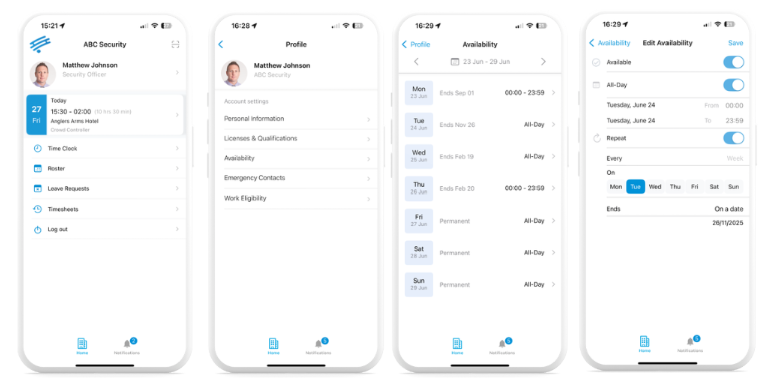
1. From the Cerely home screen, tap your name at the top-left corner of the screen
2. Select ‘Availability’ from the menu
3. To edit your availability:
Tap the date range or select an individual day you’d like to update
4. Set your availability preferences:
Toggle ‘Available’ ON to mark yourself available
Toggle ‘Available’ OFF if you are unavailable for that day
5. For full-day availability:
Toggle ‘All Day’ ON if you're available for the entire day
6. For specific availability times:
Select your Start Time and End Time to set when you're available
7. To repeat availability weekly:
Toggle ‘Repeat’ ON if you are available on the same day and time every week
Important Notes Before You Start:
You must provide at least two weeks’ notice from the current week when updating your availability through the app.
Changes cannot be made to your availability within the next two weeks via the app.
Updating your availability does not affect your current or already scheduled shifts.
If you are unavailable to work within the next two weeks (e.g., due to illness), please contact your manager immediately.
Was this article helpful?
That’s Great!
Thank you for your feedback
Sorry! We couldn't be helpful
Thank you for your feedback
Feedback sent
We appreciate your effort and will try to fix the article