To update your password in the Cerely app, follow these steps:
1. Ensure you are logged in to the Cerely app
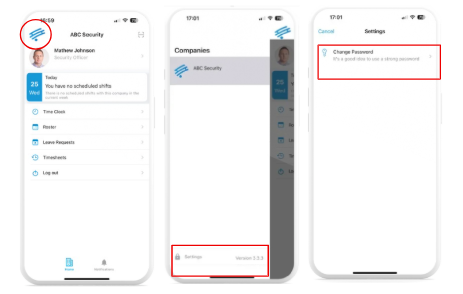
2. Tap the menu icon (☰) in the top-left corner of the screen
If a company logo is displayed instead, tap on the logo to open the menu.
3. Scroll down and select Settings
4. Tap Change Password
5. Enter your current password, then type your new password twice to confirm
6. Tap Submit or Save to update your password
7. You will receive a confirmation message or be redirected to the login screen
Your password has now been successfully changed
Was this article helpful?
That’s Great!
Thank you for your feedback
Sorry! We couldn't be helpful
Thank you for your feedback
Feedback sent
We appreciate your effort and will try to fix the article