The Super Administrator role in Cerely is the highest-level permission profile, designed for business owners, primary account holders, or senior managers who require unrestricted access to all system features, settings, and user controls. This guide shows you how to view, understand, and manage the default settings of the Super Administrator profile.
The Super Administrator:
Full access to all areas and features within Cerely
Assigned as the account owner or accounts administrator
Has the ability to view and edit all user permissions
Note: This role cannot be edited to a different profile permission once granted
Is automatically assigned to the person who originally set up the Cerely account
This role is critical for maintaining full administrative control over your platform and account structure.
How to View the Permission Profile Settings
Follow the steps below to view the current Permission Profile settings in Cerely:
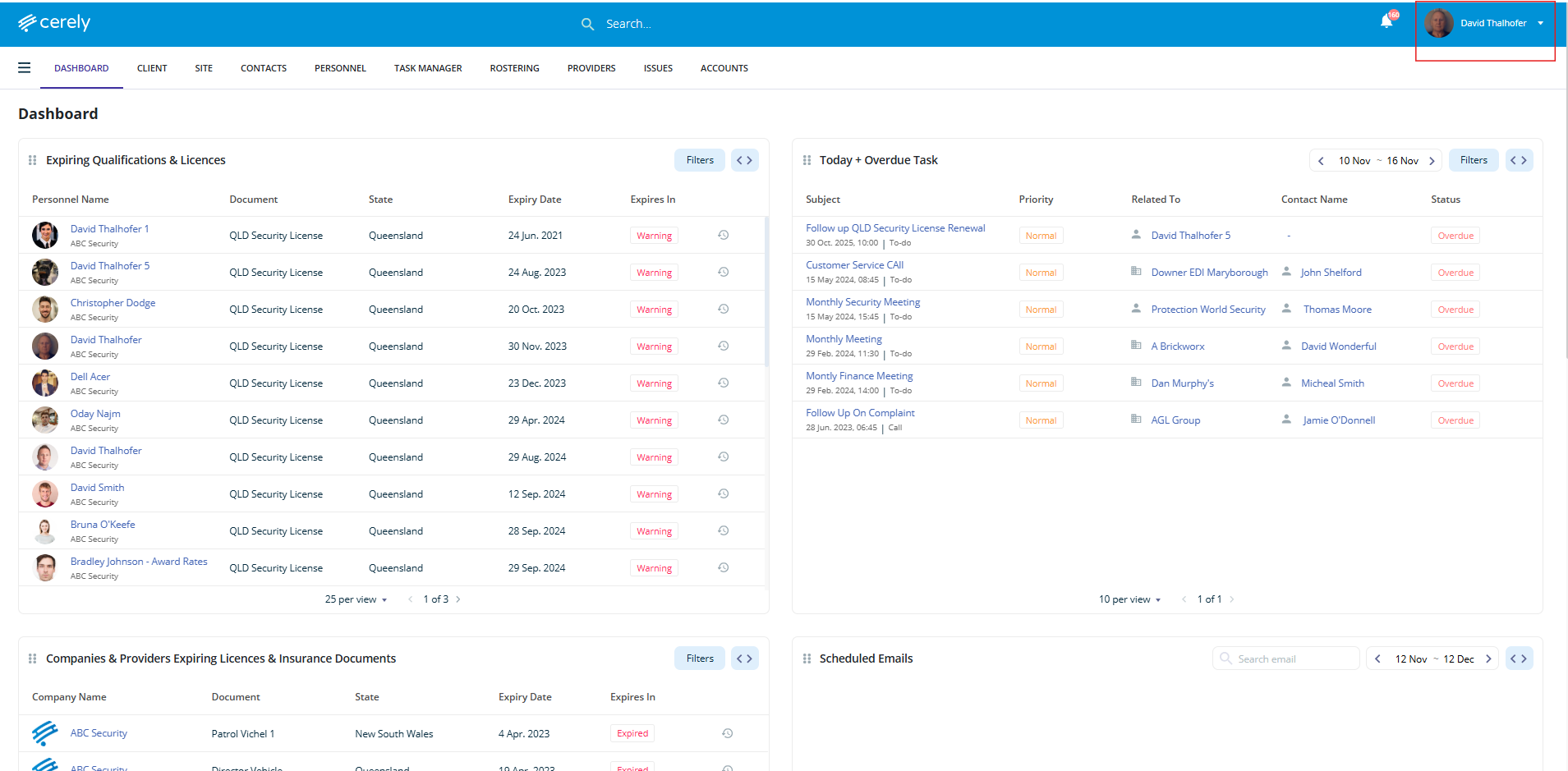
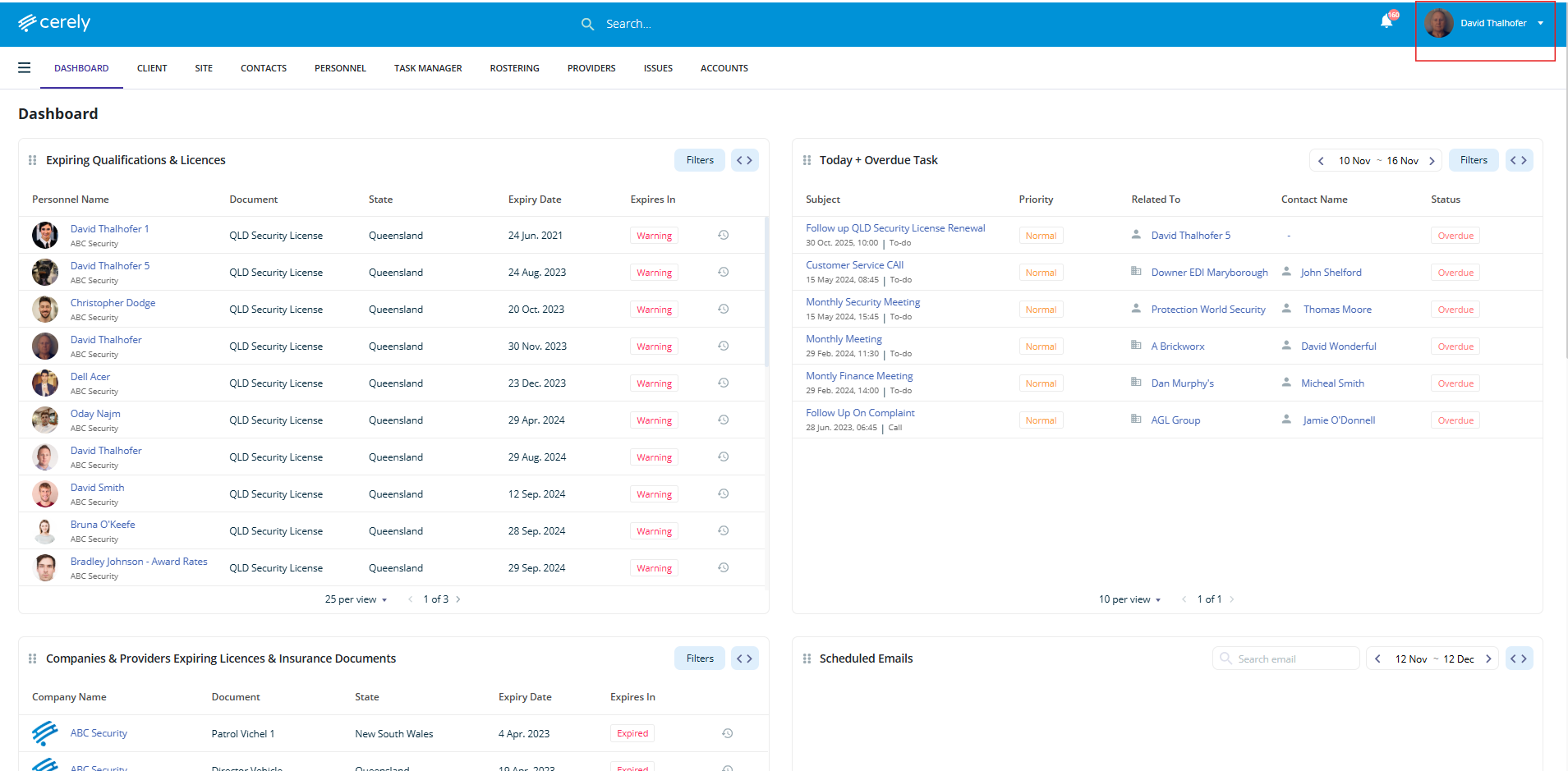
1. From the main menu, click your Profile Icon in the top-right corner of the screen
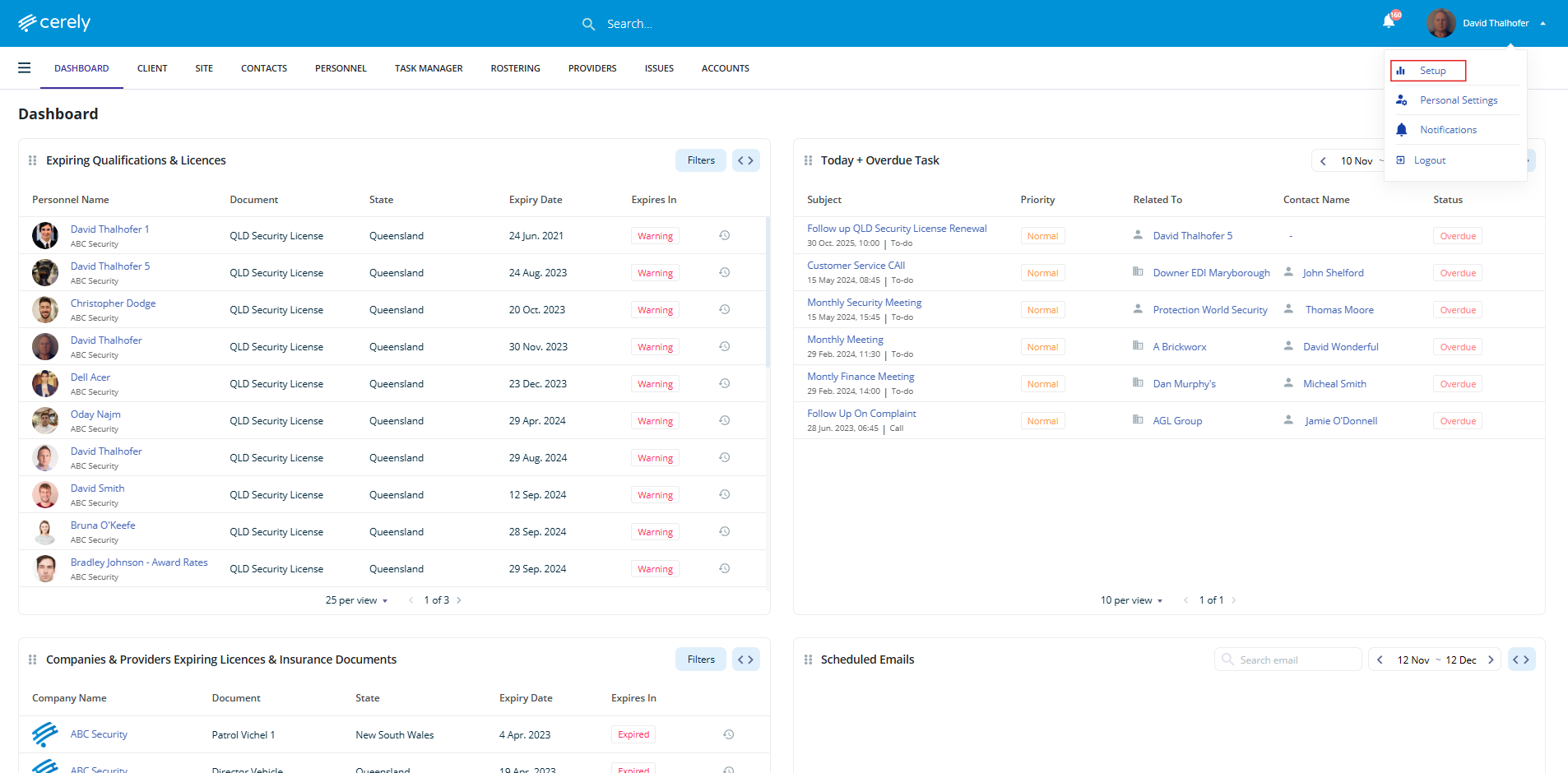
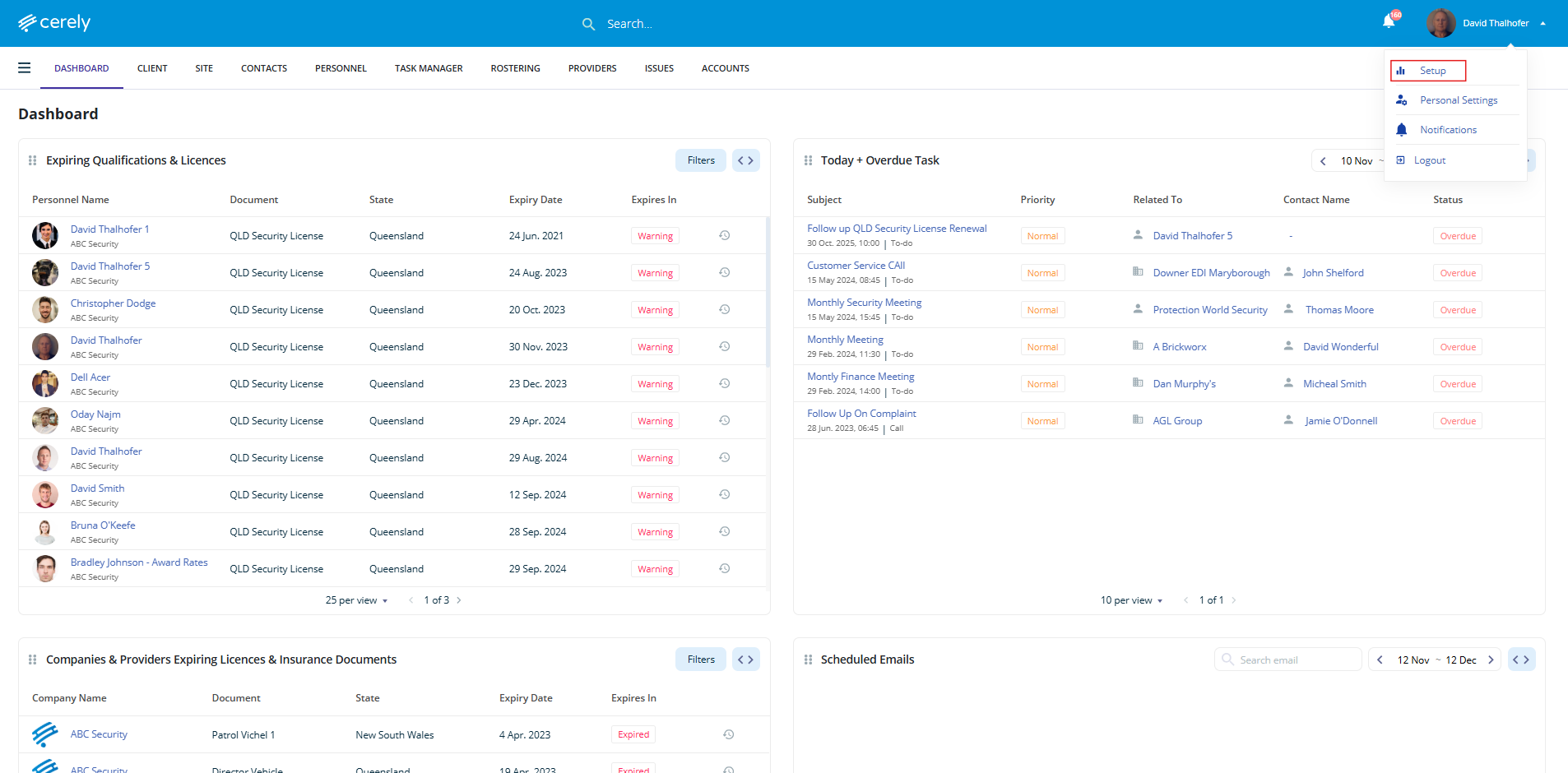
2. Select Setup from the dropdown menu
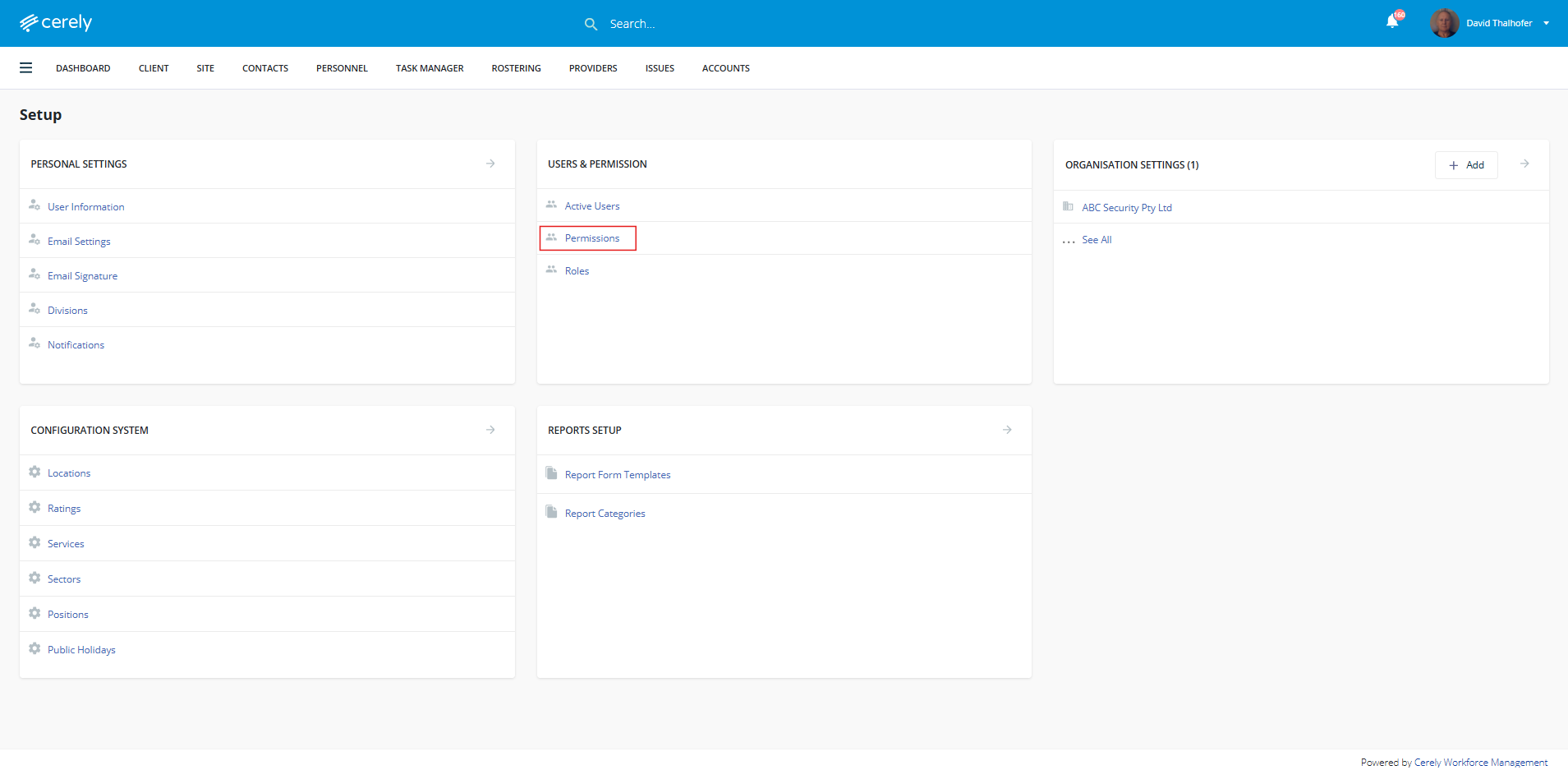
3. Under Users & Permissions, click Permissions
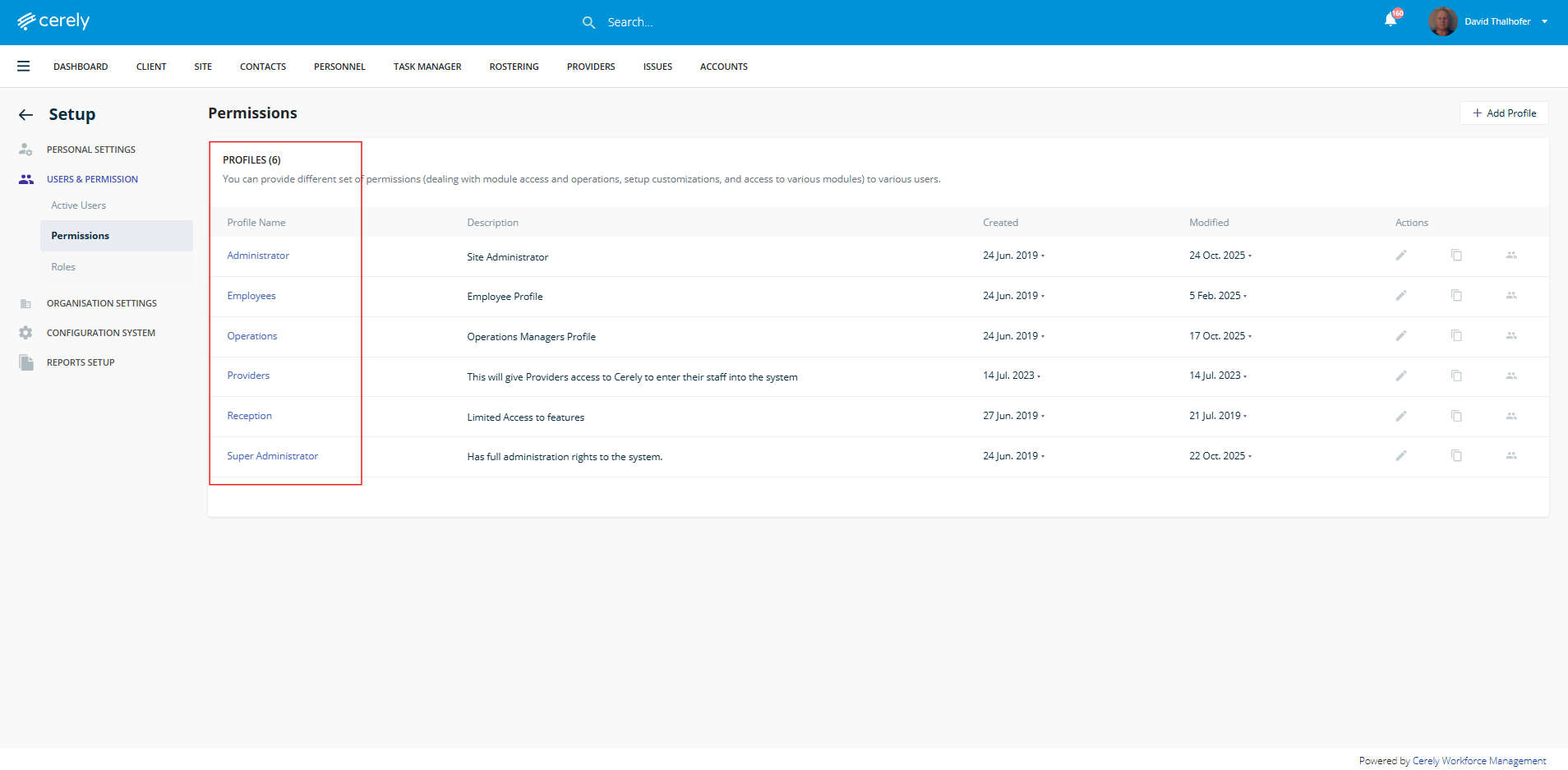
4. From the list select a permission profile to view the default settings
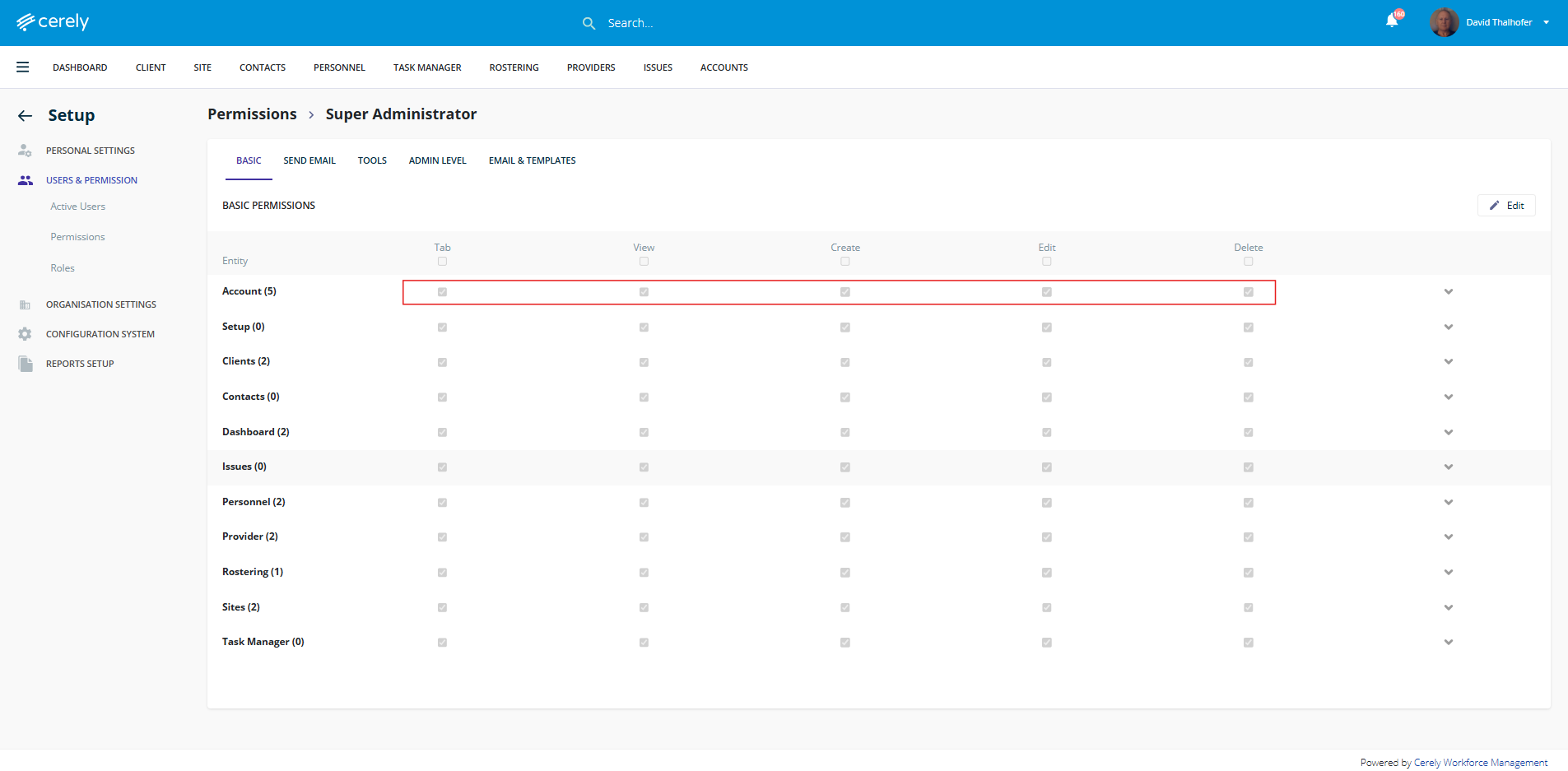
5. The permission profile screen will appear, showing all access levels across each category
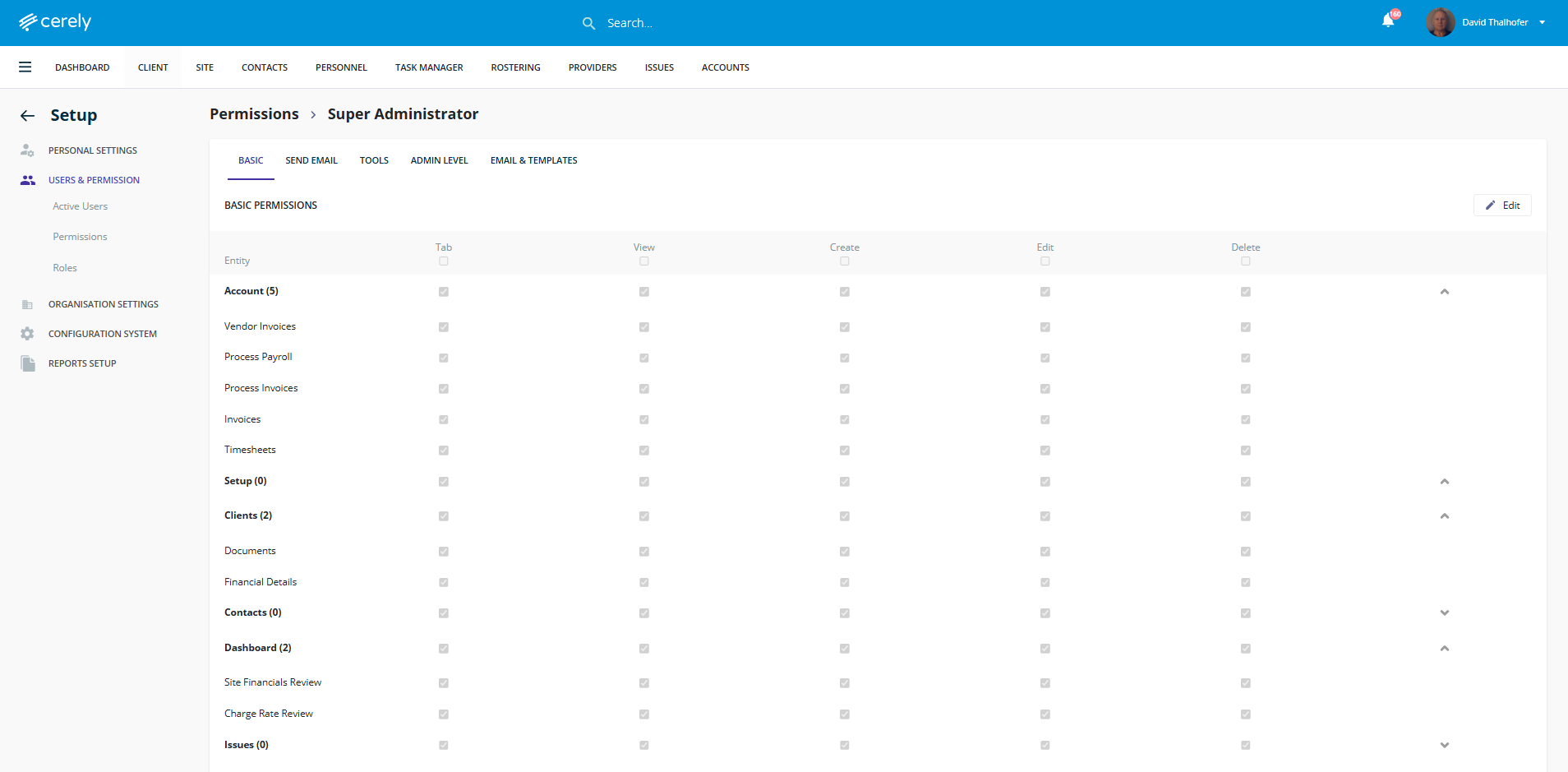
By default, every permission checkbox — including Tab, View, Create, Edit, and Delete — is enabled for this profile.
Tip: You can use this screen to review or clone a permission profile to create new custom permission profiles as needed.
What the Super Administrator Can Access (by Default)
Under each category, all levels of access are enabled:
| Access Level | Description |
|---|---|
| Tab | The user can view and access the main module from the tab menu |
| View | The user can see records or data within that module |
| Create | The user can create new entries or data within the module |
| Edit | The user can update or change existing records |
| Delete | The user can delete records |
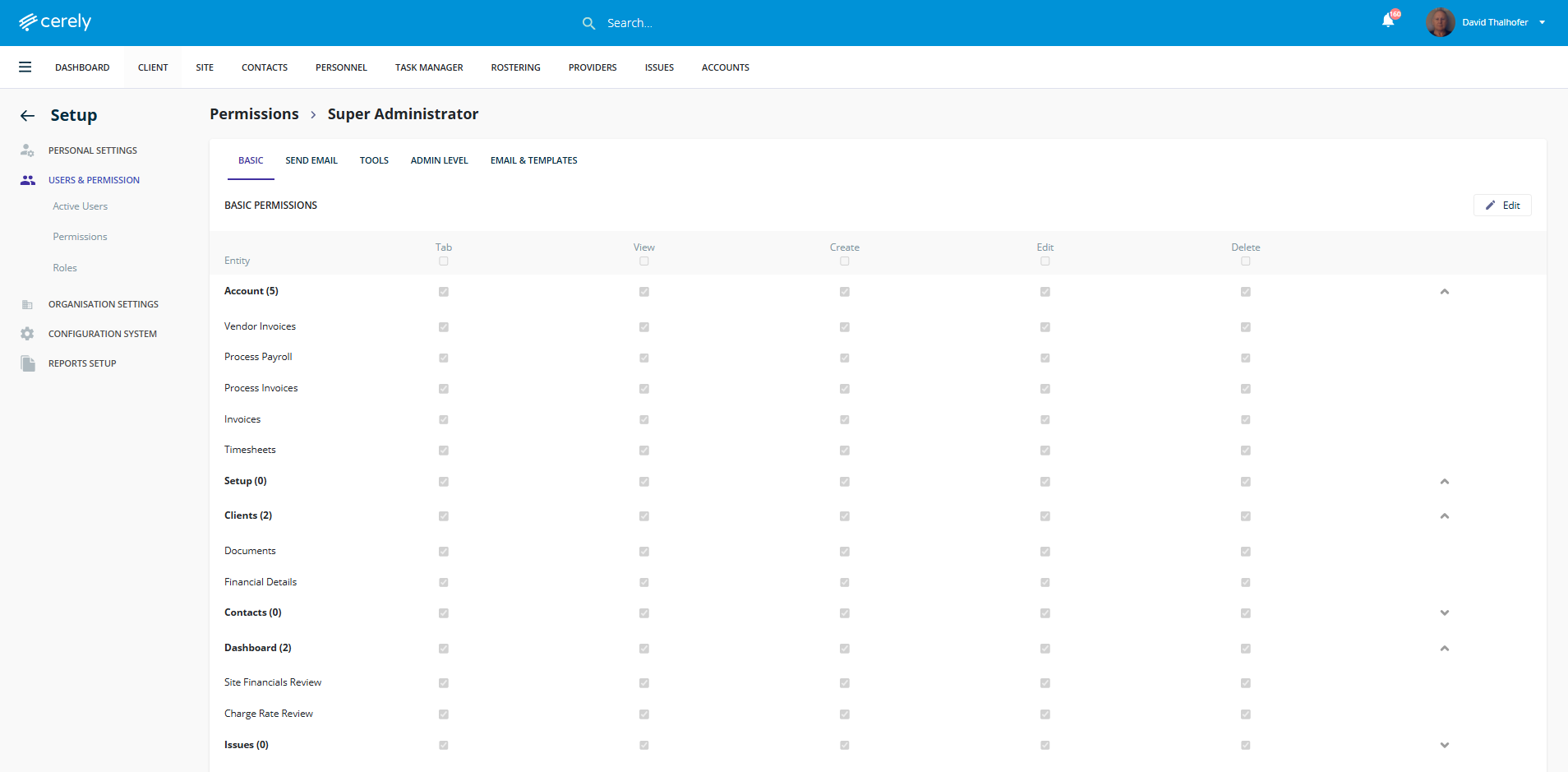
The screenshot below displays the typical Super Administrator permissions layout, with all areas fully accessible:
How to Modify the Permission Profiles
1. Click on your Profile Icon located in the top-right corner of your screen
2. Select Setup from the dropdown menu
3. In the Users & Permissions section, click Permissions
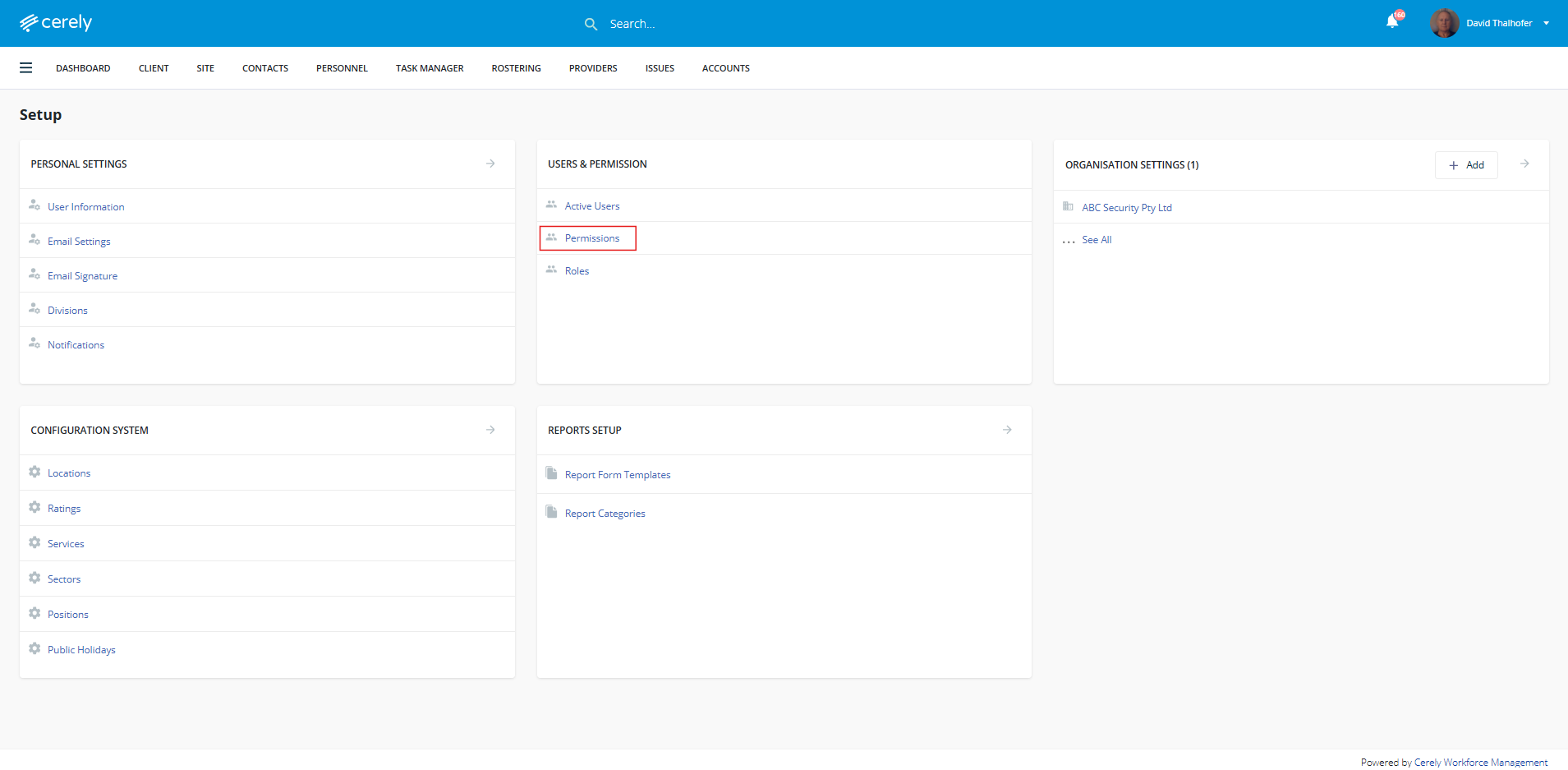
4. From the list of permission profiles, locate and click on a permission profile
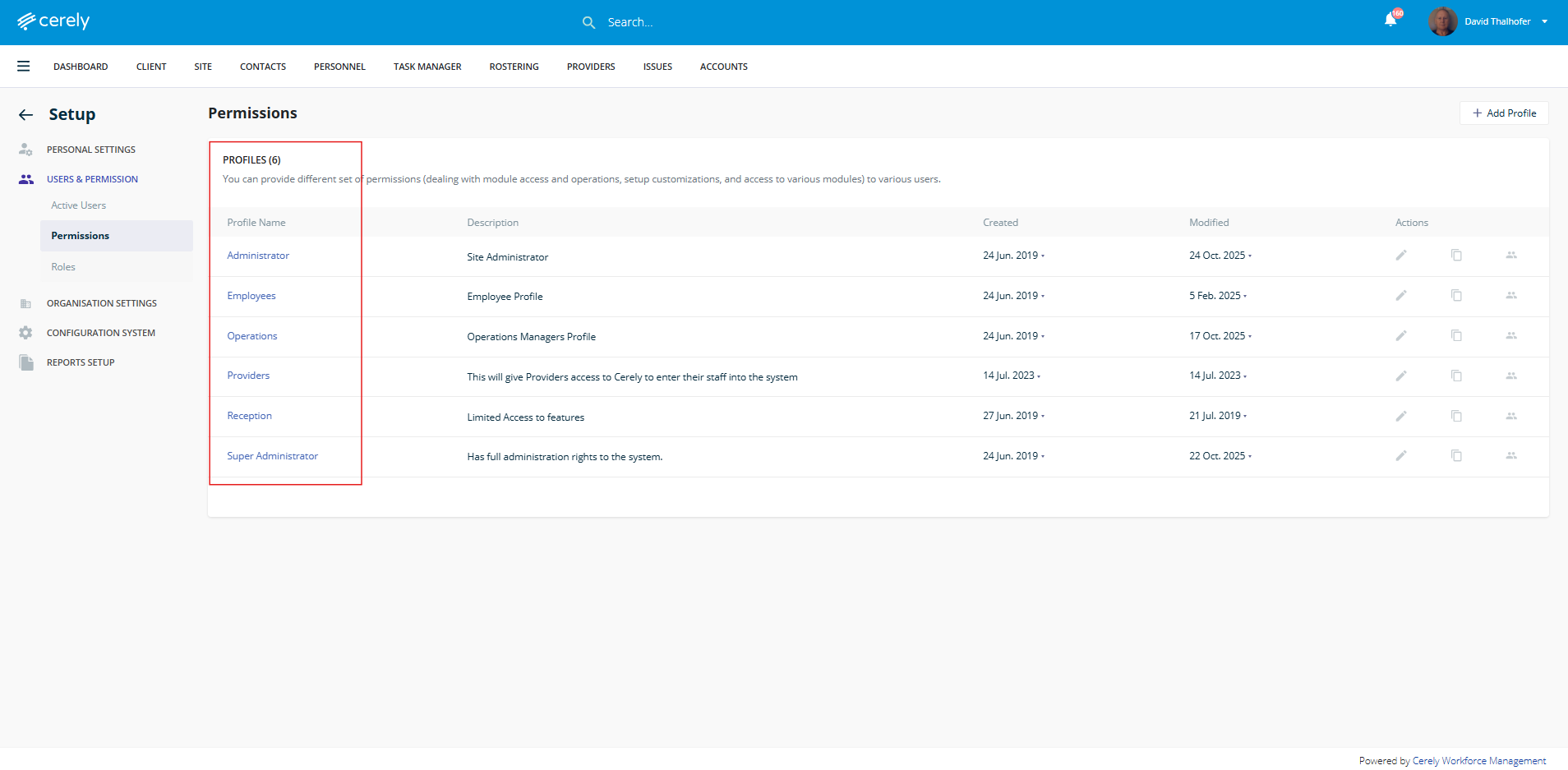
5. On the right-hand side, click the Edit button
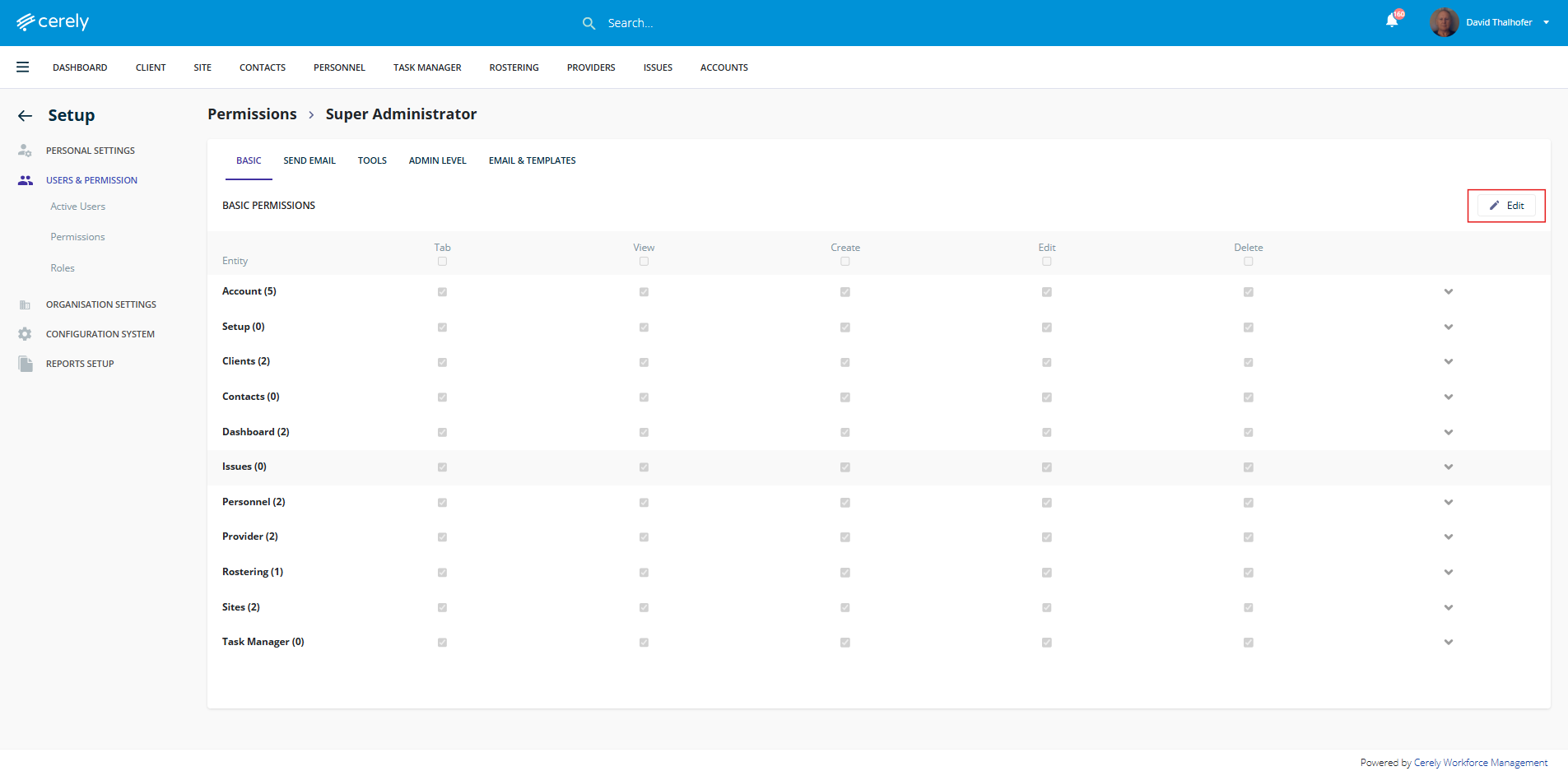
6. You will now see a permissions matrix with tabs across the top:
Basic
Send Email
Tools
Admin Level
Email & Templates
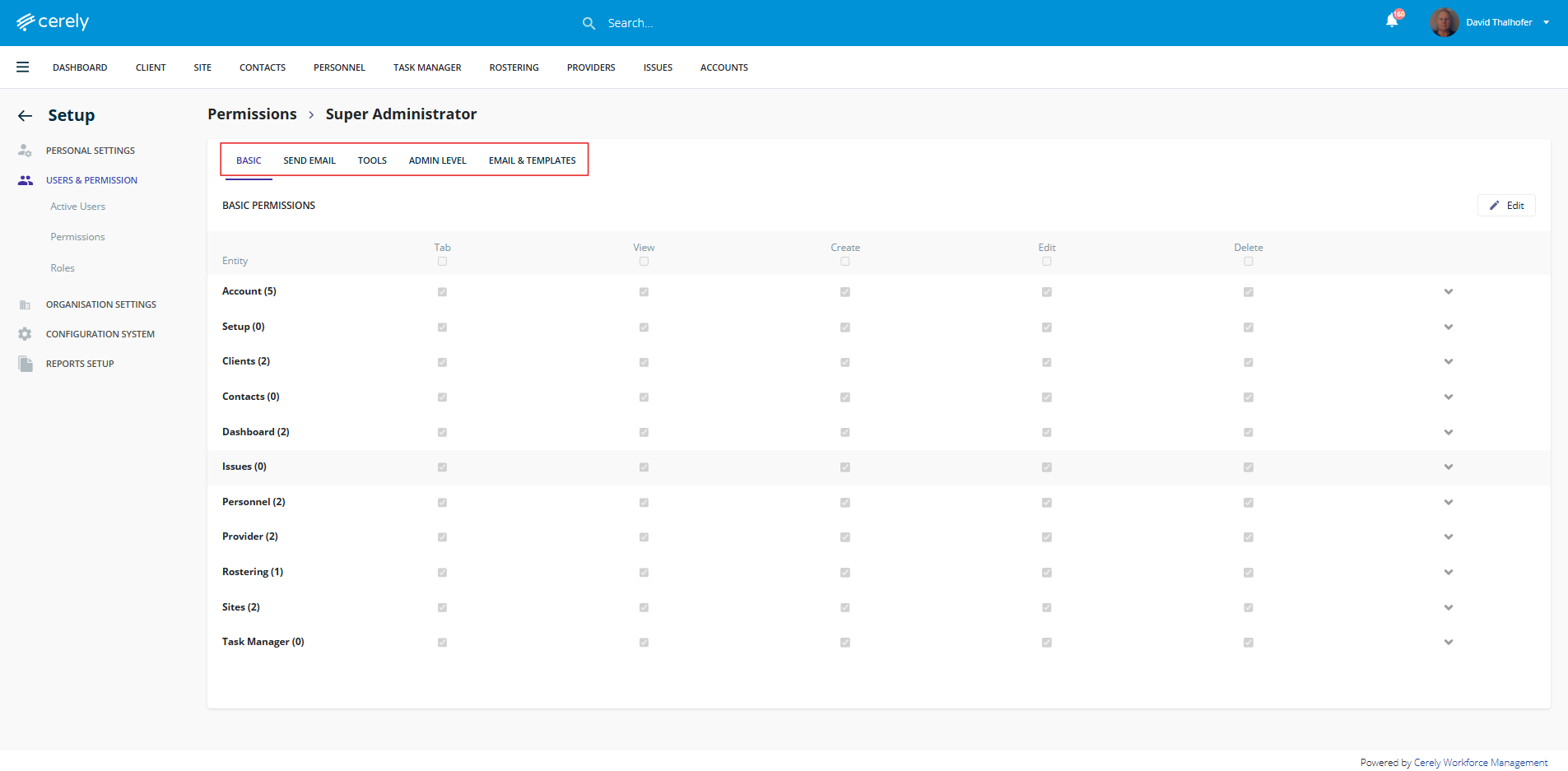
7. Within each tab, you can:
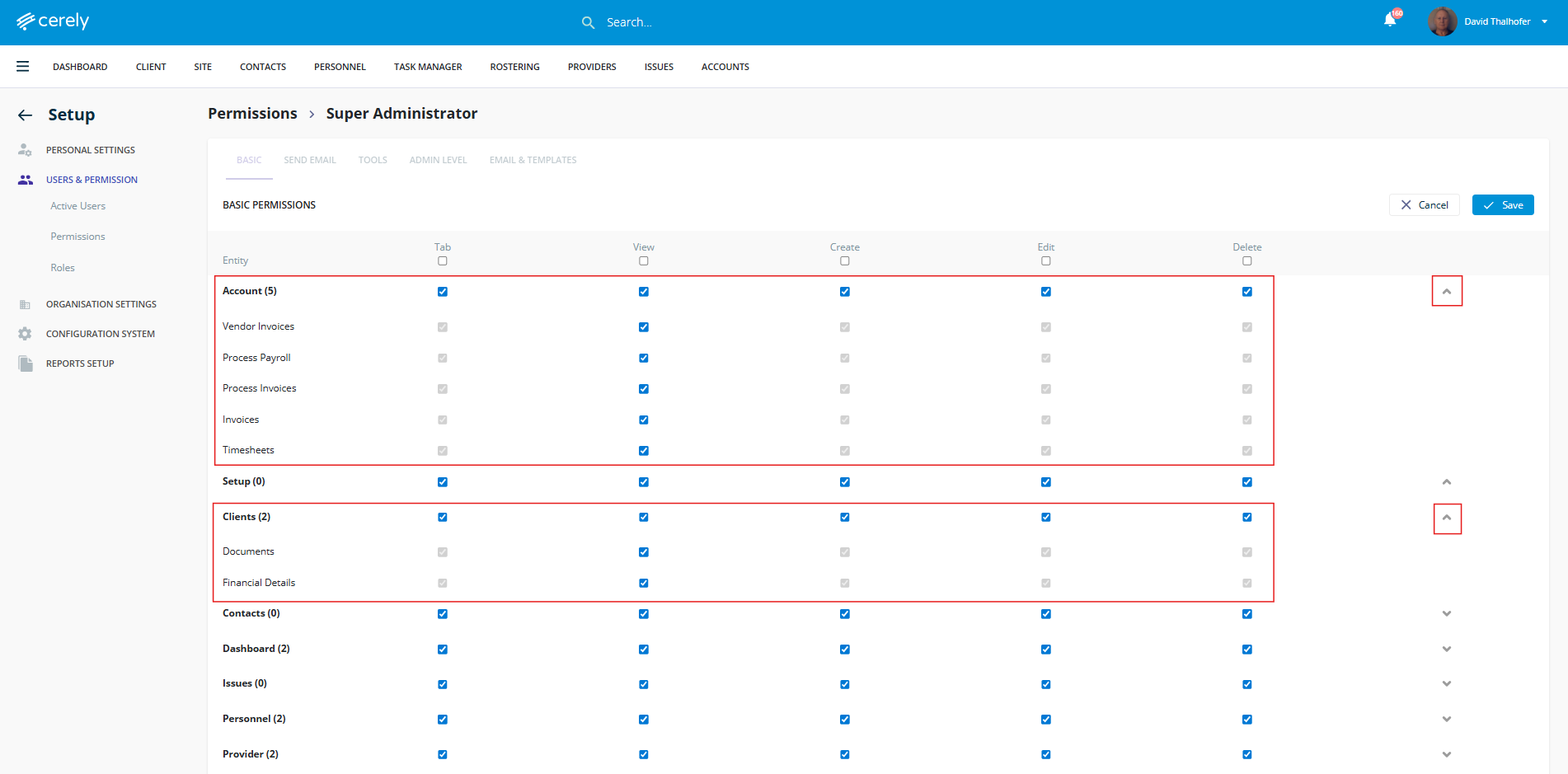
Check or uncheck boxes to allow or restrict access to specific modules (e.g. Tab, View, Create, Edit, Delete)
Expand each section to modify granular permissions by clicking the arrow beside each entity
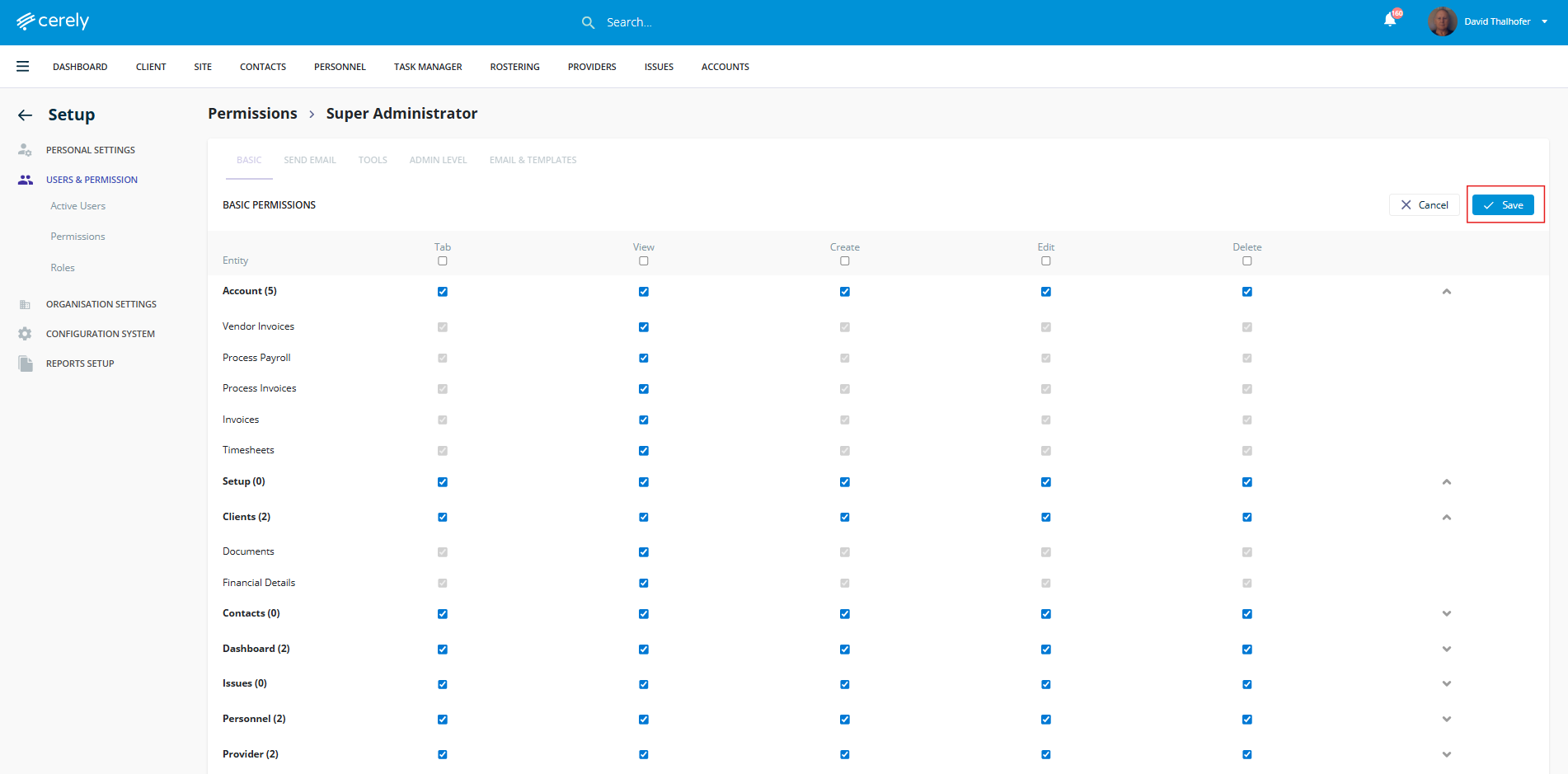
8. Once you’ve made the necessary changes to the permissions, click the Save button
While the Super Administrator profile itself cannot be reassigned or downgraded, you can still review and update specific access toggles or use it as a base to clone new custom profiles.
Warning: Changes to this profile will apply to all users assigned to the permission profile. Be cautious when toggling features.
If you want to create a new permission profile similar to a permission profile (but with slight restrictions), cloning is recommended.
Clone a Permission Profile (to Create a Custom Role)
Was this article helpful?
That’s Great!
Thank you for your feedback
Sorry! We couldn't be helpful
Thank you for your feedback
Feedback sent
We appreciate your effort and will try to fix the article