Cerely offers flexible user permissions through predefined profiles, allowing you to control access levels based on user responsibilities. Each profile comes with default settings that can be adjusted at any time to suit your operational needs by a Super Administrator or Administrator User.
How to Navigate to find out that your current User Permissions are:
1. Navigate to your profile in Cerely in the top left hand side
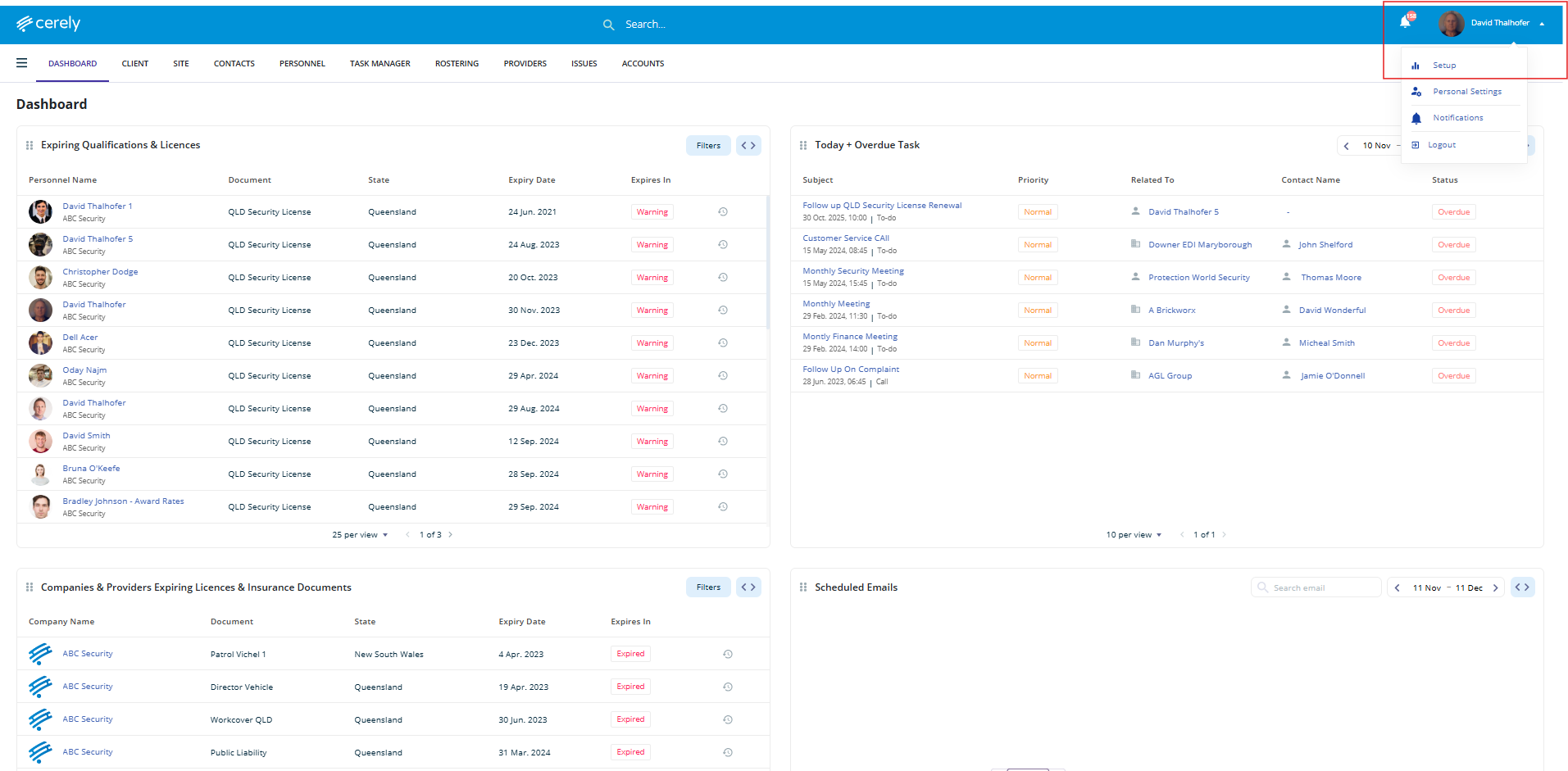
2. Click on Setup from the drop down menu
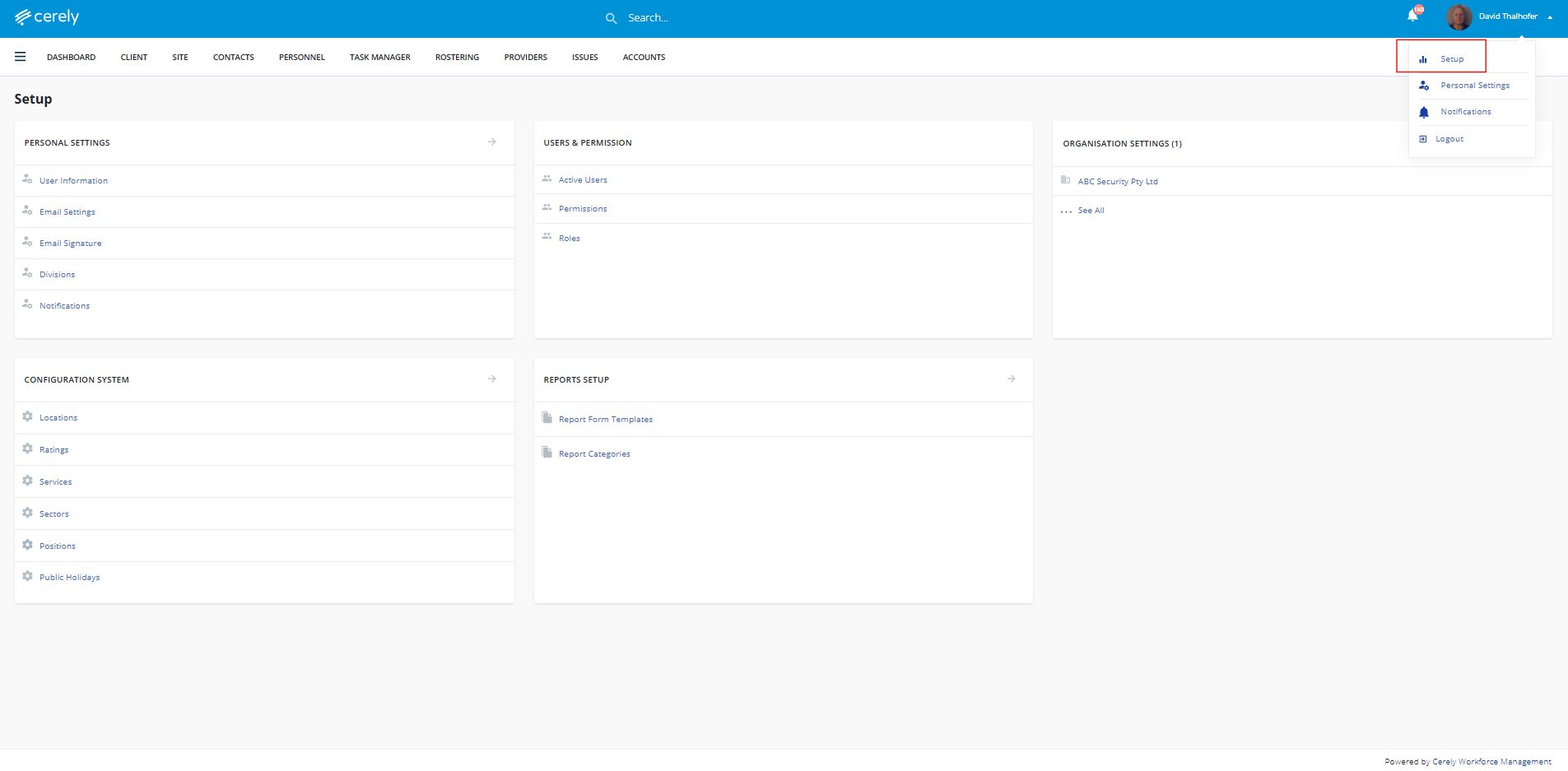
3. Under the Personal Settings, click on User Information
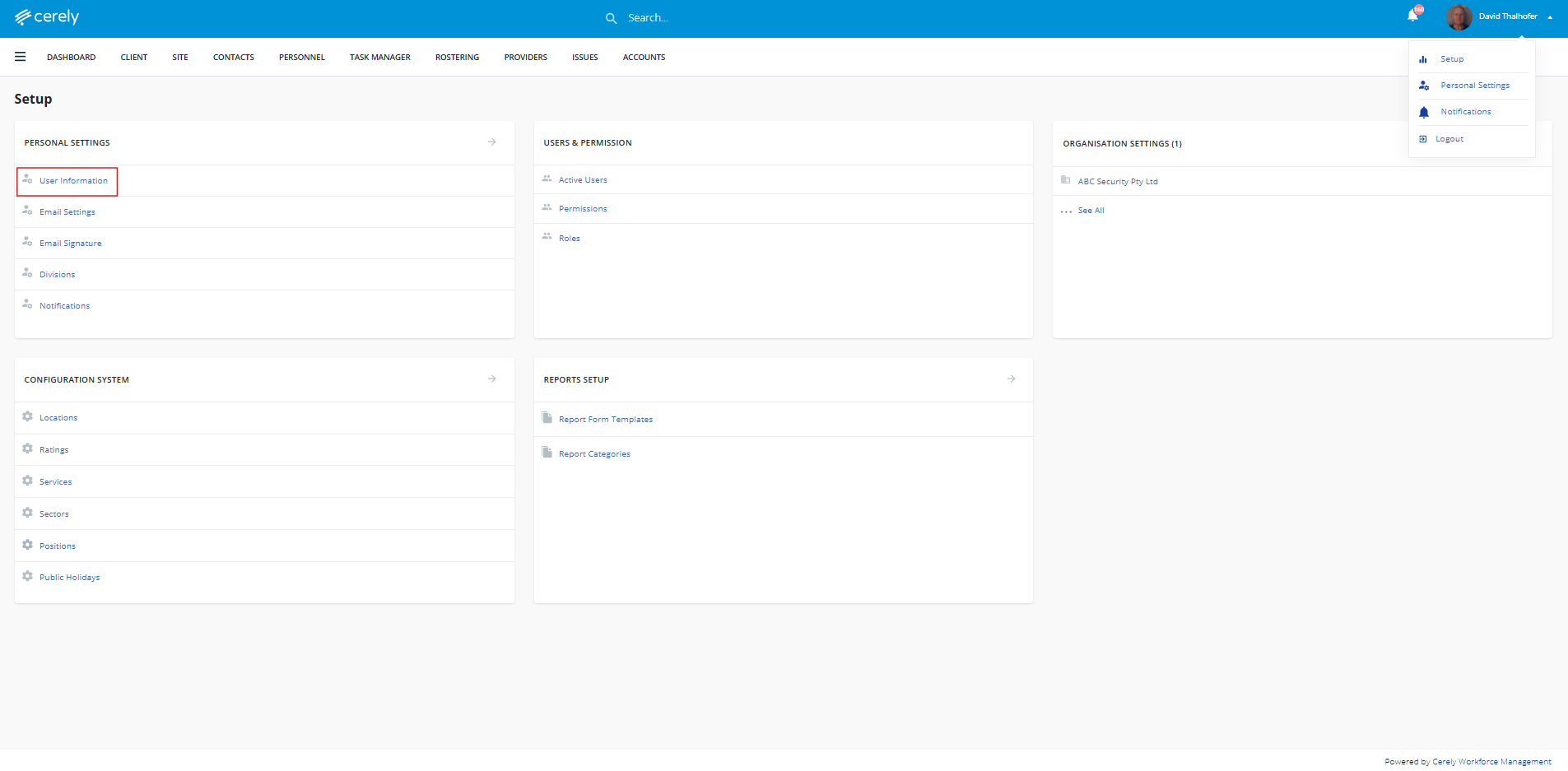
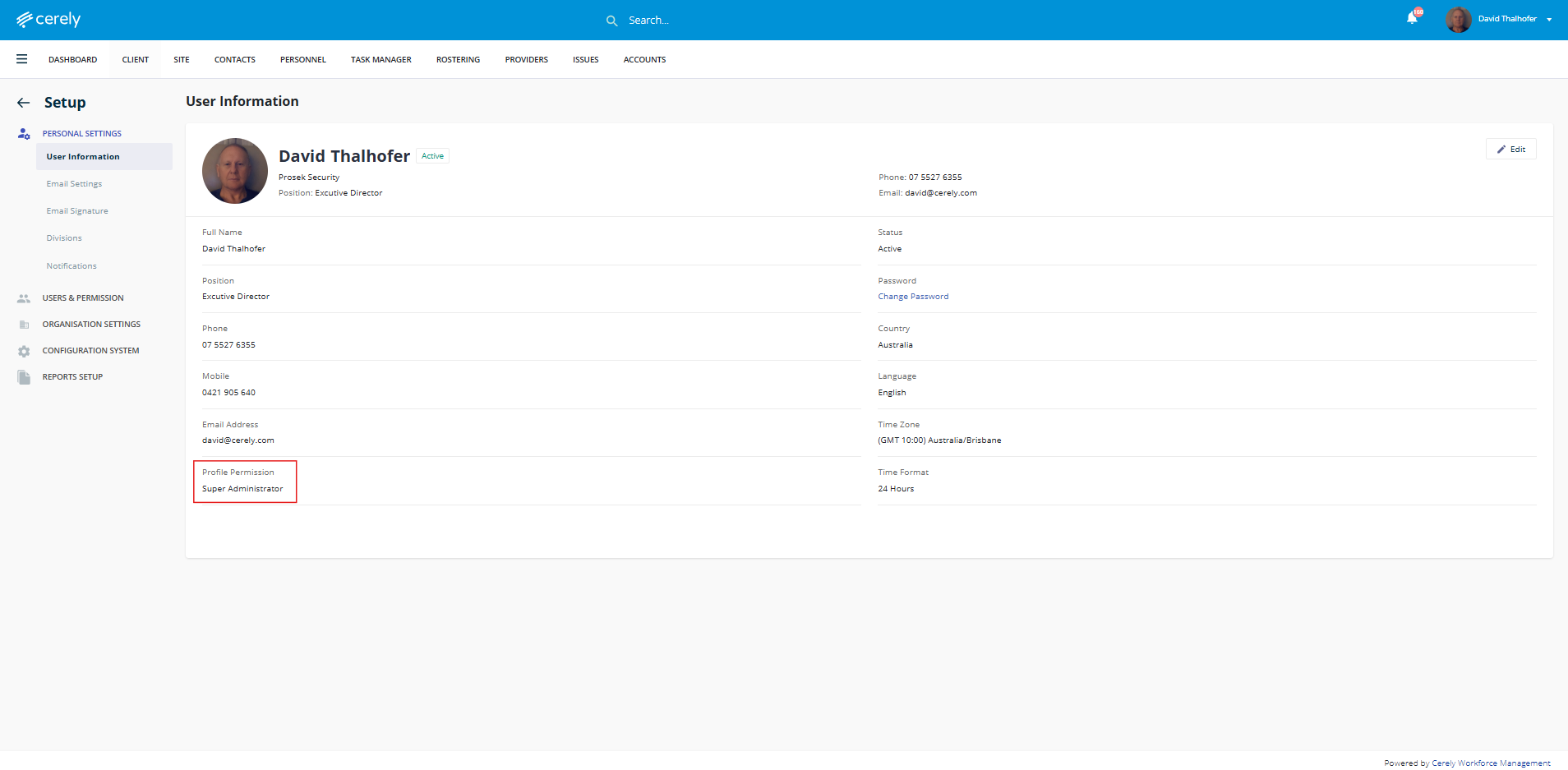
4. Under the Profile Permission heading it will display your current user permissions profile
Below is a breakdown of each permission level available in Cerely as default options:
Super Administrator
Full access to all areas and features within Cerely
Assigned as the account owner or accounts administrator
Has the ability to view and edit all user permissions
Note: This role cannot be edited to a different profile permission once granted
View the default Super Administrator settings and how to modify
Administrator
Full access to all areas and features within Cerely
Can view, edit, and assign other user permissions
Can be reassigned to a different permission profile if needed
View the default Administrator settings and how to modify
Operations
Access to all operational modules, Clients Tab, Sites Tab, Contacts Tab, Task Manager Tab, Rostering Tab, Providers Tab, but are restricted from sensitive system areas such as financials, document management under all profiles, and system setup.
Cannot view or assign user permissions, these options are hidden from this profile. You will need to request access to permissions from a Super Administrator or Administrator.
Ideal for Team leaders or managers needing full visibility into day-to-day operations without Account controls by default.
View the default Operations settings and how to modify
Employee
Restricted access limited to the Personnel and Rostering tabs only, allowing visibility and interaction with operational rostering tasks while maintaining strict controls on financials, documents, and system settings.
Can view, assign, and manage rosters for personnel
Can access and update personnel profiles as needed for rostering
Cannot view or access client, site, accounts, contacts, task manager, financial, document, or configuration/setup areas of the system
Ideal for operational team members or site-level employees responsible for managing rosters and personnel in specific divisions or locations, such as site supervisors, scheduling assistants, or division rostering leads.
View the default Employee settings and how to modify
Need to Customise Permissions?
You can easily edit, modify, or clone permission profiles to suit different user roles within your business.
Learn how to edit and clone user permissions in Cerely
This allows you to build flexible user permission profiles that reflect the operational structure and access requirements of your organisation.
Was this article helpful?
That’s Great!
Thank you for your feedback
Sorry! We couldn't be helpful
Thank you for your feedback
Feedback sent
We appreciate your effort and will try to fix the article