Client contacts are the people you interact with across Clients and Sites. This includes general business contacts, site managers, key decision-makers, and emergency contacts for the site.
Follow the steps below to add a contact to an existing client in Cerely:
1. Navigate to the client tab from the main menu
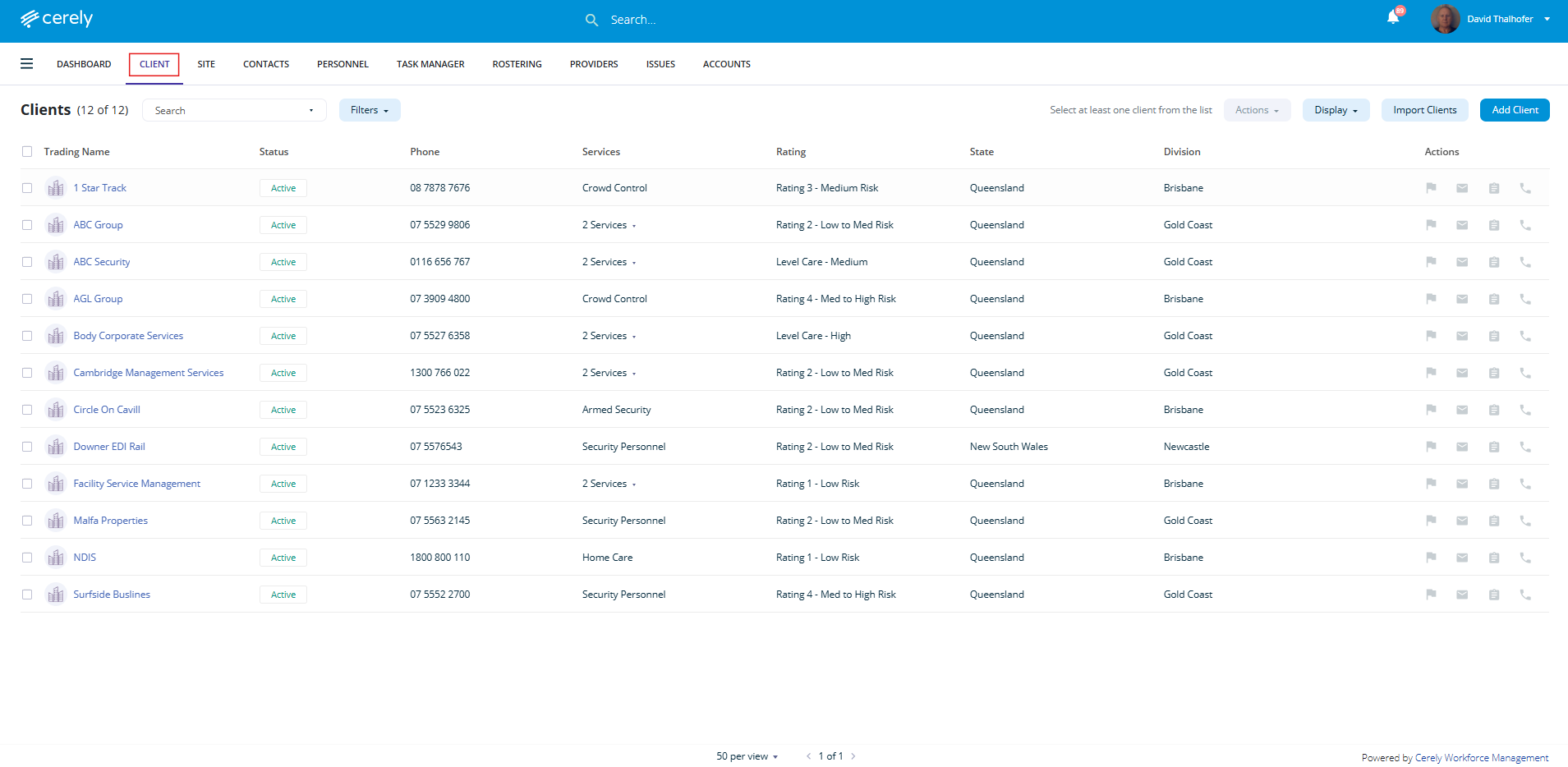
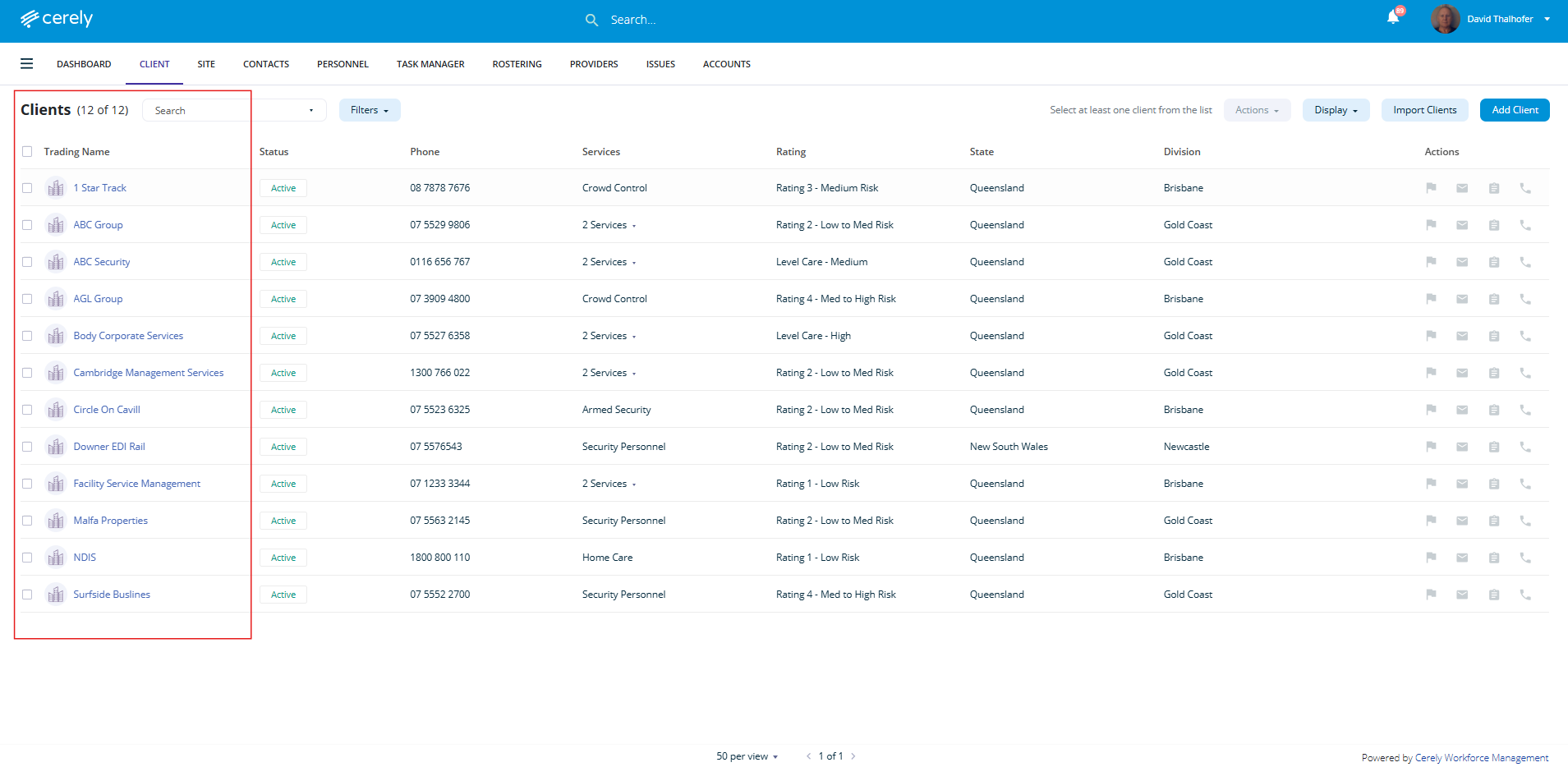
2. Select the client from the list you wish to add contacts to
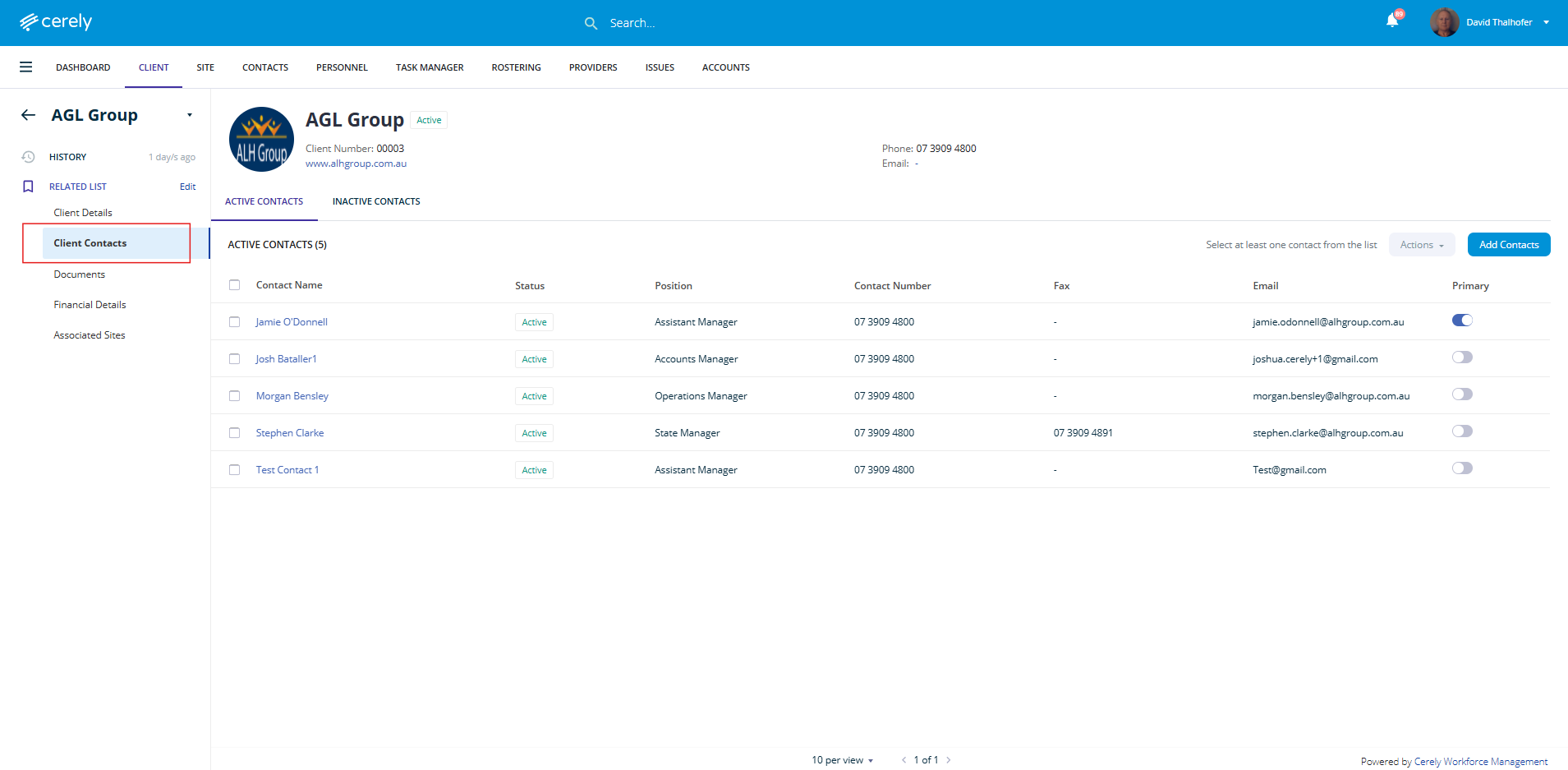
3. From the left-hand menu bar, select client contacts
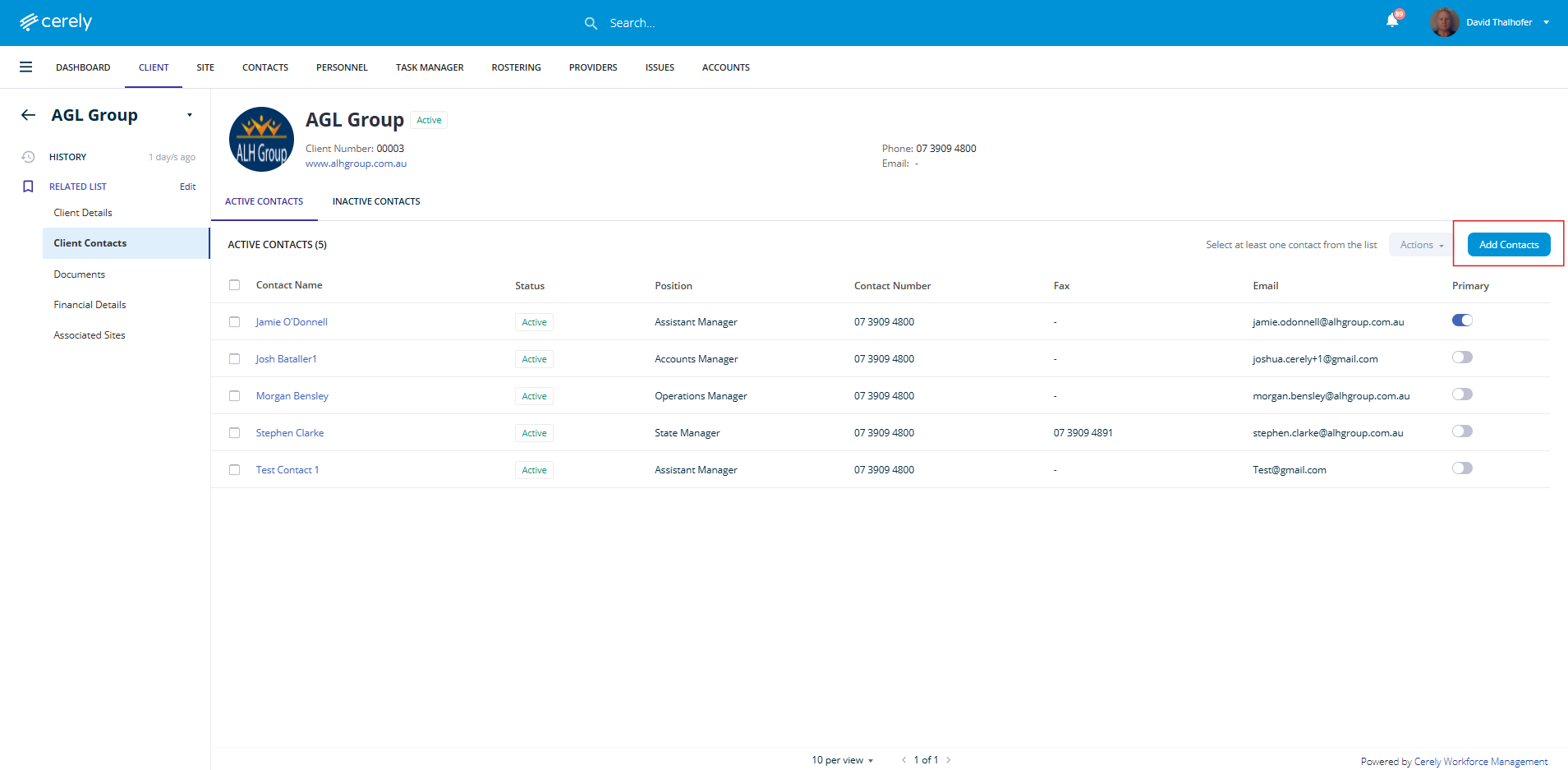
4. Click on the add contacts button on the right-hand side
5. Enter the contact's full name and select their position from the dropdown menu
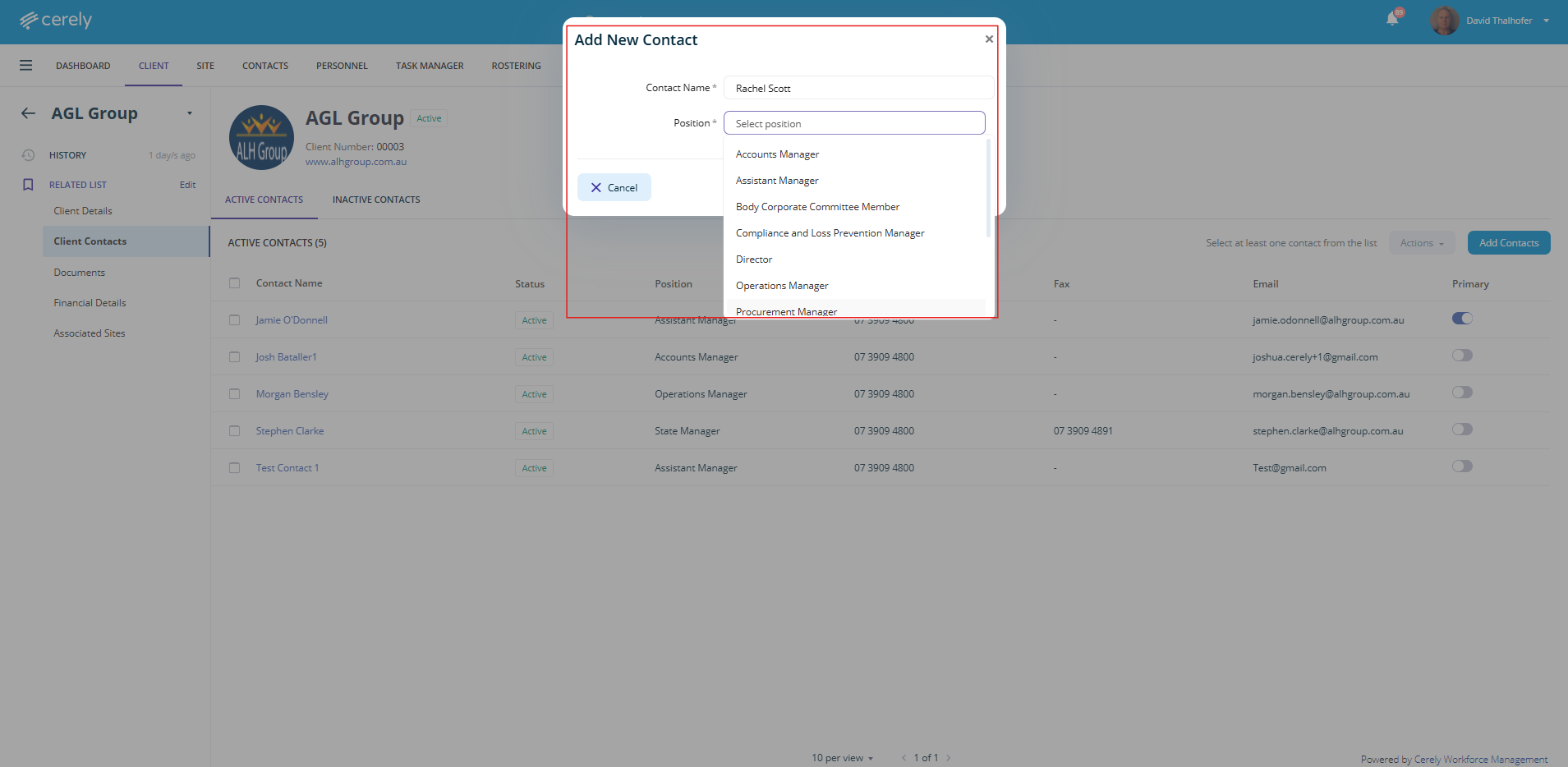
7. Click the add button

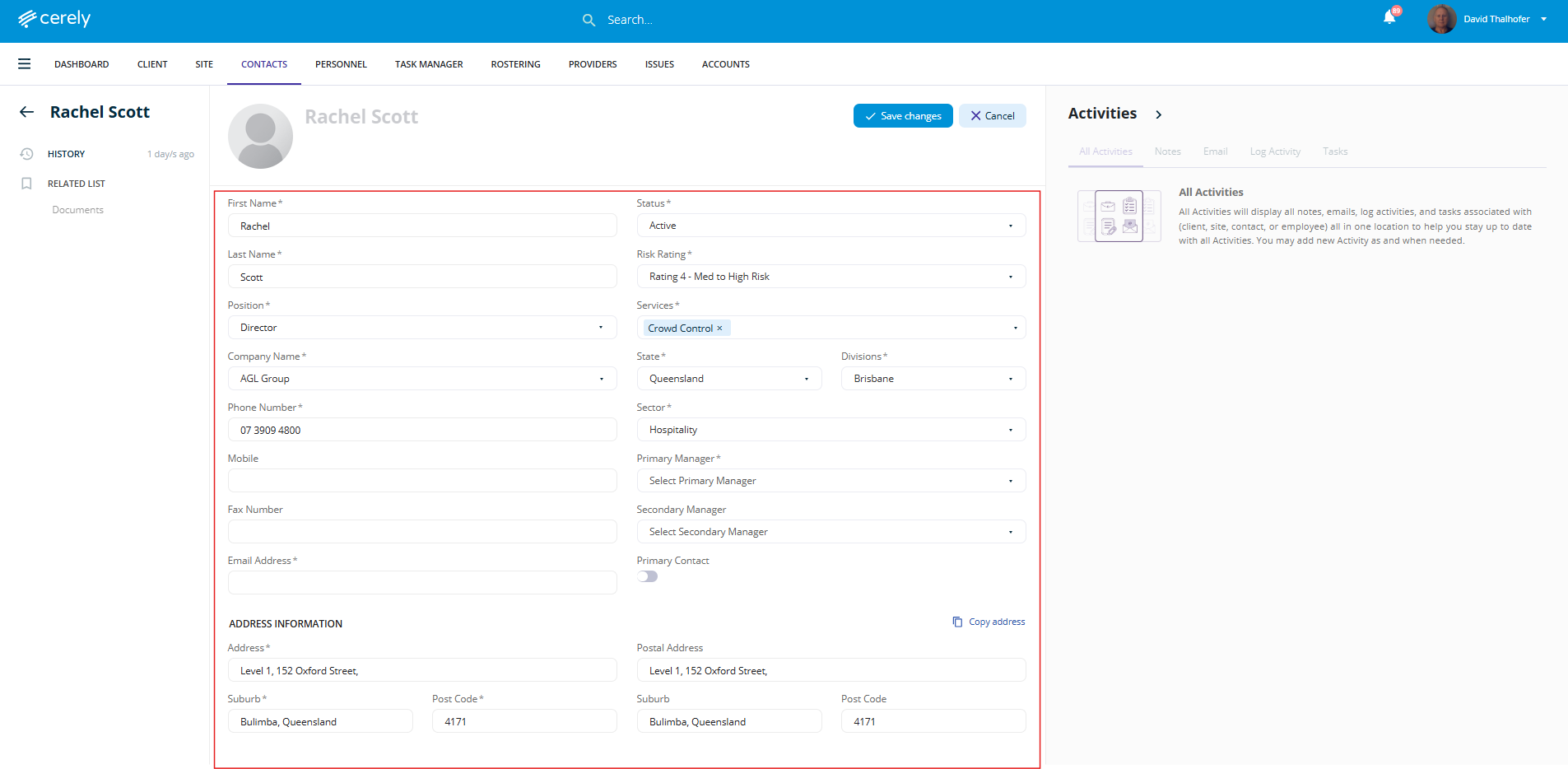
8. The contact's profile screen will appear. Complete all *mandatory fields along with any additional details you wish to store about the contact. This may include phone numbers, email addresses, position titles, and any relevant notes for internal reference.
9. Click the save changes button
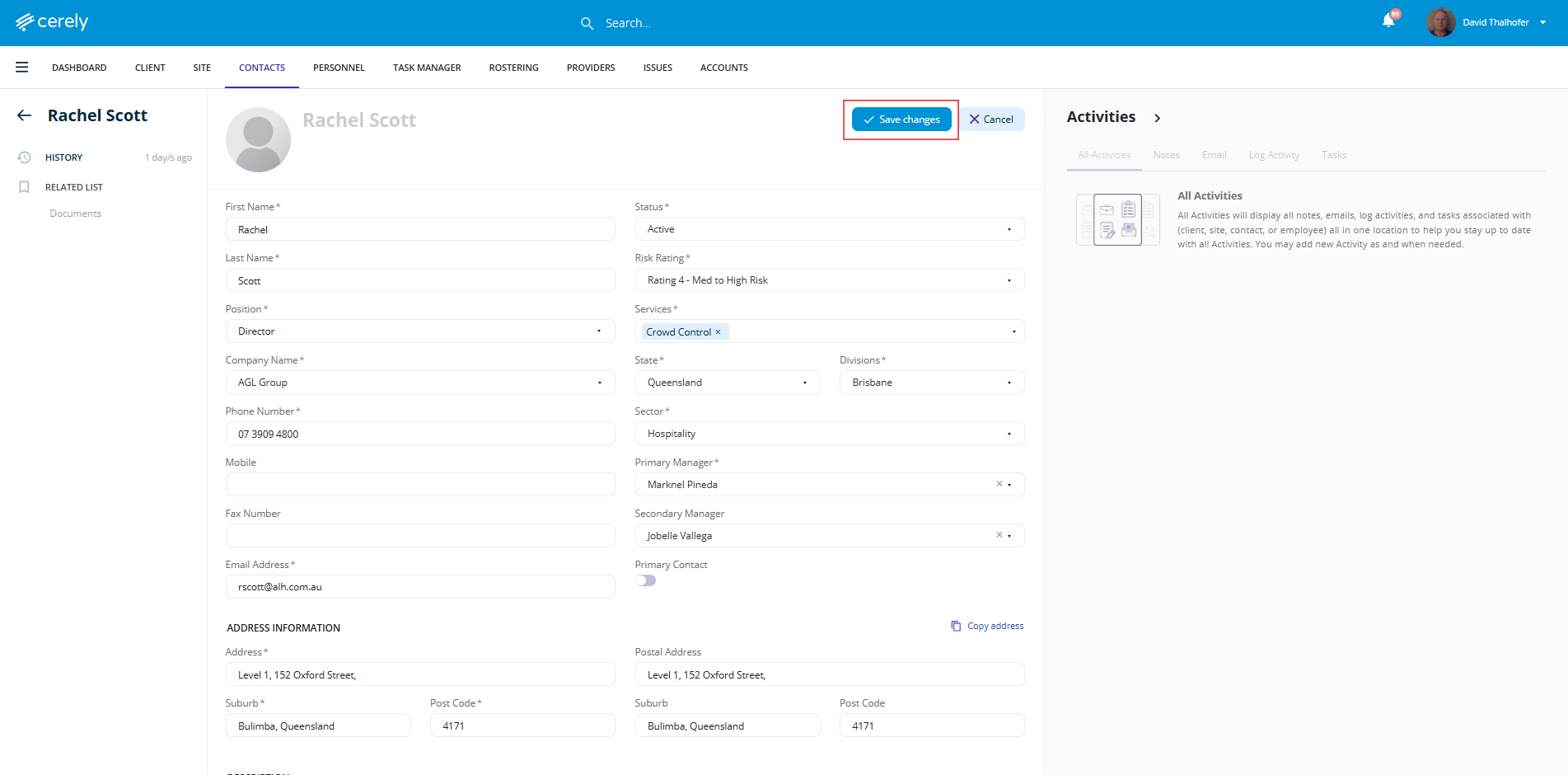
The contact will now appear in the Contact List for the selected client and will be available for assignment to communication records, task manager items, and site setups.
Was this article helpful?
That’s Great!
Thank you for your feedback
Sorry! We couldn't be helpful
Thank you for your feedback
Feedback sent
We appreciate your effort and will try to fix the article