Making a client contact inactive in Cerely allows you to retain their historical information while preventing them from appearing in active communication lists, task assignments, or contact dropdowns. This is useful when a contact leaves an organisation or is no longer your primary point of communication.
Follow the steps below to make a client contact inactive in Cerely:
1. Navigate to the client tab from the main menu
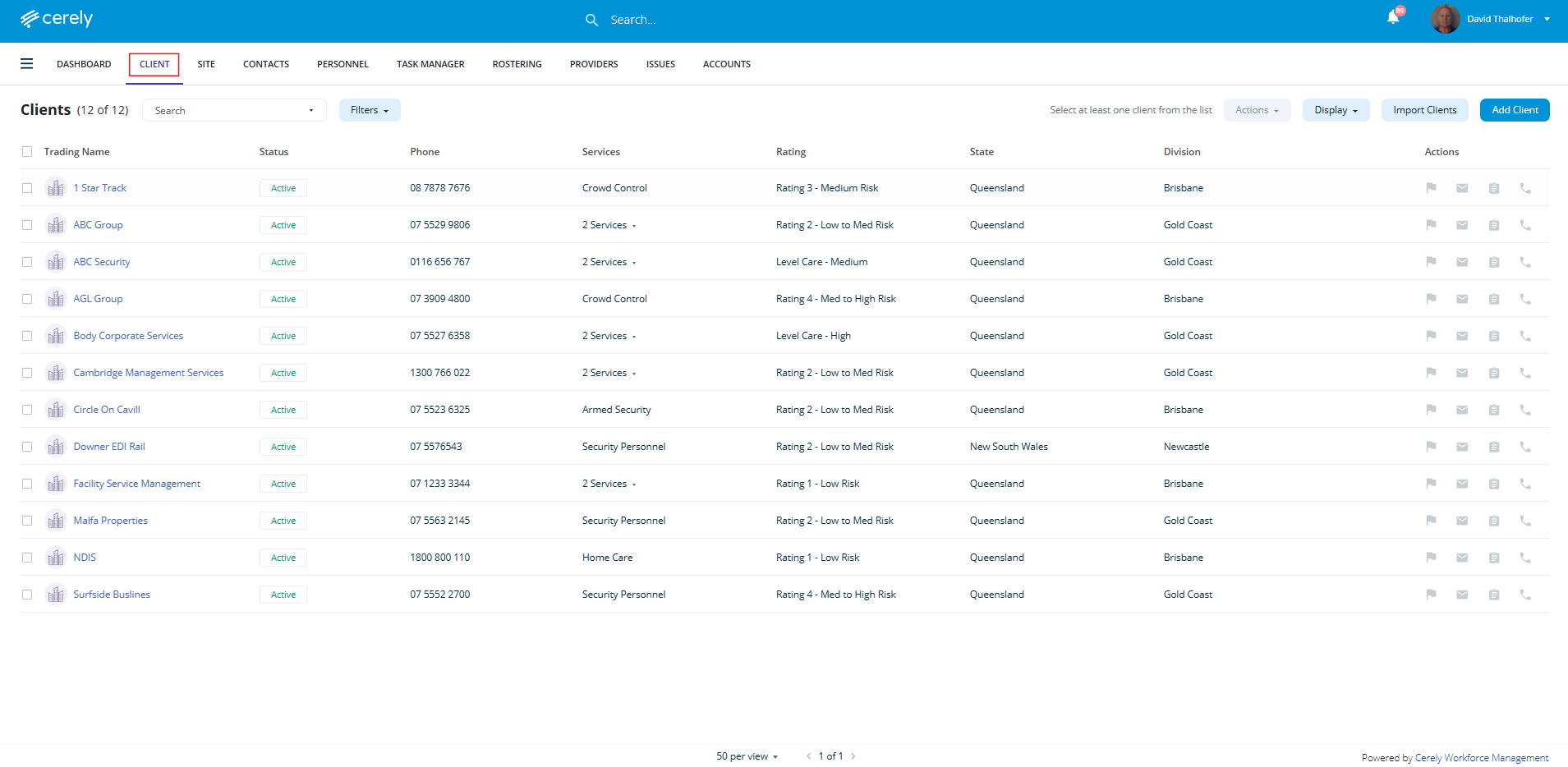
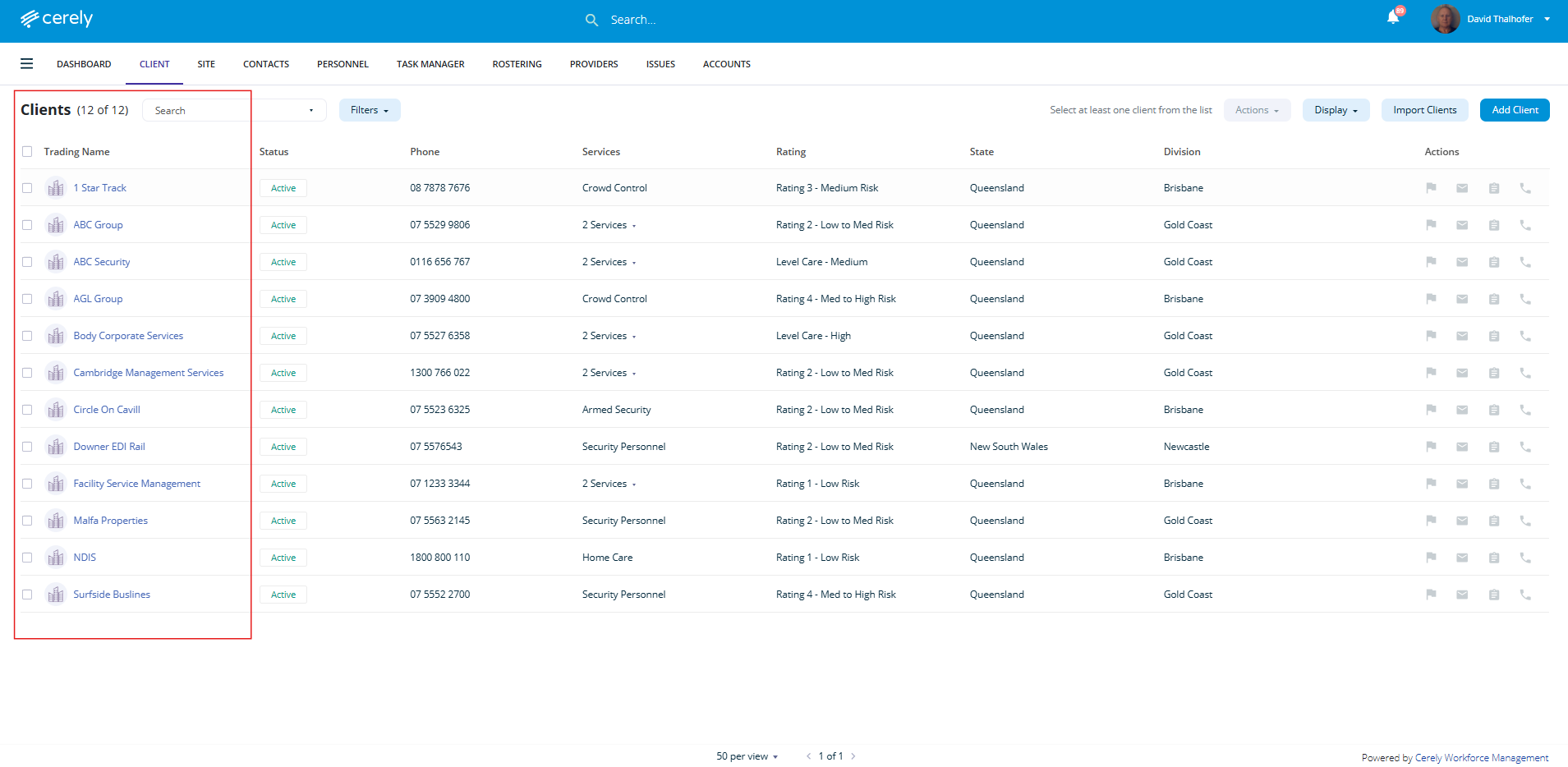
2. Select the client from the list you wish to deactivate client contacts
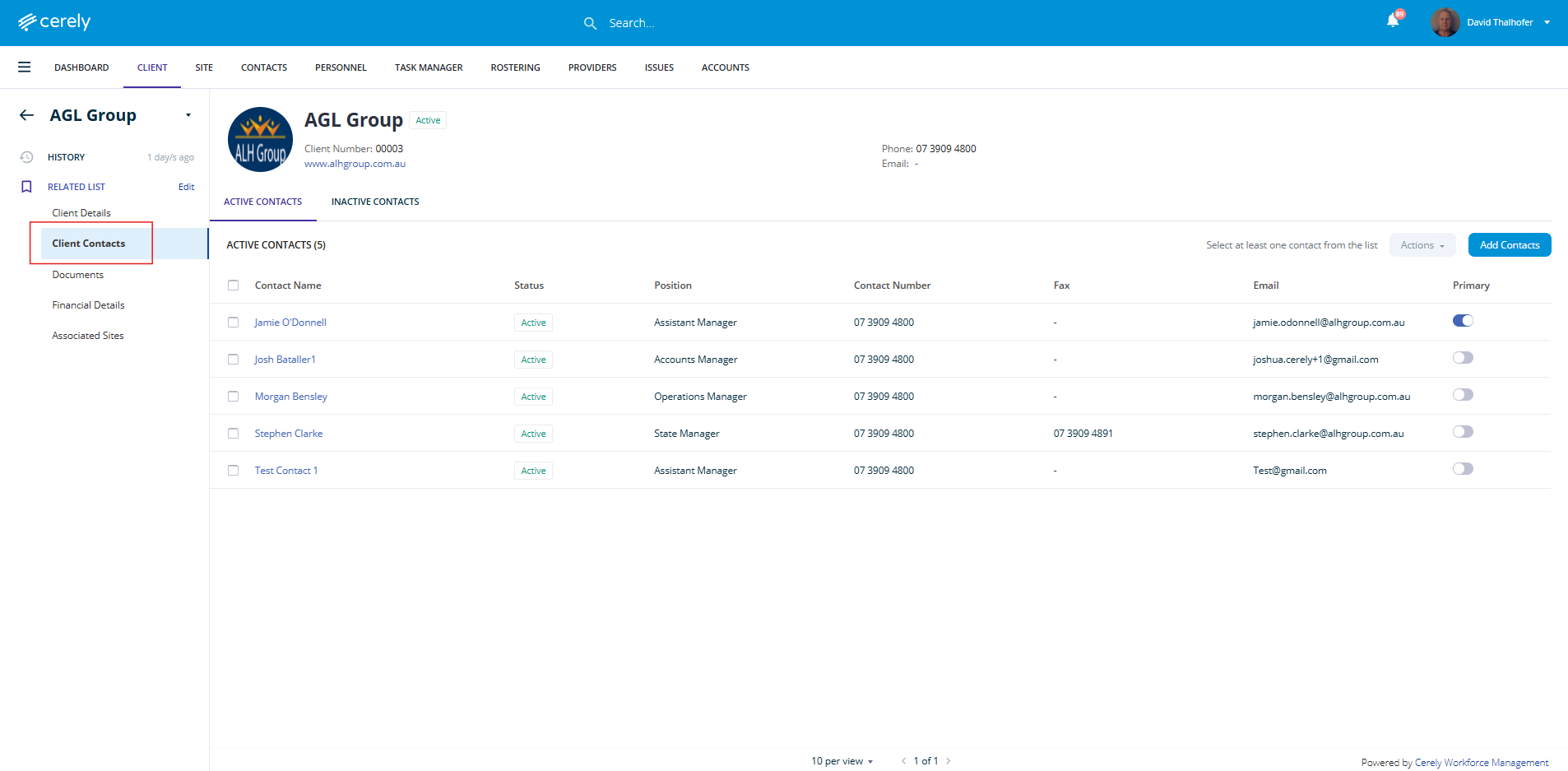
3. From the left-hand menu bar, select client contacts
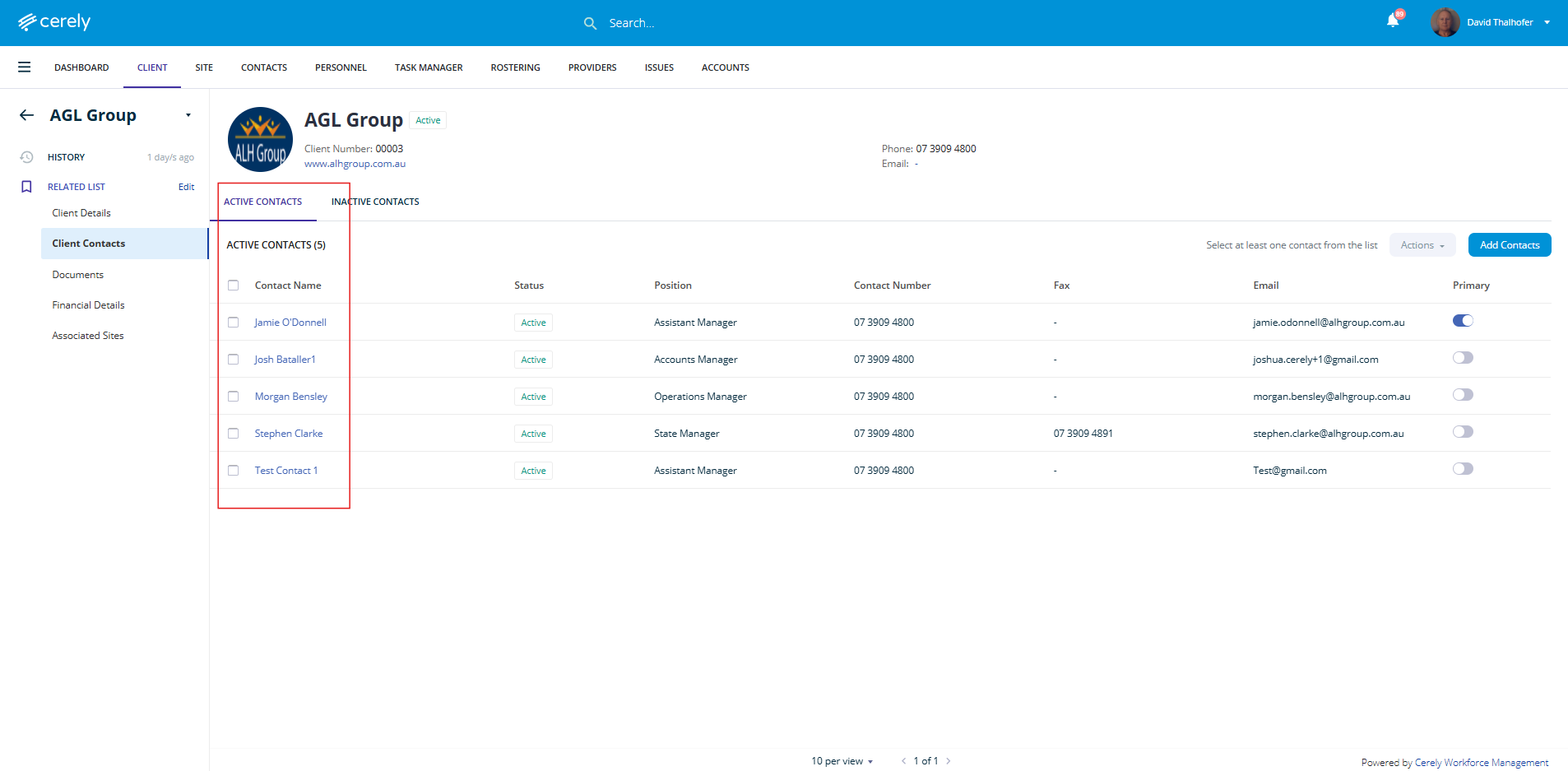
4. Select the contact you wish to deactivate in the list and click on their name to open the contact’s profile
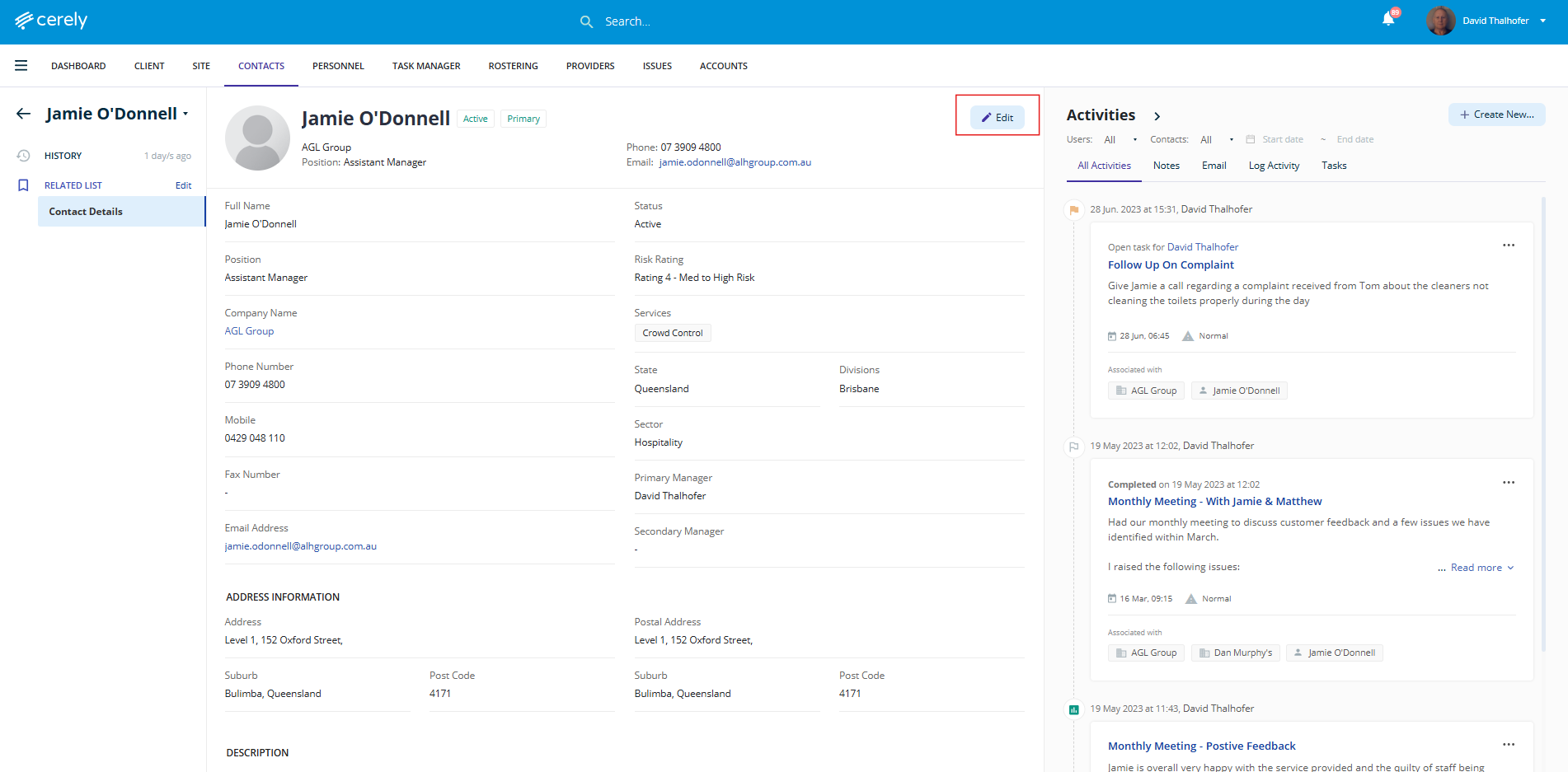
5. Select the edit button to Edit the contact’s information. The contact profile screen will appear.
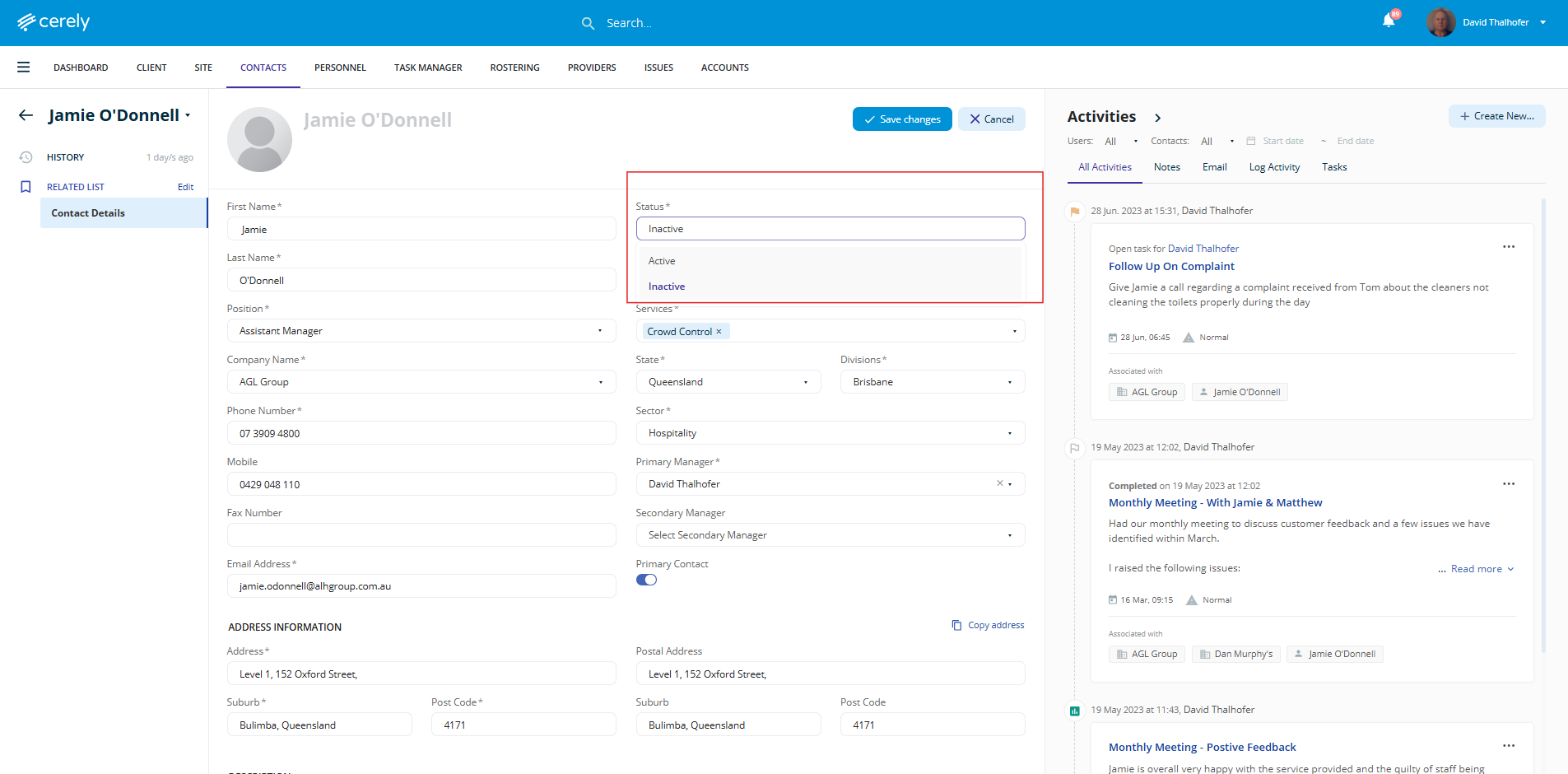
6. Change the status field to Inactive using the dropdown to change the contact’s Status from “Active” to “Inactive”.
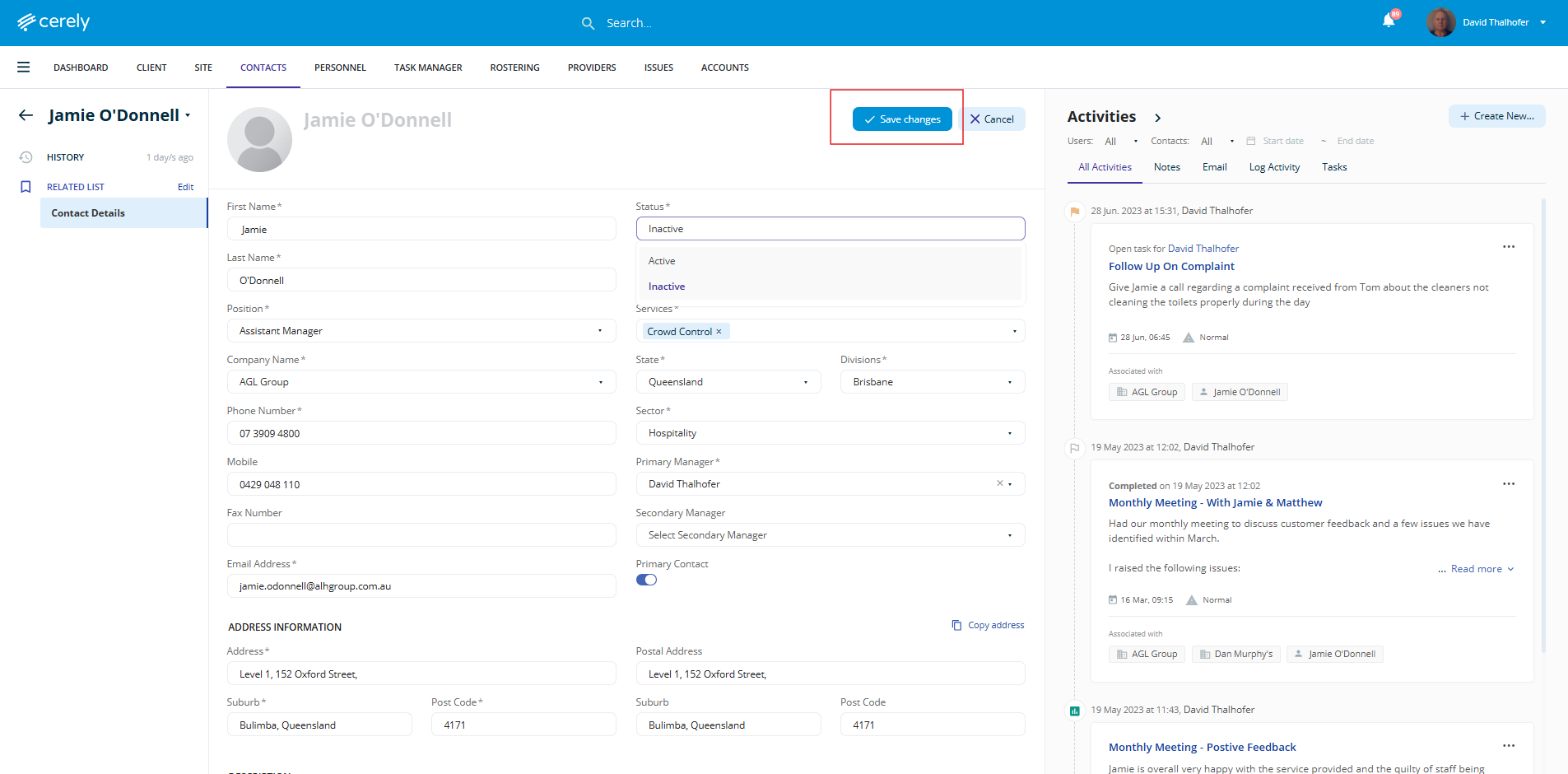
7. Click the Save button. The contact will now be marked as inactive in the system.
Was this article helpful?
That’s Great!
Thank you for your feedback
Sorry! We couldn't be helpful
Thank you for your feedback
Feedback sent
We appreciate your effort and will try to fix the article