Importing sites into Cerely allows you to efficiently upload multiple site records in bulk using a structured CSV template. This article outlines the step-by-step process to prepare your data, upload the file, and ensure a smooth import into your Sites list.
To import site data into the system, follow these steps:
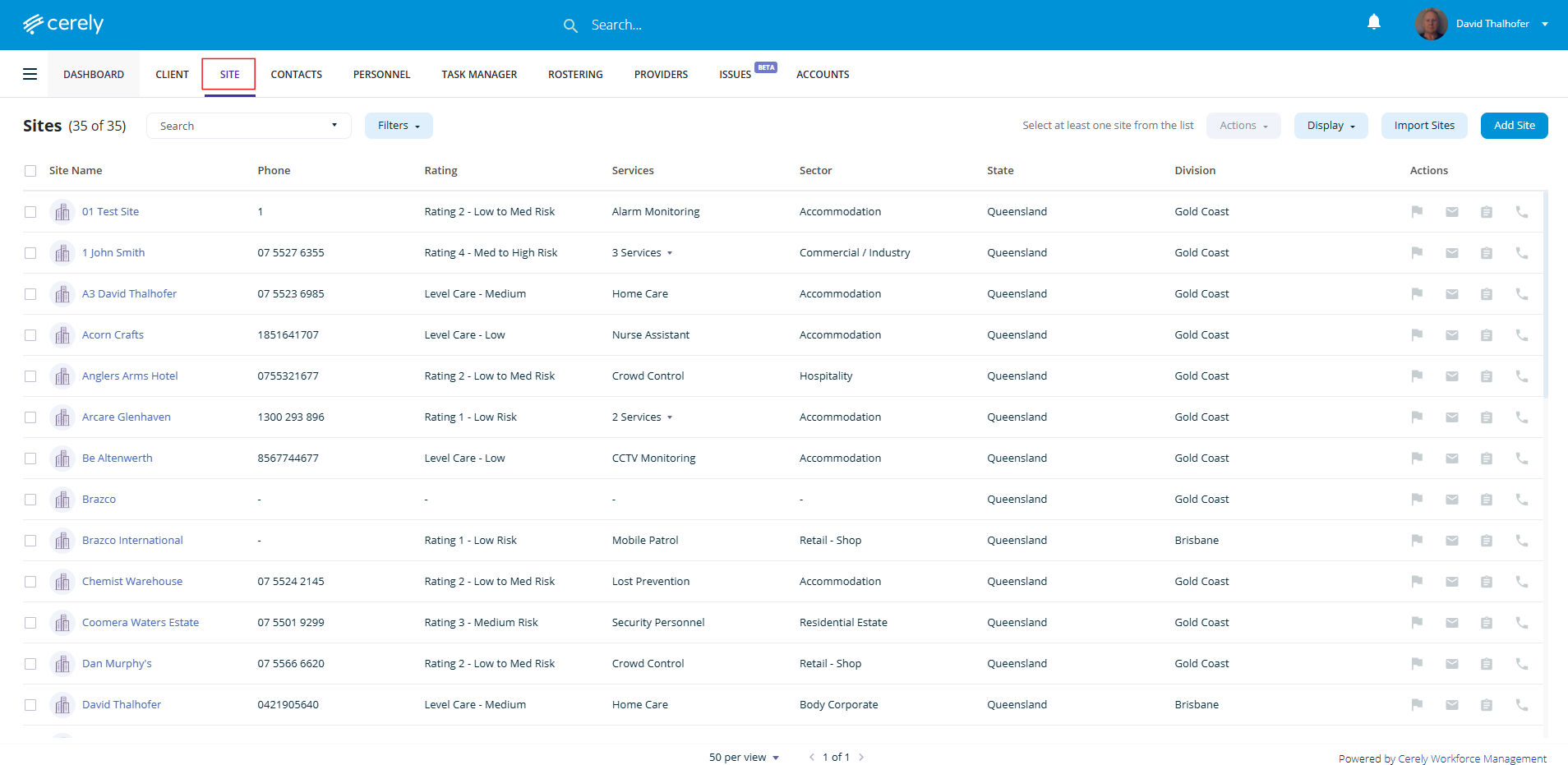
1. Navigate to the Sites tab from the main menu
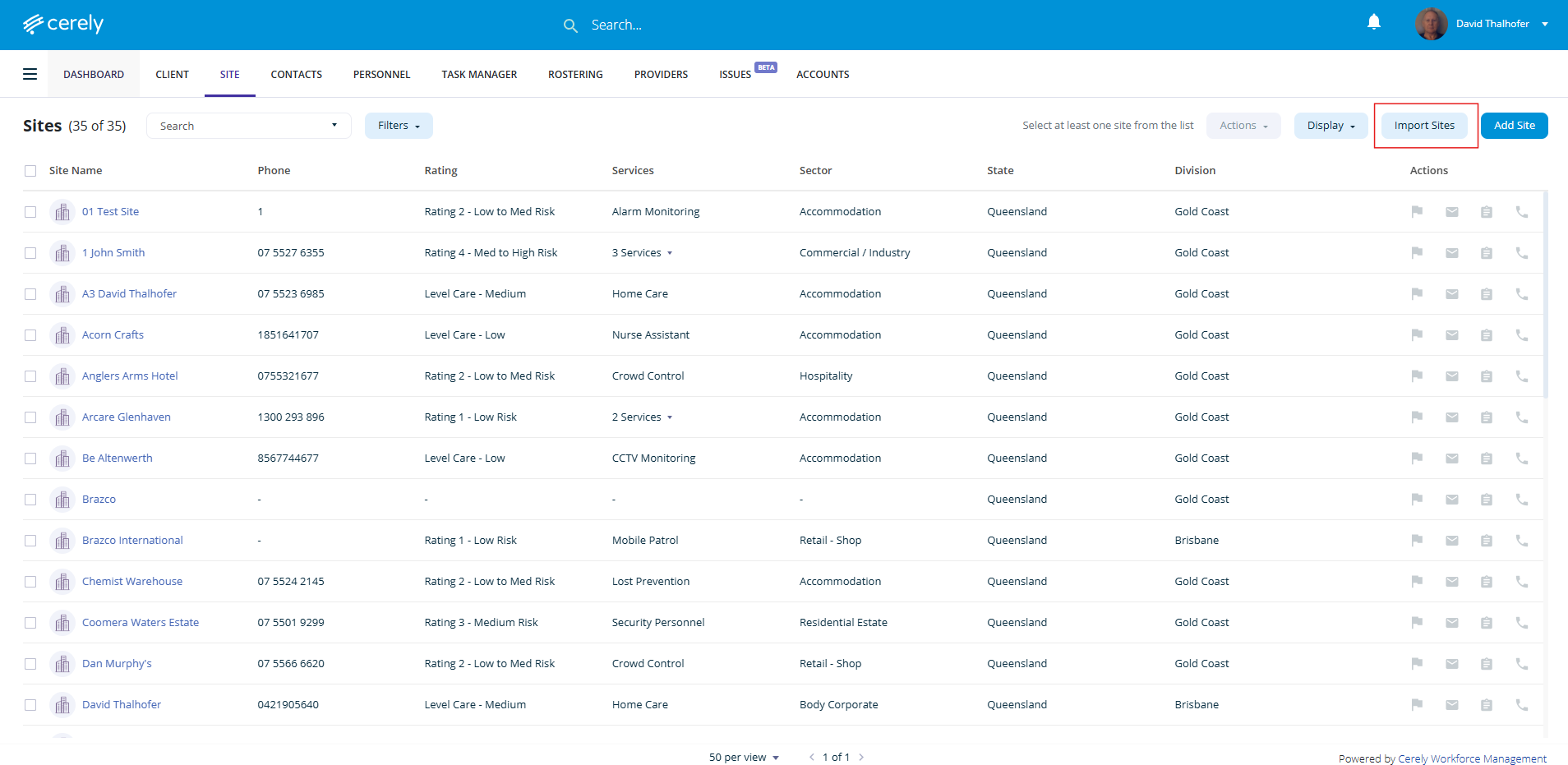
2. Select Import Sites
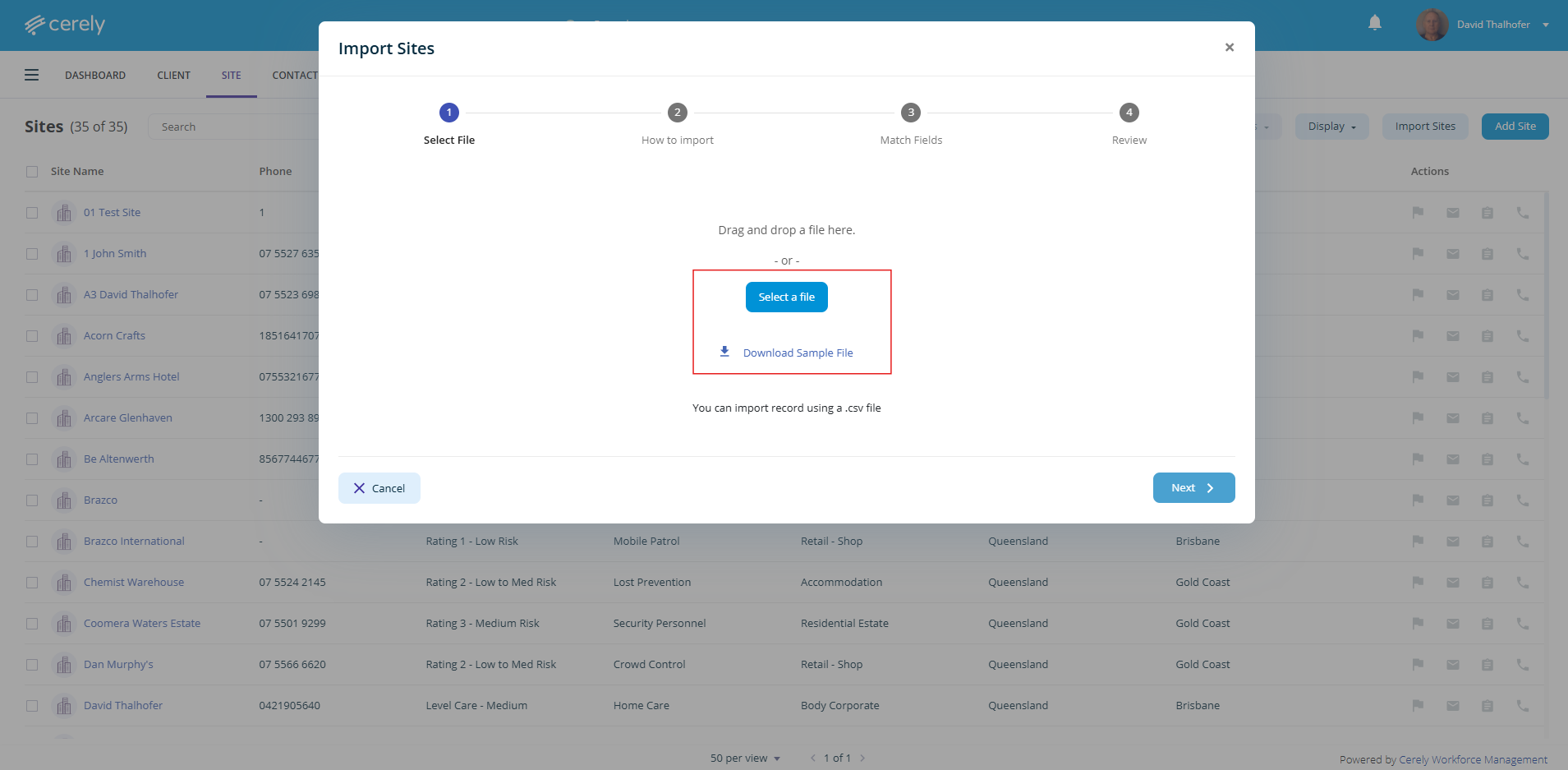
3. Click the Download Sample File button to access the import file template
4. Prefill or organise your site data using the downloaded template
Important: The following fields are mandatory for a successful import:Site Name
Client Name
State
Division
Location (Address)
These fields are essential as they are used as filters and identifiers within the system
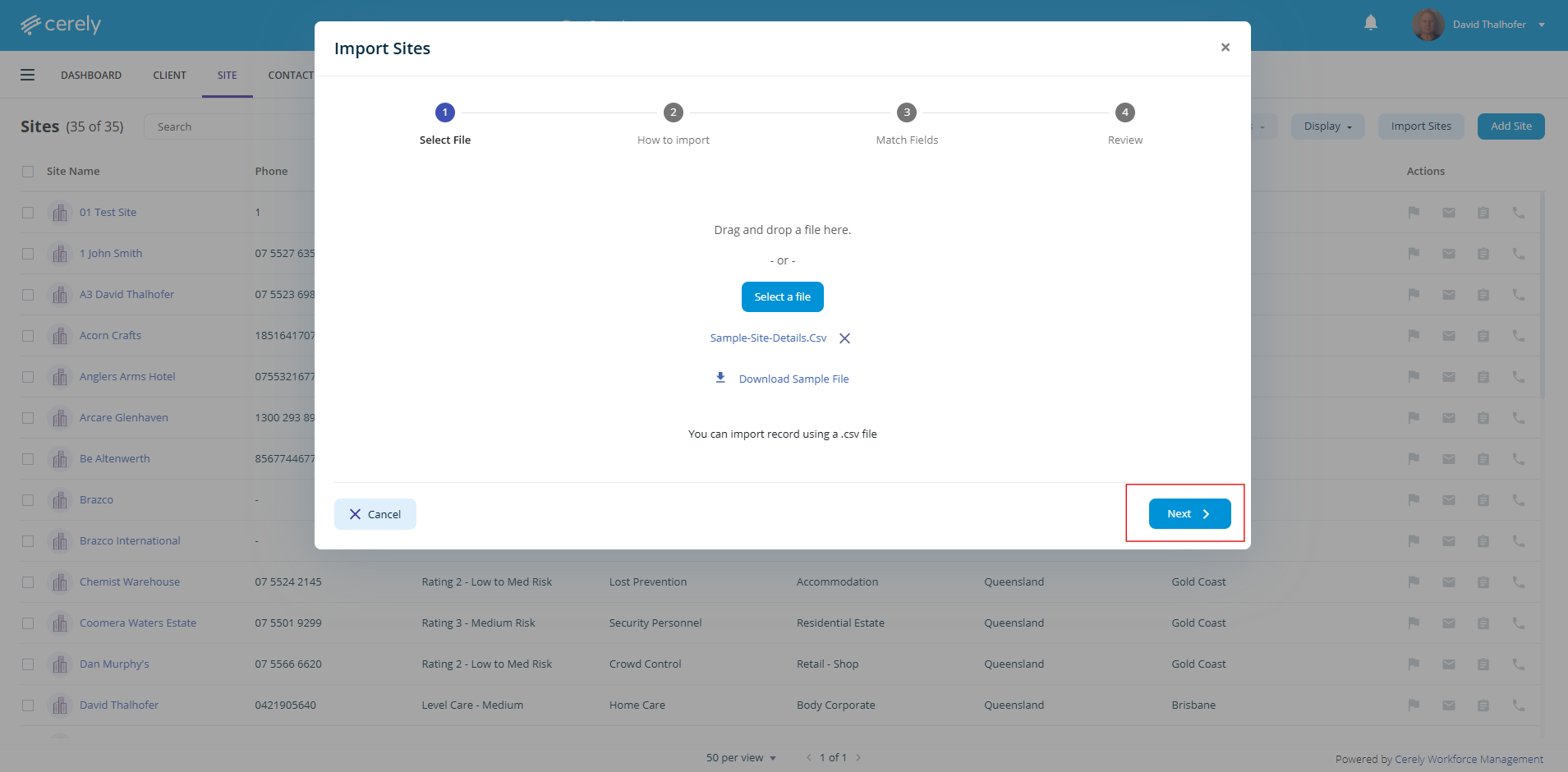
5. Save your completed template and click the Next button to upload the file
6. Once uploaded, choose how you want to import the records:
Add as a New Site
Update Existing Site Only
Both
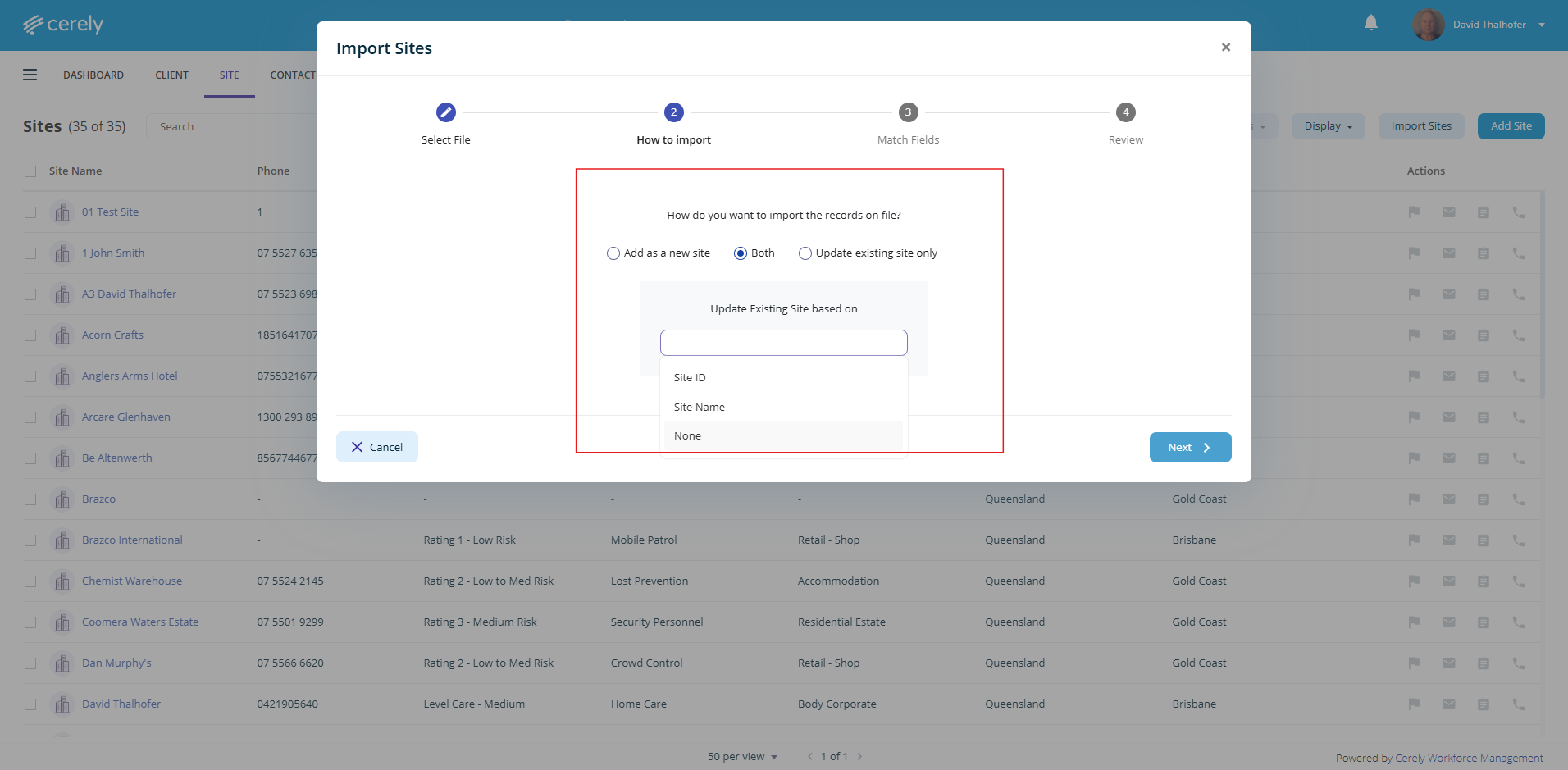
7. Review and configure the mapped records to ensure all fields are correctly matched to the system fields
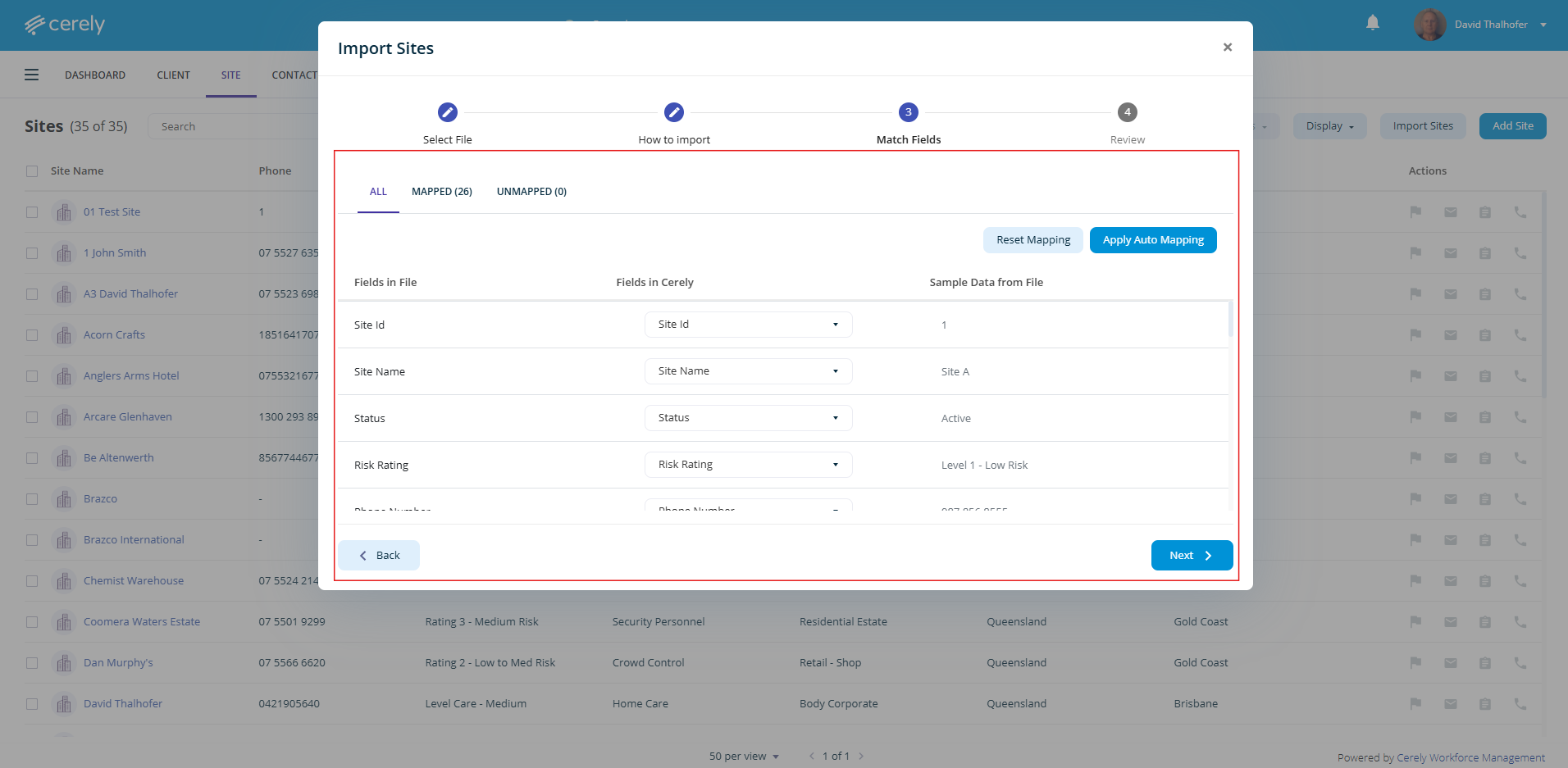
8. Click the Next button to view a preview of all successfully matched data
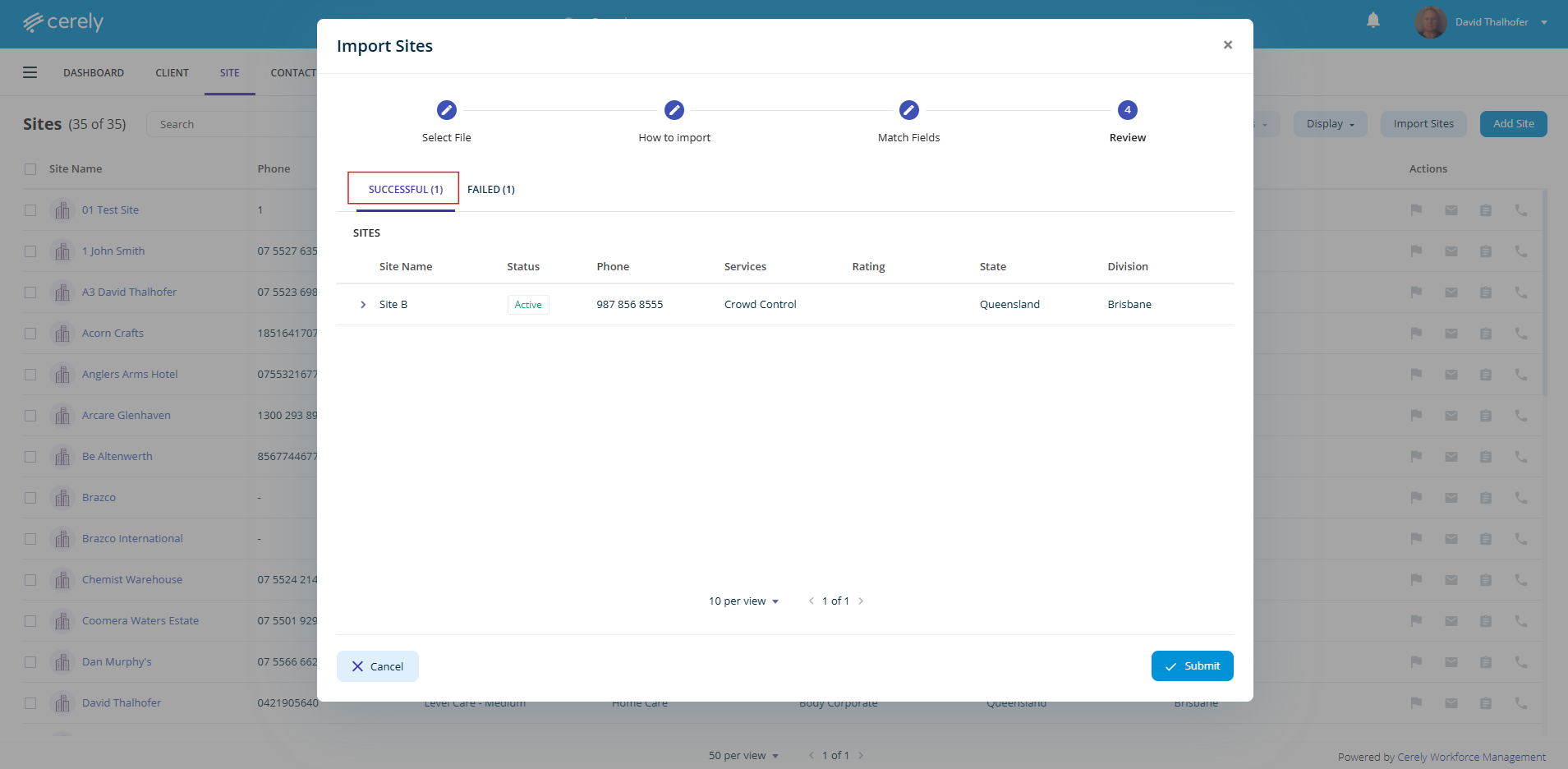
9. If any records have failed, navigate to the Failed tab to view and correct any missing or incorrect information
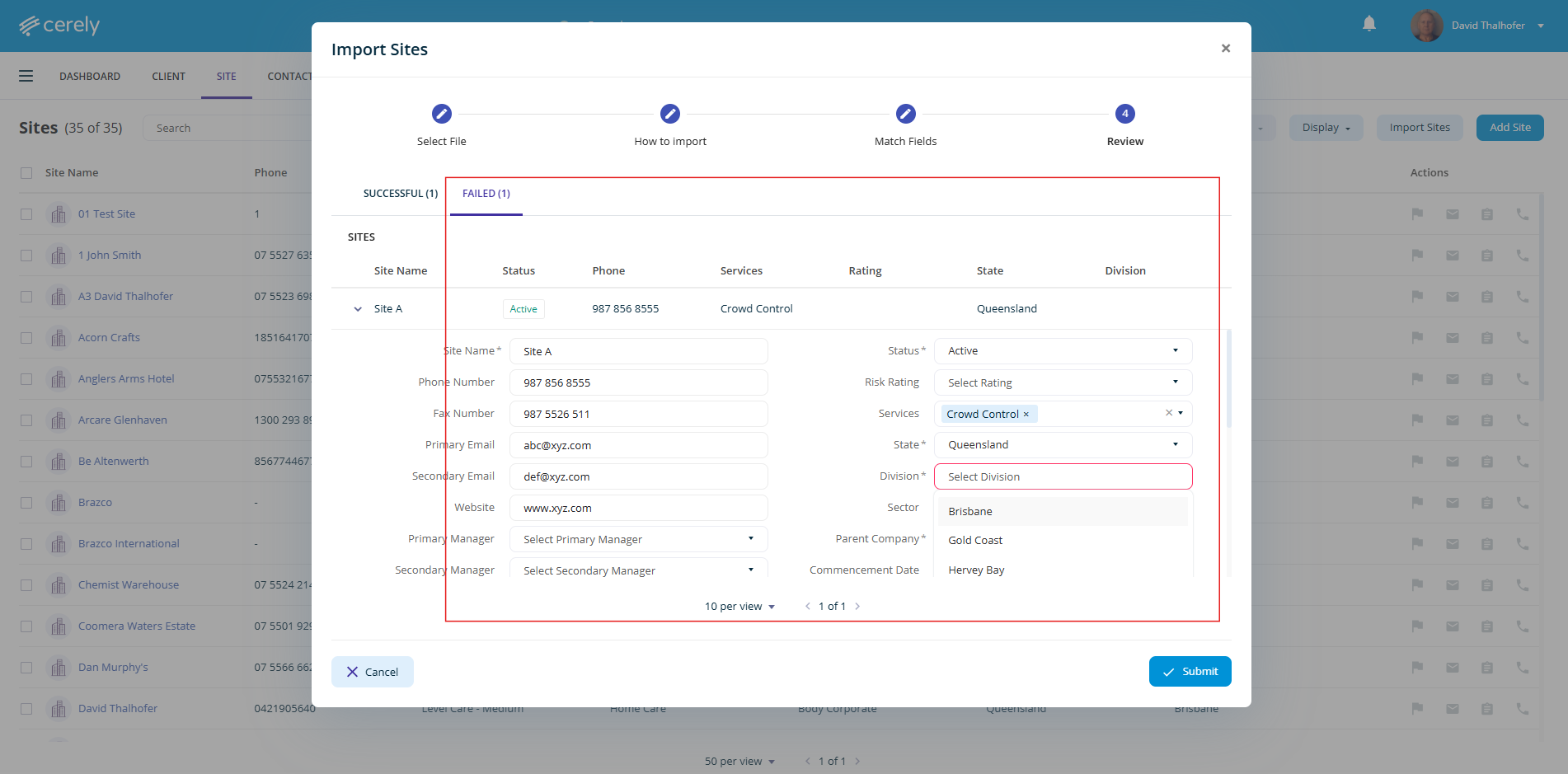
10. Once all data is correct, click the Submit button
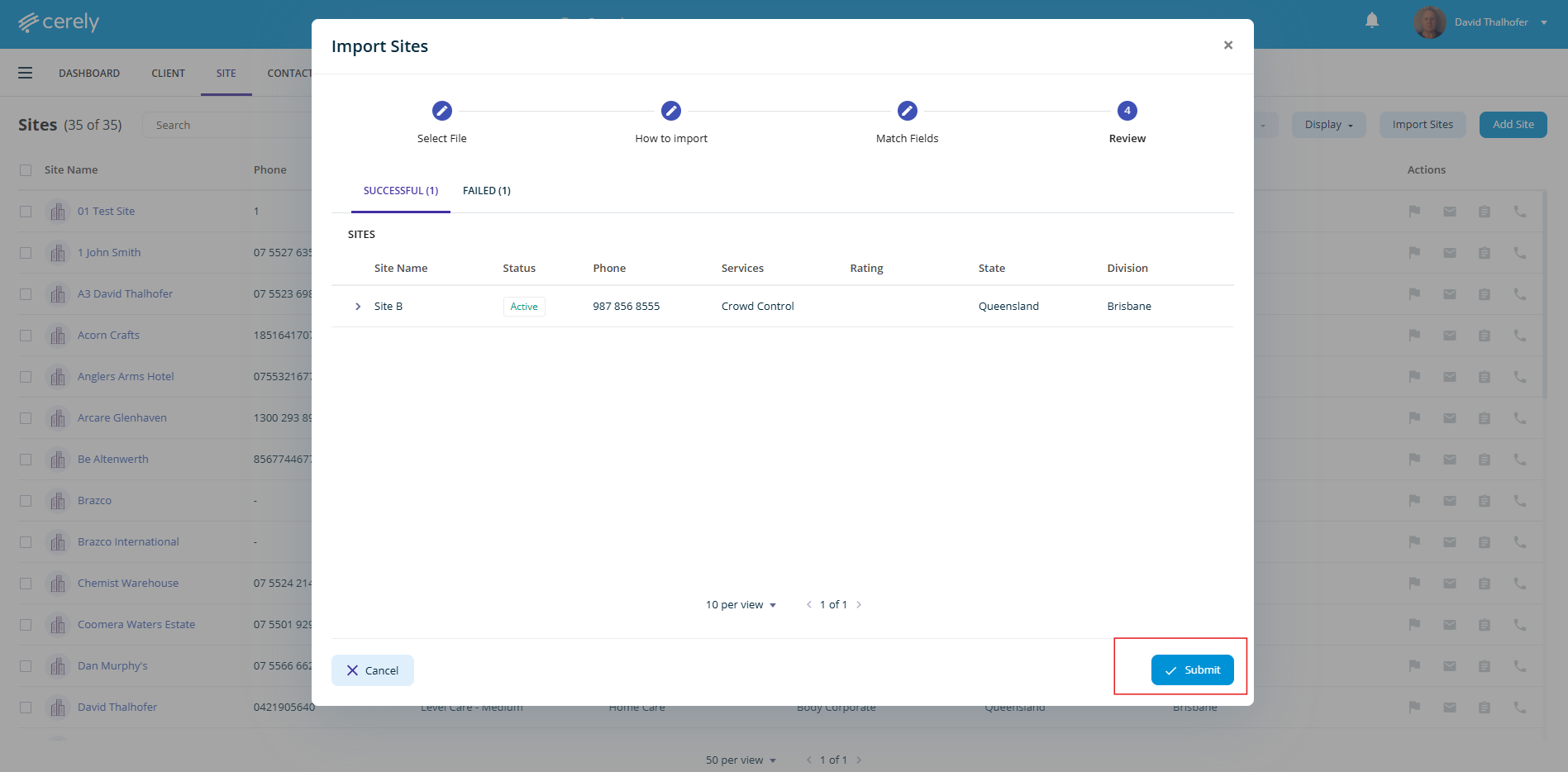
Your site records will now be imported and will appear in the Sites list
Was this article helpful?
That’s Great!
Thank you for your feedback
Sorry! We couldn't be helpful
Thank you for your feedback
Feedback sent
We appreciate your effort and will try to fix the article