Assigning report templates to specific sites ensures your team can complete site-relevant reporting directly from the Cerely mobile app. This article outlines the steps to assign one or more pre-built report templates to a site, making them available for use during scheduled shifts.
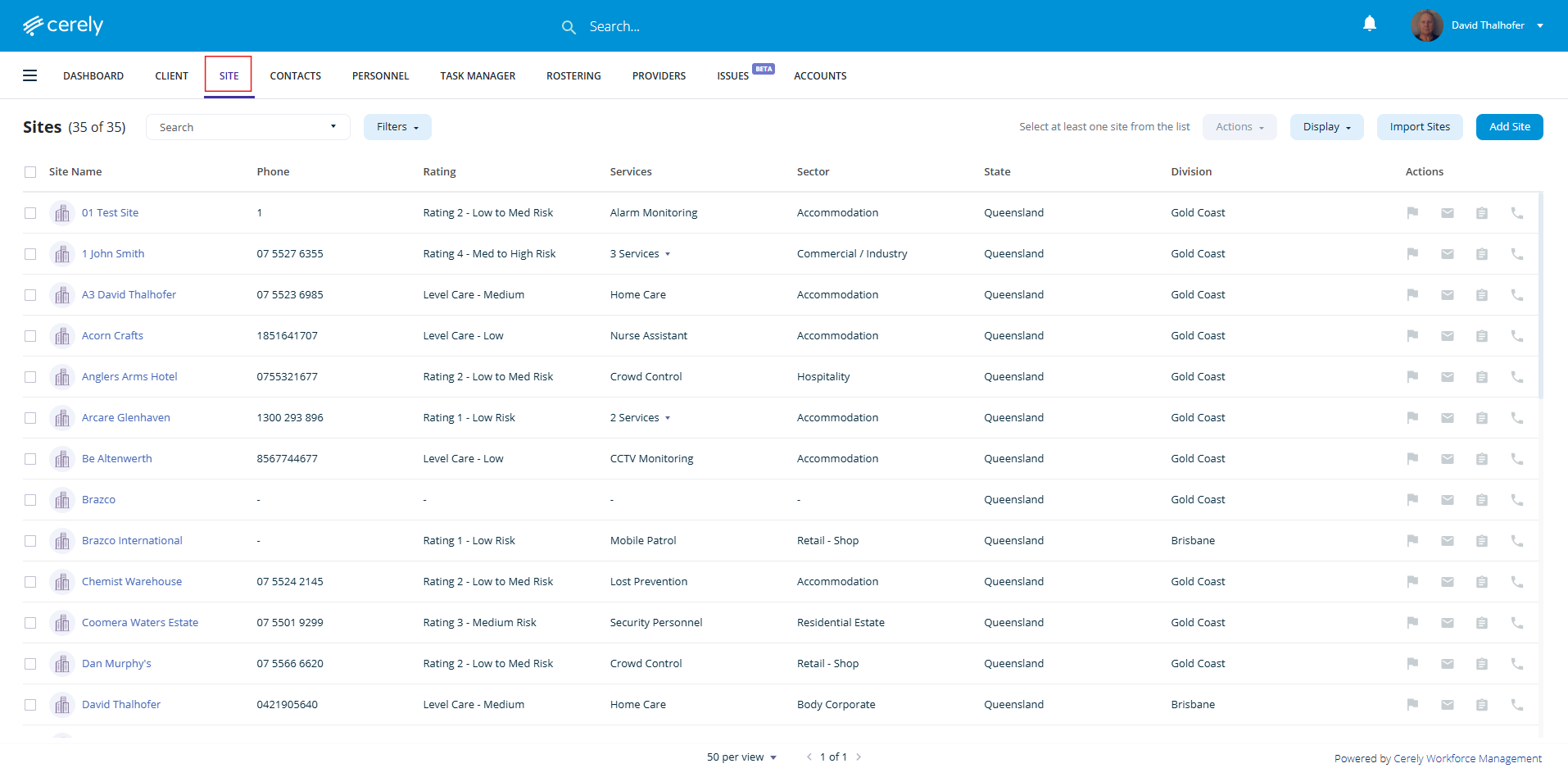
1. Navigate to the Sites tab from the main menu
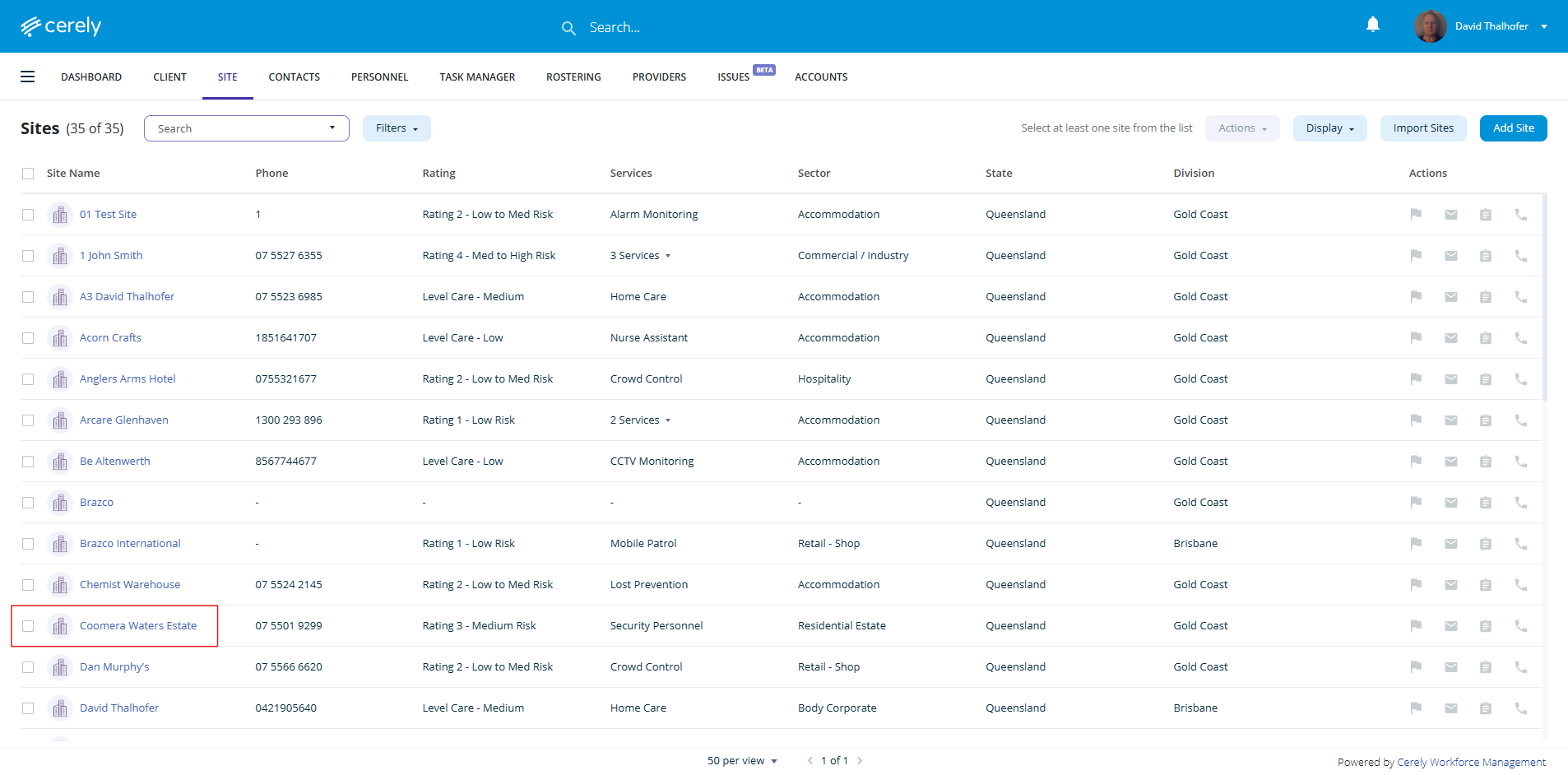
2. Select the Site you wish to assign the report template to
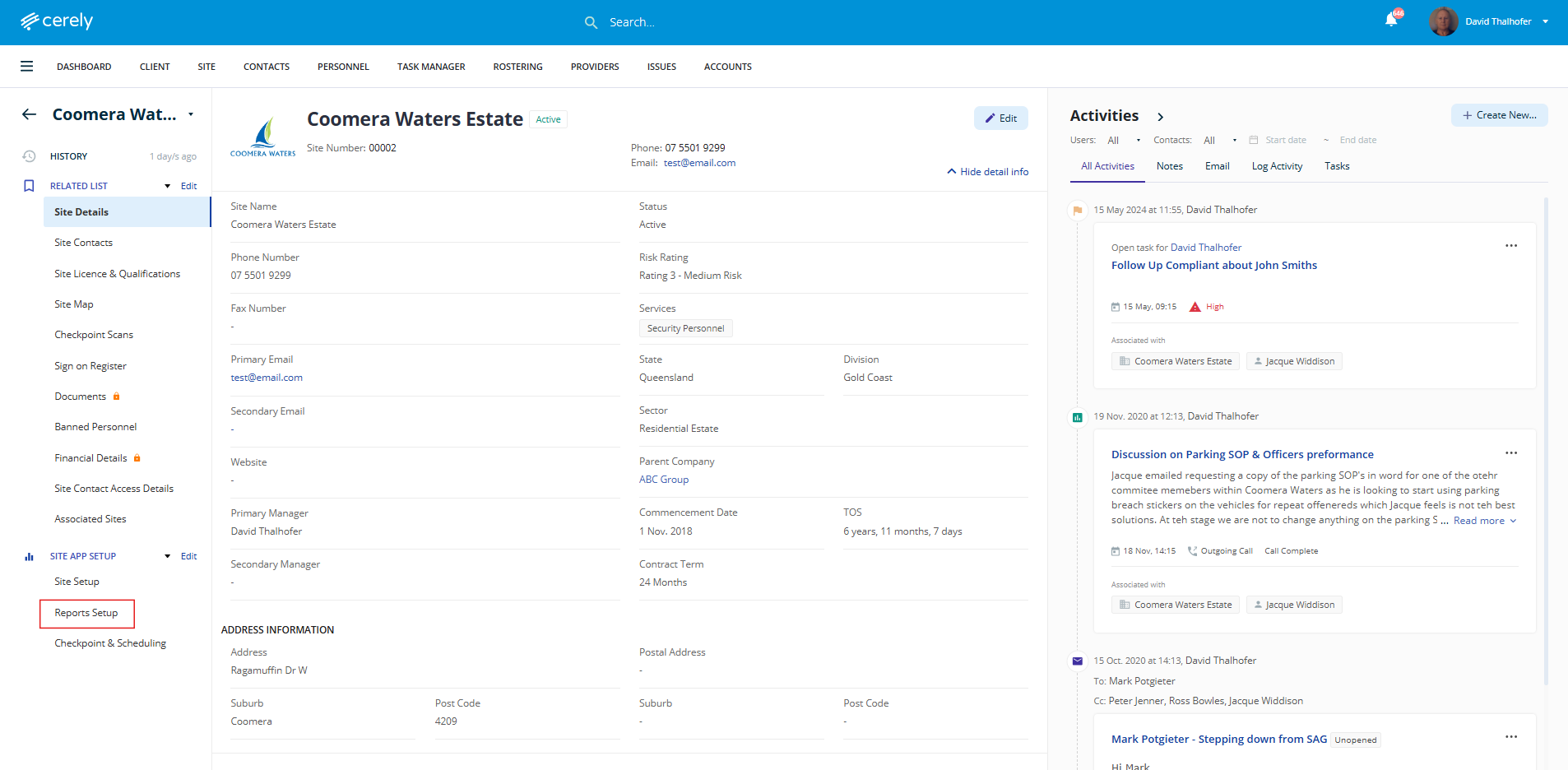
3. From the left-hand menu, select Reports Setup
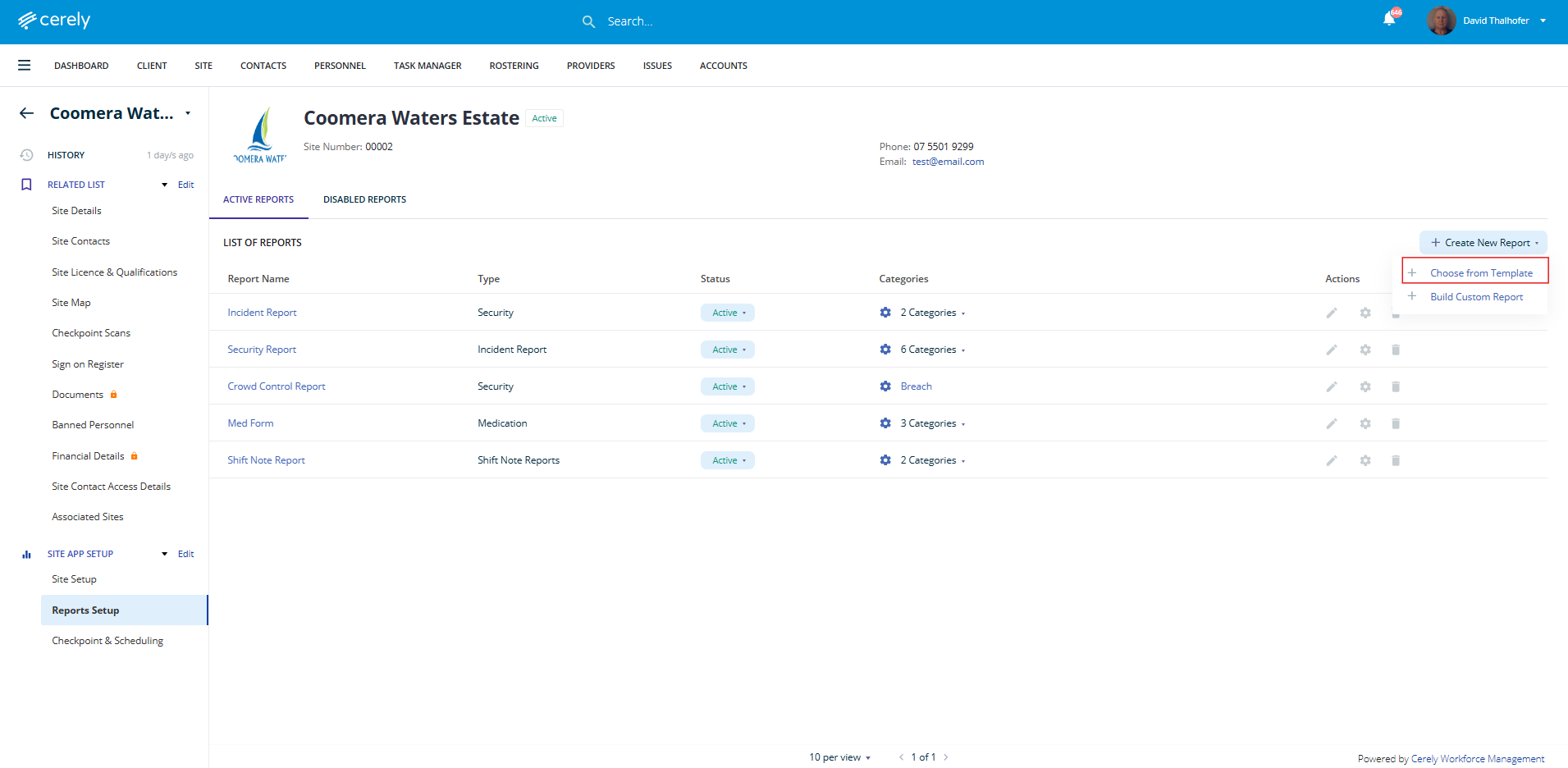
4. Click on the + Create New Report button on right hand side and from the dropdown menu select + Choose from Template
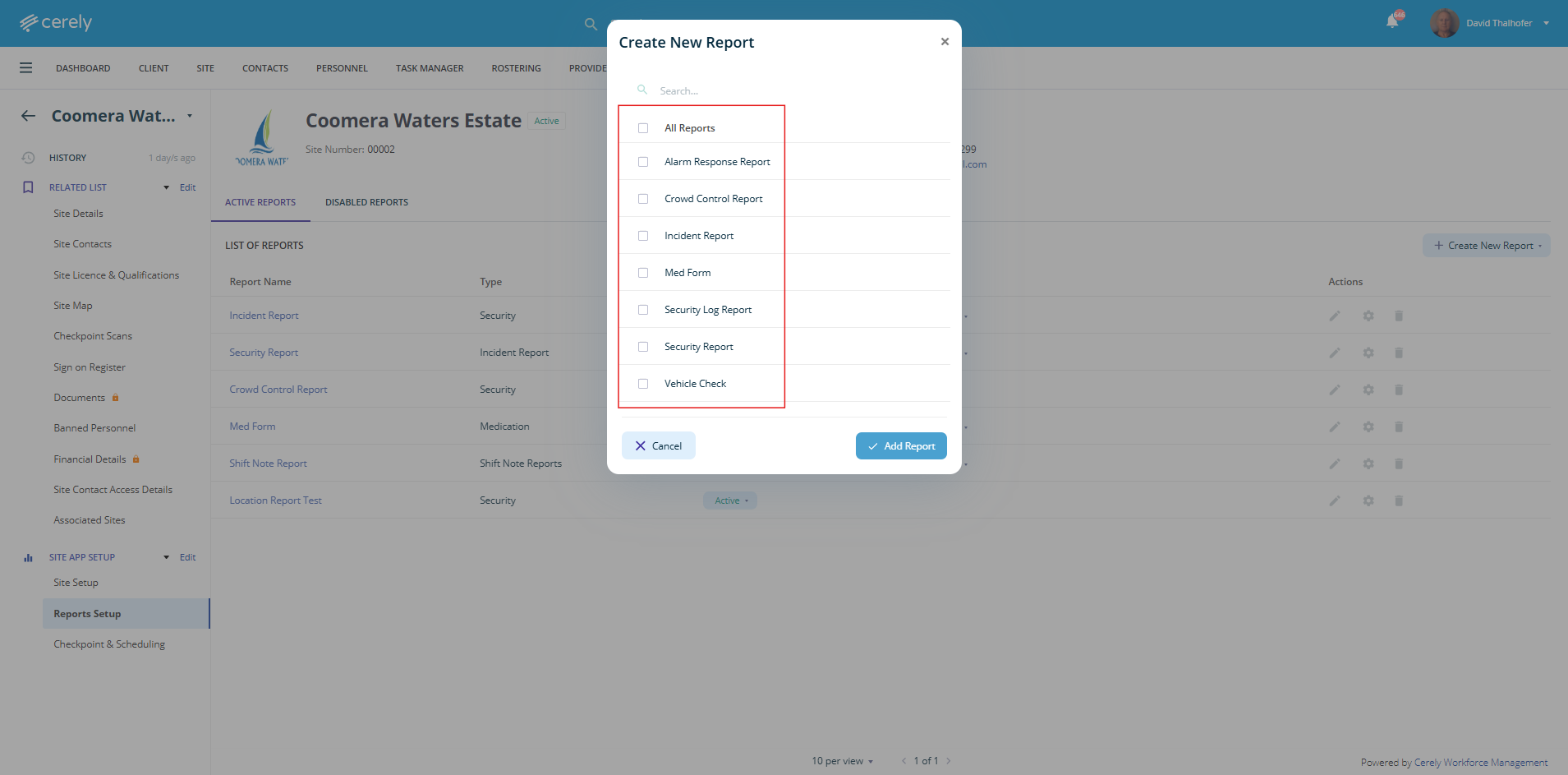
5. In the pop-up box, tick the checkbox beside each report template you would like to assign to this site or select All Reports for them all to be available
6. Once selected click the Add Report button
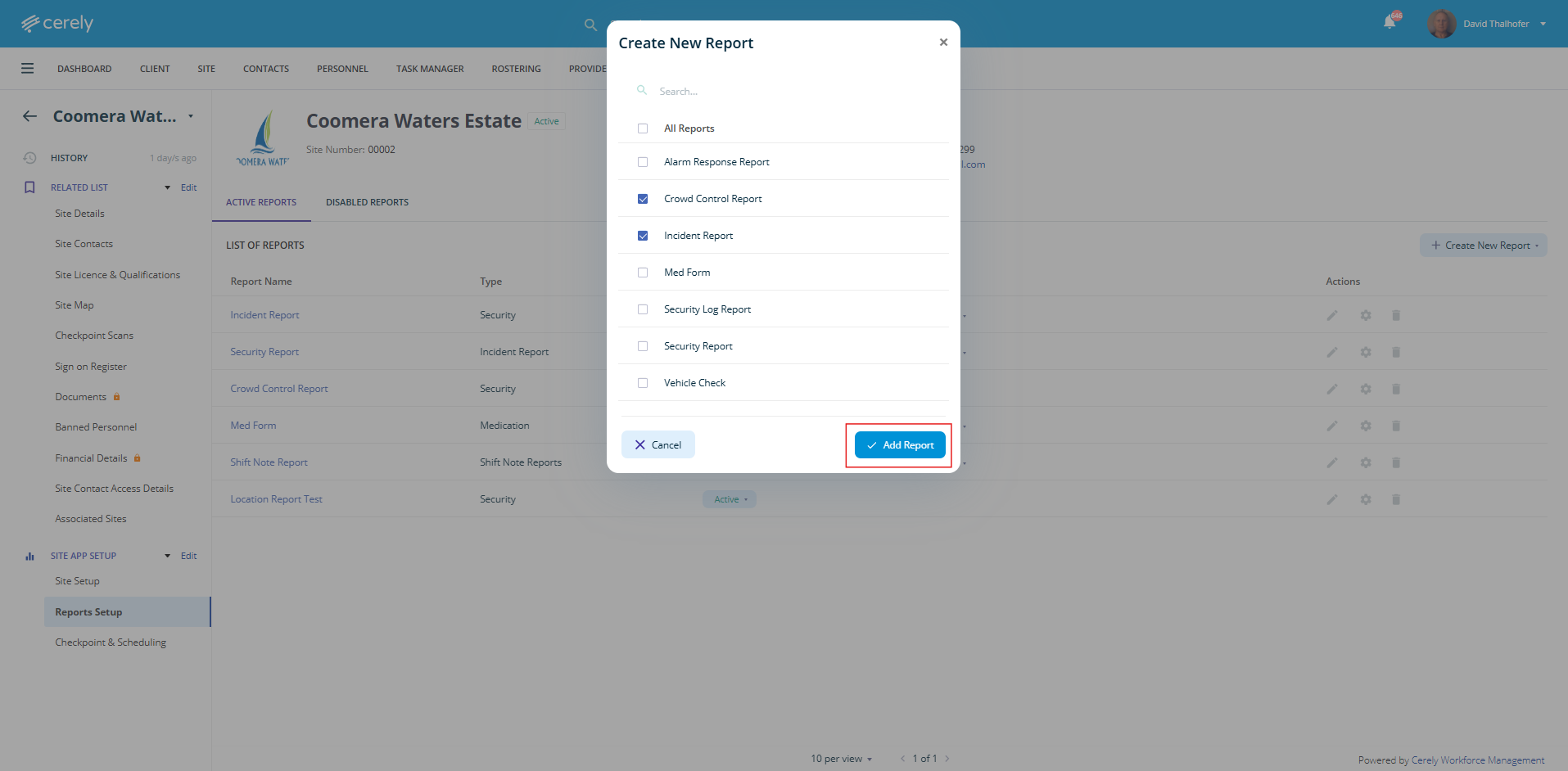
These reports are now live and available for employees to complete during their shifts at this site via the Cerely mobile app.
Was this article helpful?
That’s Great!
Thank you for your feedback
Sorry! We couldn't be helpful
Thank you for your feedback
Feedback sent
We appreciate your effort and will try to fix the article