The Task Manager allows you to create and manage tasks across your business. You can allocate tasks to a specific site, client, employee, or contact — ideal for tracking follow-ups like incident resolutions, customer service check-ins, or contract expiry reminders.
Access the Task Manager
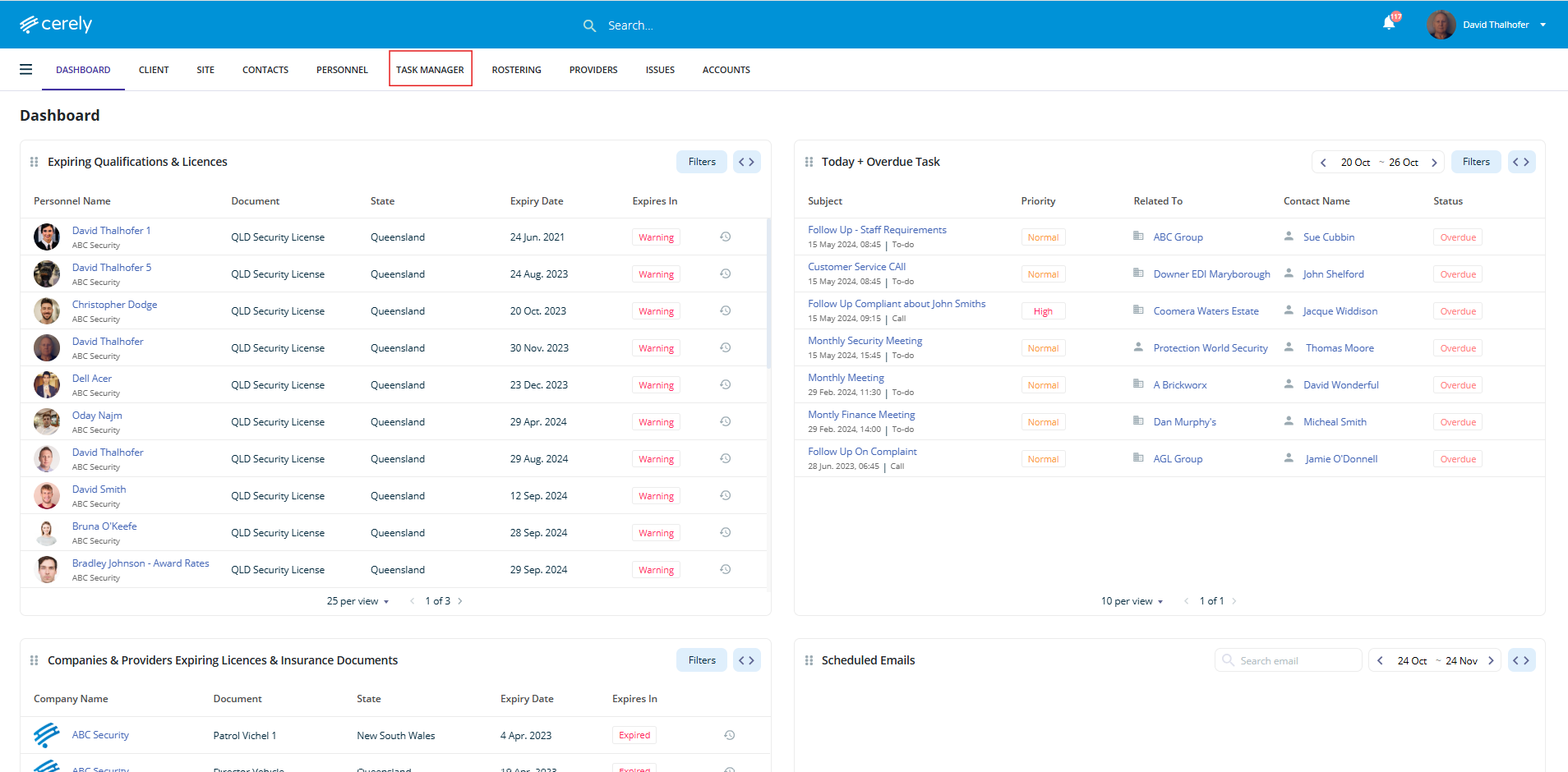
1. From the main menu, click on Task Manager
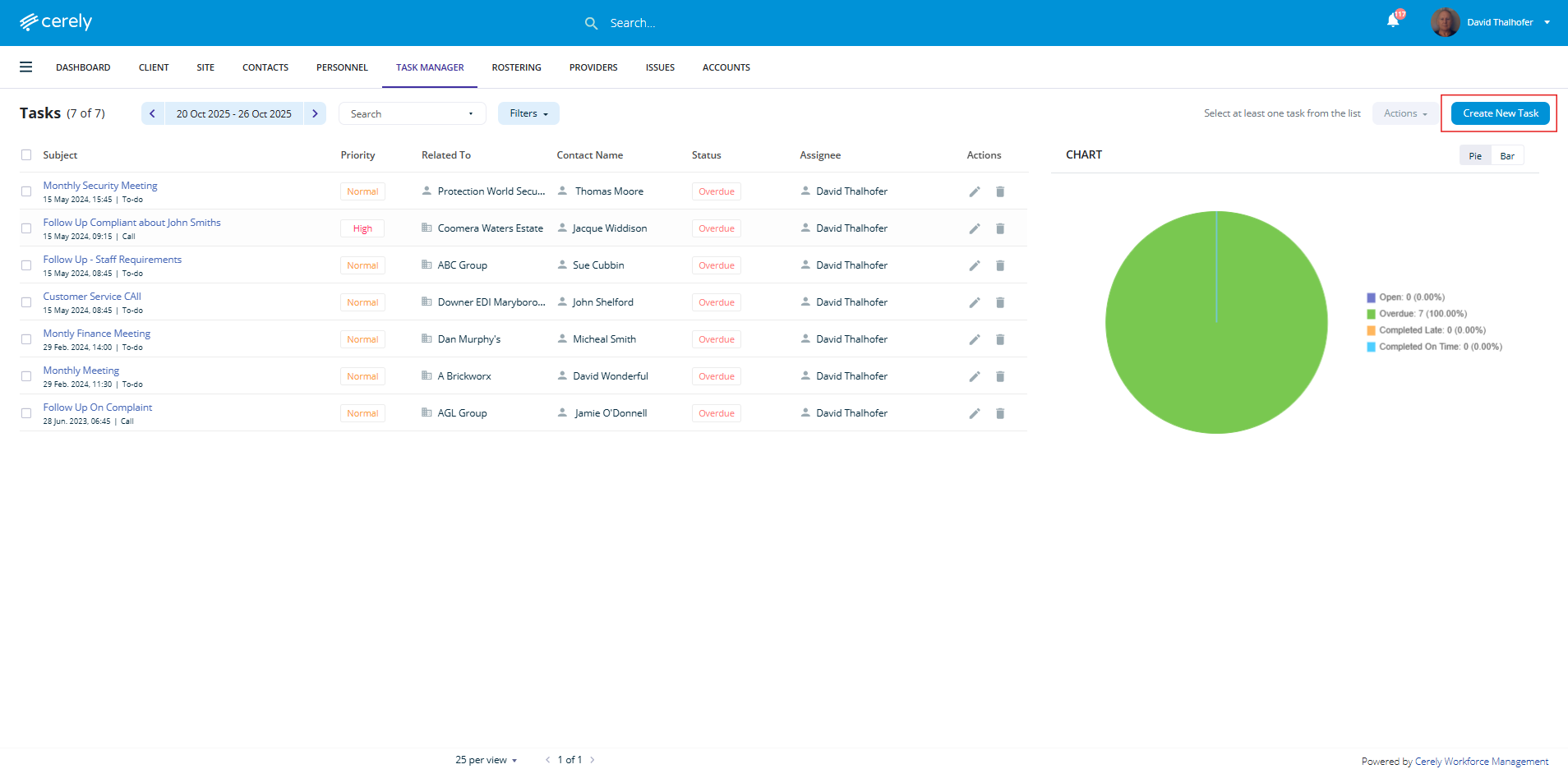
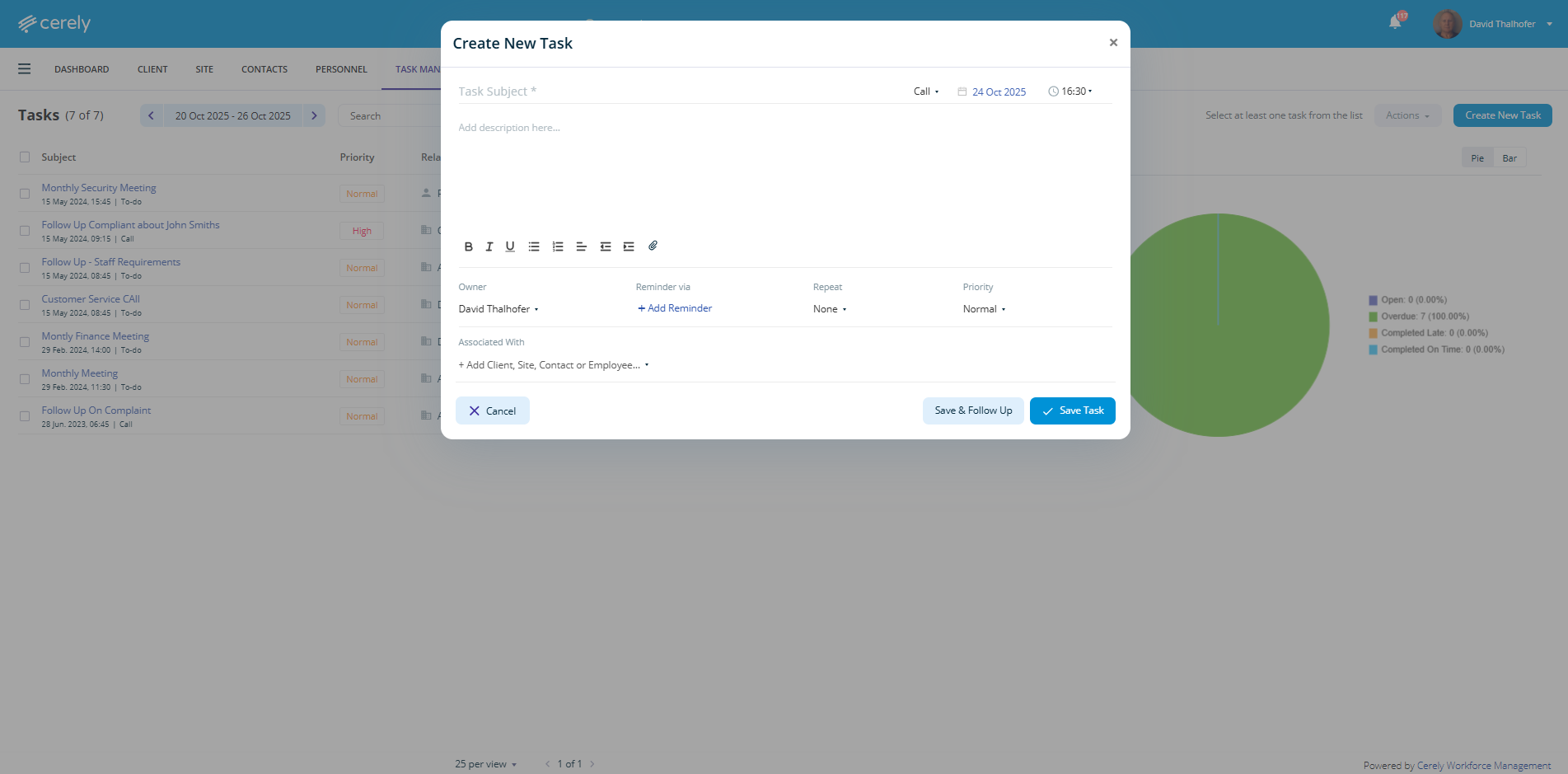
2. Click Create New Task and complete the following fields:
| Field | Description |
|---|---|
| Task Subject | Enter the title or name of the task |
| Type | Select the type: Call, Email, or To-Do |
| Date & Time | Allocate the due date and time the task needs to be completed |
| Description | Add any important details or context for the task |
| Attachments | Upload any supporting documents or images (optional) |
| Owner | Select the user responsible for completing the task |
| Reminder | Choose how to be reminded: Email, Popup, or None, and set timeframe |
| Repeat Pattern | Select if the task should repeat (e.g. daily, weekly, monthly) |
| Priority | Set the task priority: Low, Medium, or High |
| Associate With | Link the task to a Client, Site, Employee, or Contact as needed |
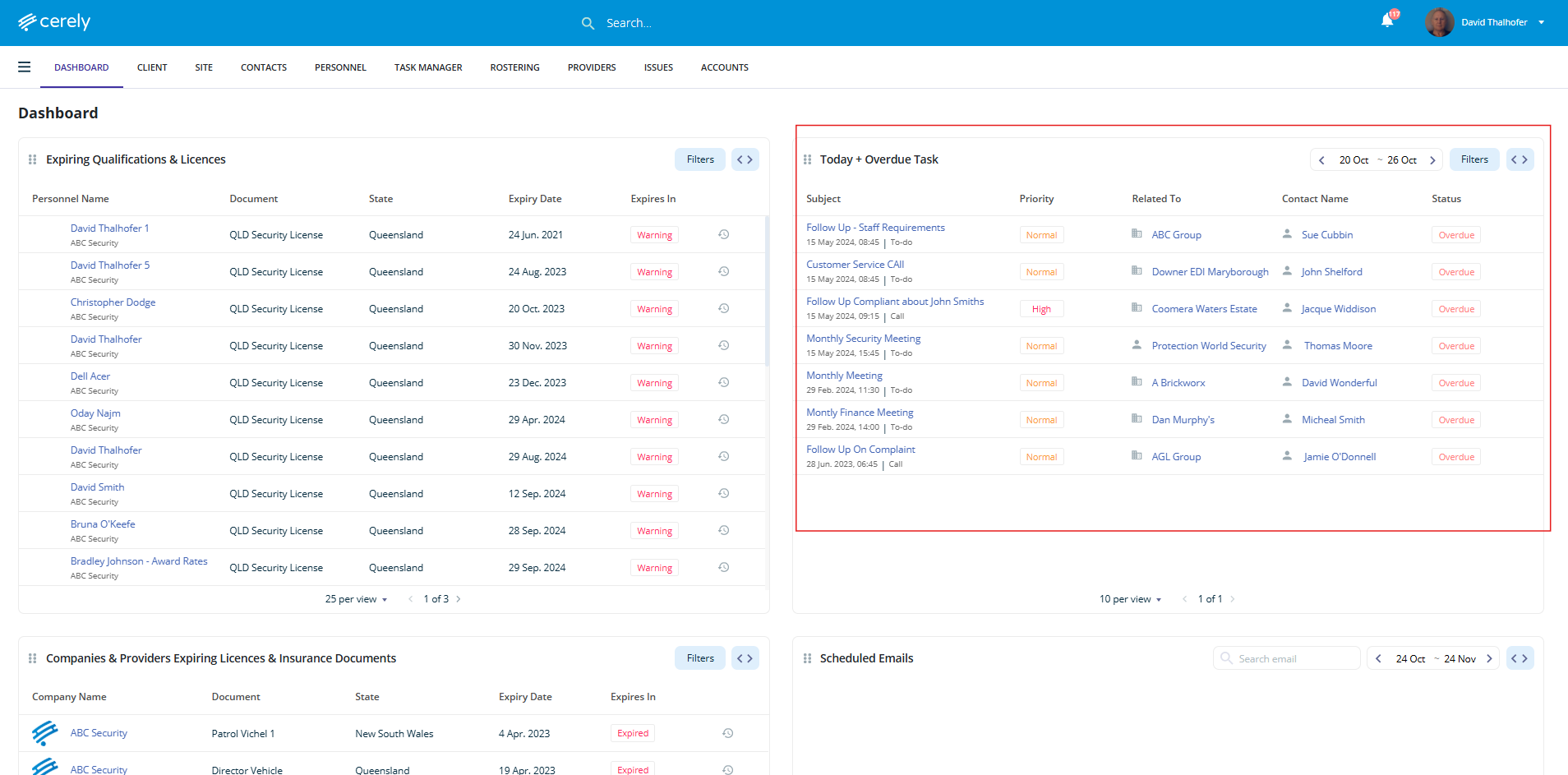
3. Task Dashboard View
Once created, the task will appear on the Task Manager Dashboard, summarised with:
Task Subject
Due Date & Time
Assigned Owner
Priority
Linked Entities (Client/Site/Employee/Contact)
Task Status (e.g. Not Started, In Progress, Completed
Was this article helpful?
That’s Great!
Thank you for your feedback
Sorry! We couldn't be helpful
Thank you for your feedback
Feedback sent
We appreciate your effort and will try to fix the article