Keeping your personnel informed is critical—whether it's for rostering updates, compliance reminders, or company-wide announcements. Cerely allows you to send mass emails directly from the personnel tab using flexible filters to reach the right individuals.
Step-by-Step: Sending a Mass Email to Personnel
1. Navigate to the personnel tab
From the main menu on the Cerely dashboard, go to the Personnel tab. This is where you manage and communicate with your operational workforce, including employees, guards, and contractors.
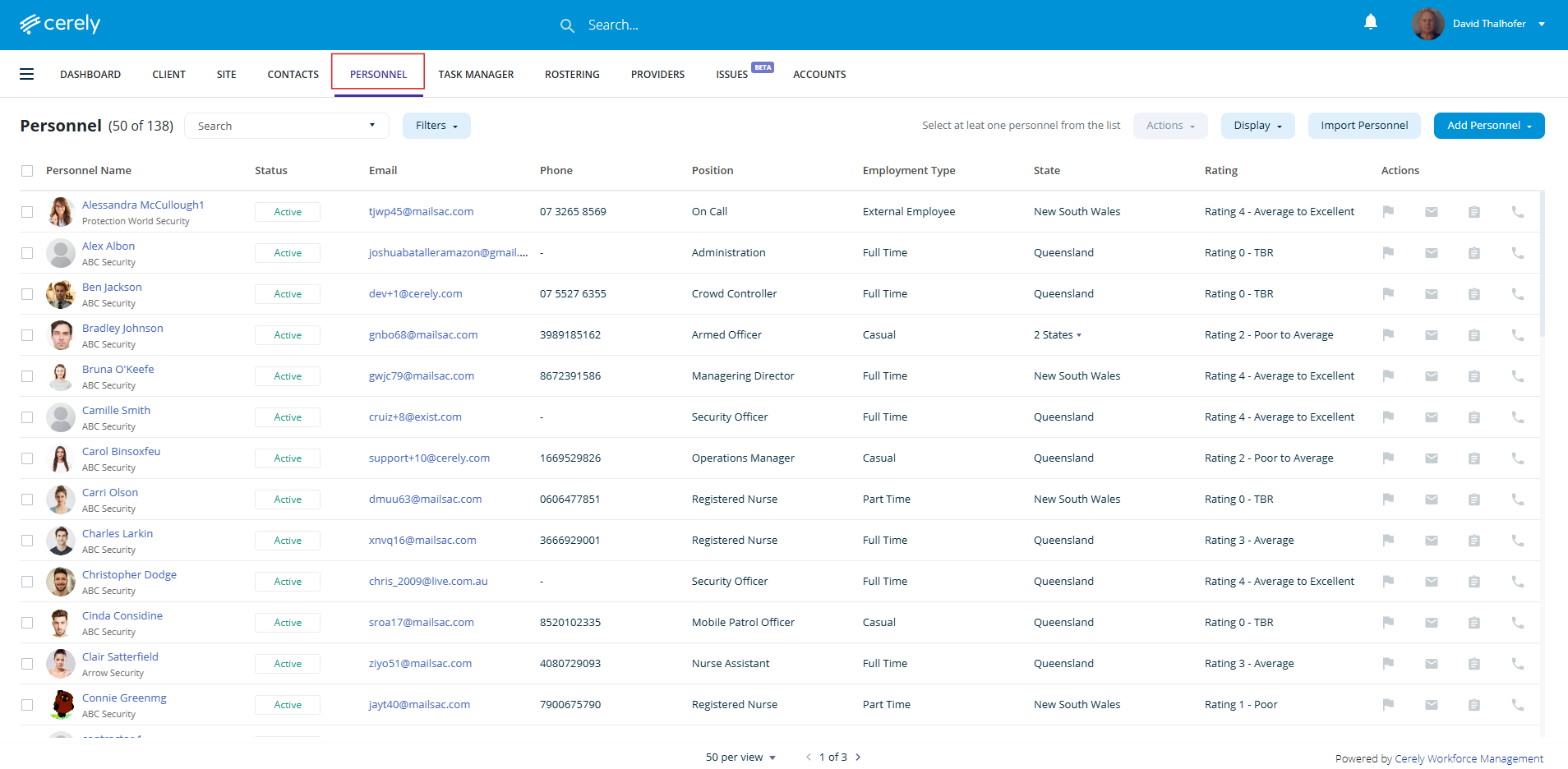
2. Filter your personnel list
Use the filtering options at the top of the Personnel screen to target your audience. You can narrow down recipients based on:
Position
Filter by job role (e.g., Security Guard, Supervisor, Patrol Officer).
Rating
Use internal performance or compliance ratings to target top-rated or underperforming personnel.State
Select personnel based in specific Australian states or territoriesDivision
Filter by your organisation’s divisionsEmployment Type
Choose between full-time, part-time, or casual workers.Employer
If managing personnel under different entities or subcontractors, filter by employer.Status
Include:Active personnel currently employed or deployed
Inactive personnel who are archived

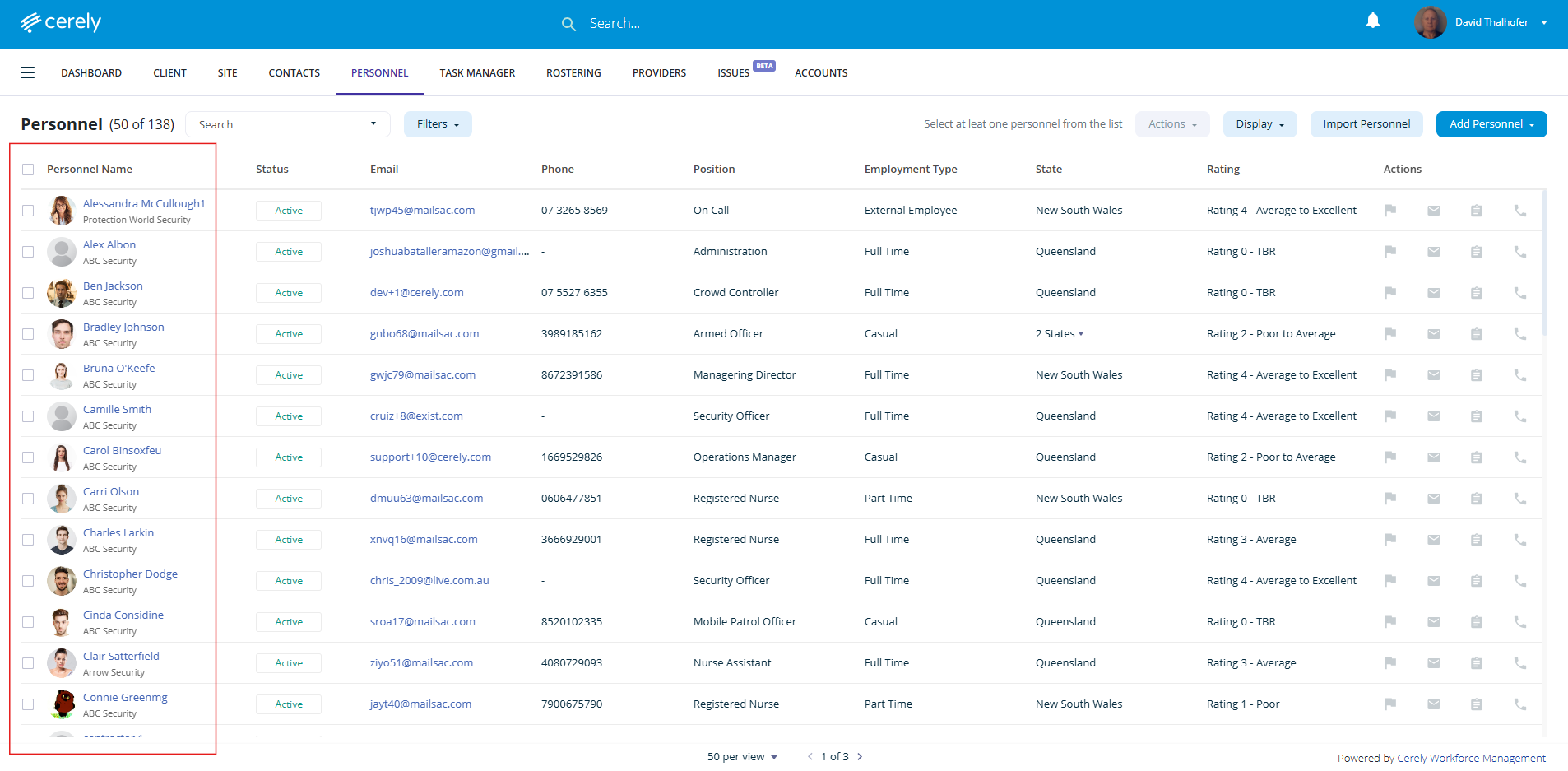
3. Select the personnel to email
Use the checkbox at the top to select all filtered personnel, or
Manually tick individual team members you wish to include in the email
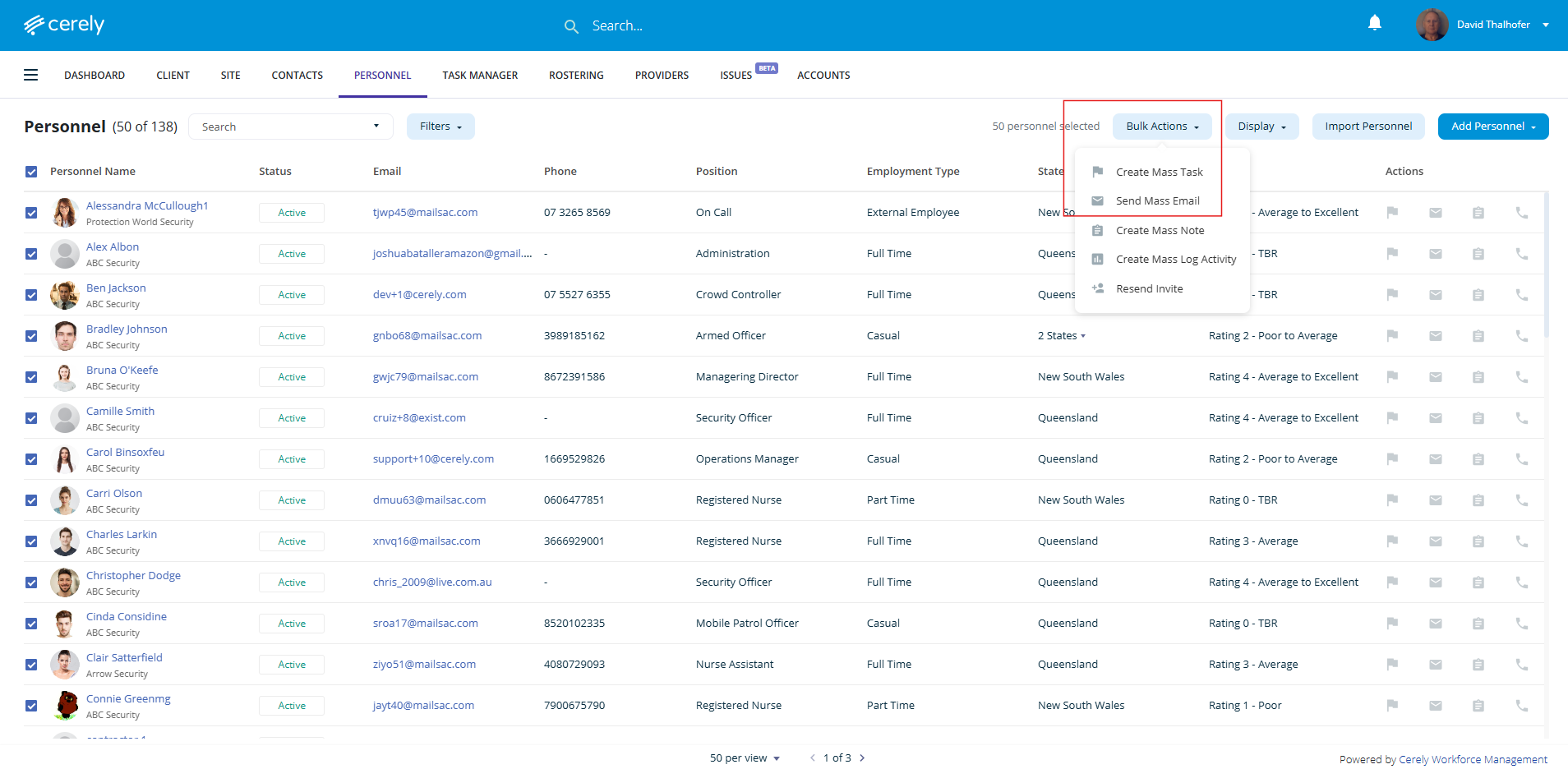
4. Initiate the Bulk Email
Click the bulk actions button
Select send mass email from the dropdown menu
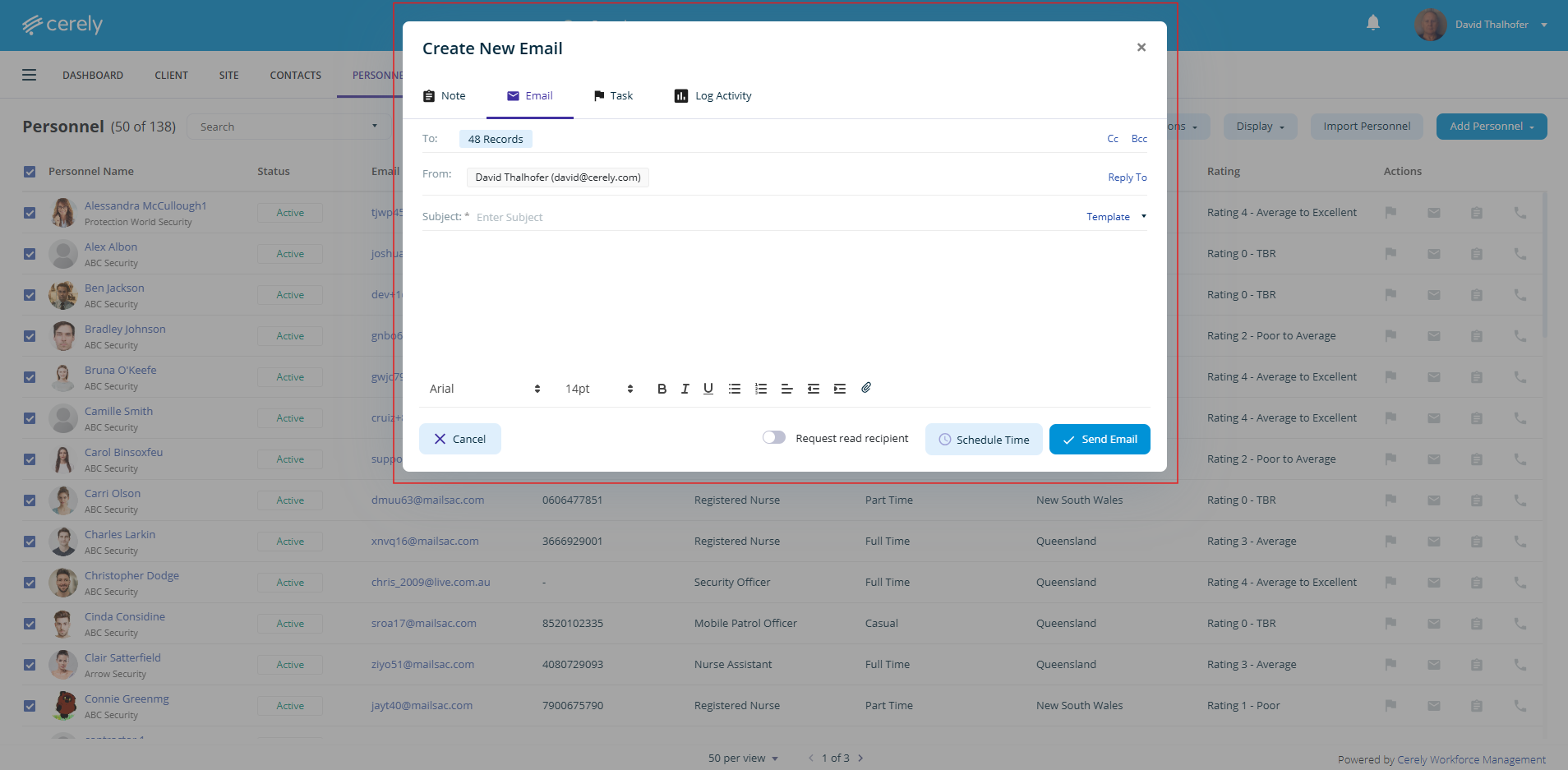
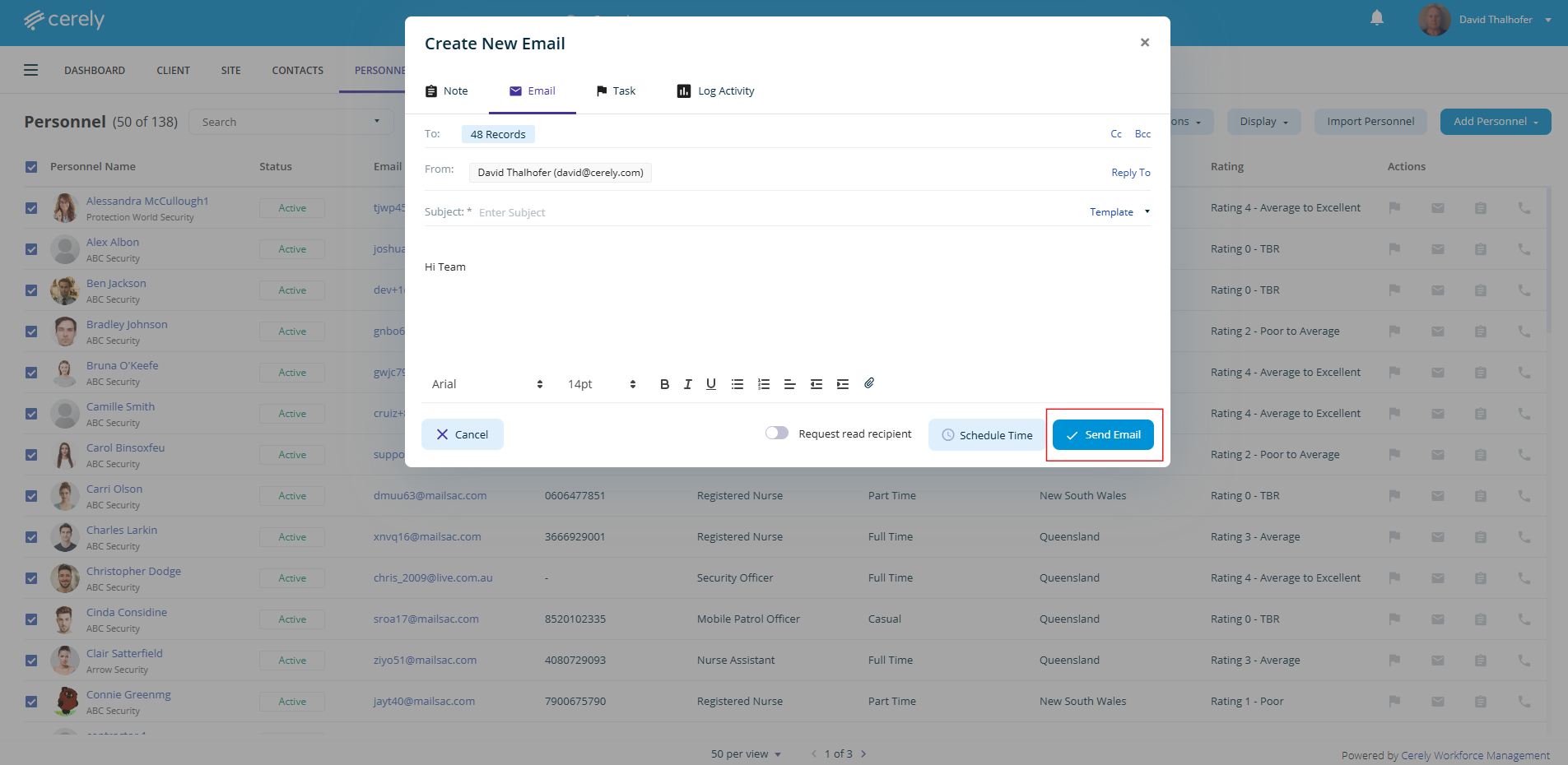
5. Compose your email
You’ll be directed to the email editor screen. Here, you can:
Type a custom message (e.g., schedule changes, reminders, announcements)
6. Send the email
You can:
Send the email immediately
Note: Once the email is sent, a record will automatically appear in the activity timeline of each personnel profile, giving you and your team a clear audit trail of communications.
Was this article helpful?
That’s Great!
Thank you for your feedback
Sorry! We couldn't be helpful
Thank you for your feedback
Feedback sent
We appreciate your effort and will try to fix the article