To manage your upcoming shifts in the Cerely app, follow these steps:
1. Open the Cerely app on your mobile device
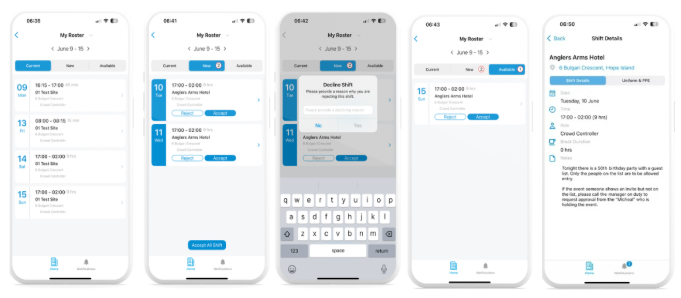
2. From the Home screen, tap ‘Roster’ to go to the roster page
3. The Roster page has three tabs:
Current: Displays all accepted shifts for the current week
New: Shows shifts offered to you, which you can Accept or Reject (these may be for this week or future dates)
Available: Lists extra shifts offered on a first-come, first-served basis
4. The app shows the current week’s date range (Monday to Sunday) by default in all tabs
5. In the Current tab:
View your accepted shifts for the current week
Tap on any shift to view full details
6. In the New tab:
View new rostered shifts for this week or future dates
Tap a shift to view its details
Choose to Accept or Reject the shift
To view future rosters in the New tab:
Tap the date field at the top of the screen
A calendar will appear — select your desired date range
The roster will update with shifts for the selected week
Tap on a shift and choose to Accept or Reject
If you Reject a shift, you will be asked to provide a reason
7. In the Available tab:
View extra shifts offered for this week or in advance
Tap a shift to view full details
Choose to Accept or Reject the shift
If you Reject an available shift, a reason must be provided
Important: Always tap into each shift to view any important shift notes, site information, or uniform requirements before accepting
Was this article helpful?
That’s Great!
Thank you for your feedback
Sorry! We couldn't be helpful
Thank you for your feedback
Feedback sent
We appreciate your effort and will try to fix the article